

What these settings control
- The font family used for all headings
- The font family used for body text, links, buttons, prices and form fields
- The size ratio between consecutive heading levels, from the smallest heading up to the largest
How to access
1
Open the Theme Customizer
From your Shopify admin, go to Online Store, then Themes, and select Customize.
2
Open Theme settings
Select the Theme settings icon at the bottom of the left sidebar.
3
Select Typography
Expand the Typography group to see the Fonts settings.
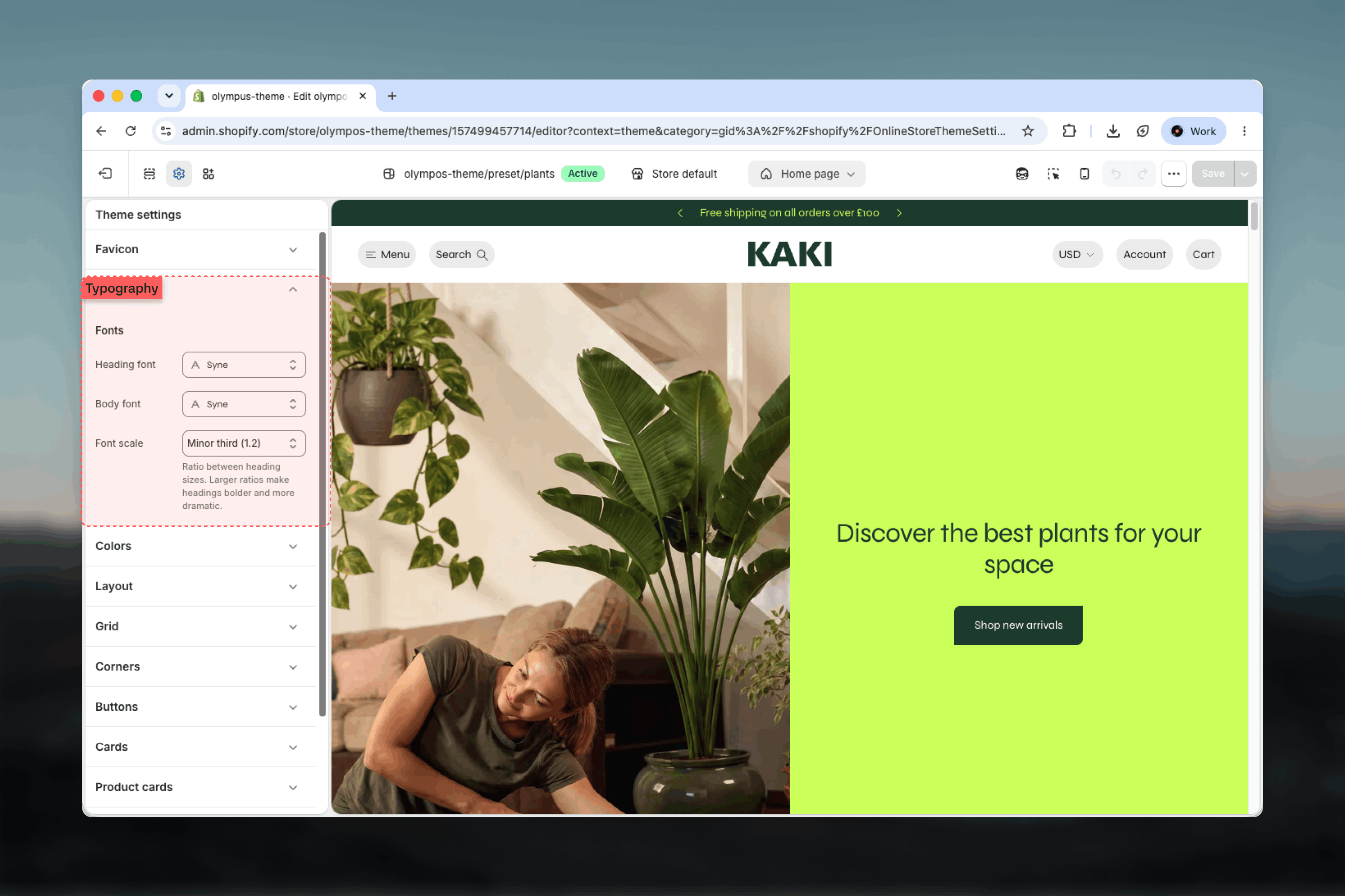
Settings
Fonts
Heading font: The font family used for every heading in the theme, including section headings, product titles and card titles. Choose from Shopify’s font library. Default: Assistant, bold weight. Olympus loads the regular, bold and italic styles of the heading font so rich text inside headings renders correctly. Body font: The font family for paragraphs, navigation links, buttons, prices and form fields. Default: Assistant, regular weight. Regular, bold, italic and bold italic styles are loaded so emphasis in descriptions and rich text displays as expected. Font scale: The ratio between one heading size and the next. Olympus derives the six heading sizes by multiplying the base size by this ratio repeatedly, so a larger ratio makes large headings noticeably bigger while smaller headings change very little.- Minor third (1.2): Compact scale. Headings stay close to body size, which suits dense pages and long product titles.
- Major third (1.25): Balanced scale with clear hierarchy. Default.
- Perfect fourth (1.333): Dramatic scale. Large headings become bold statements, which suits editorial home pages with short headings.
Letter case, letter spacing and font weight are not separate theme settings in Olympus. Weight is set by the variant you choose in the font picker, for example Assistant Bold for headings.
Best practices
- Pair with intent: A distinctive heading font with a neutral body font gives personality without hurting readability. Two decorative fonts compete for attention.
- Pick the weight in the picker: Choose the heading font’s bold or semibold variant directly in the font picker, since there is no separate weight setting.
- Test the scale on real titles: Preview the largest heading on the home page and a long product title on a Product Page (PDP) before committing to Perfect fourth.
- Keep the body size legible on mobile: The scale affects headings only, so long paragraphs stay readable at any ratio, but very large hero headings may wrap awkwardly on small screens.
- Limit font changes to launch: Fonts load on every page, so changing them later shifts the look of every section at once; preview several page types before saving.