

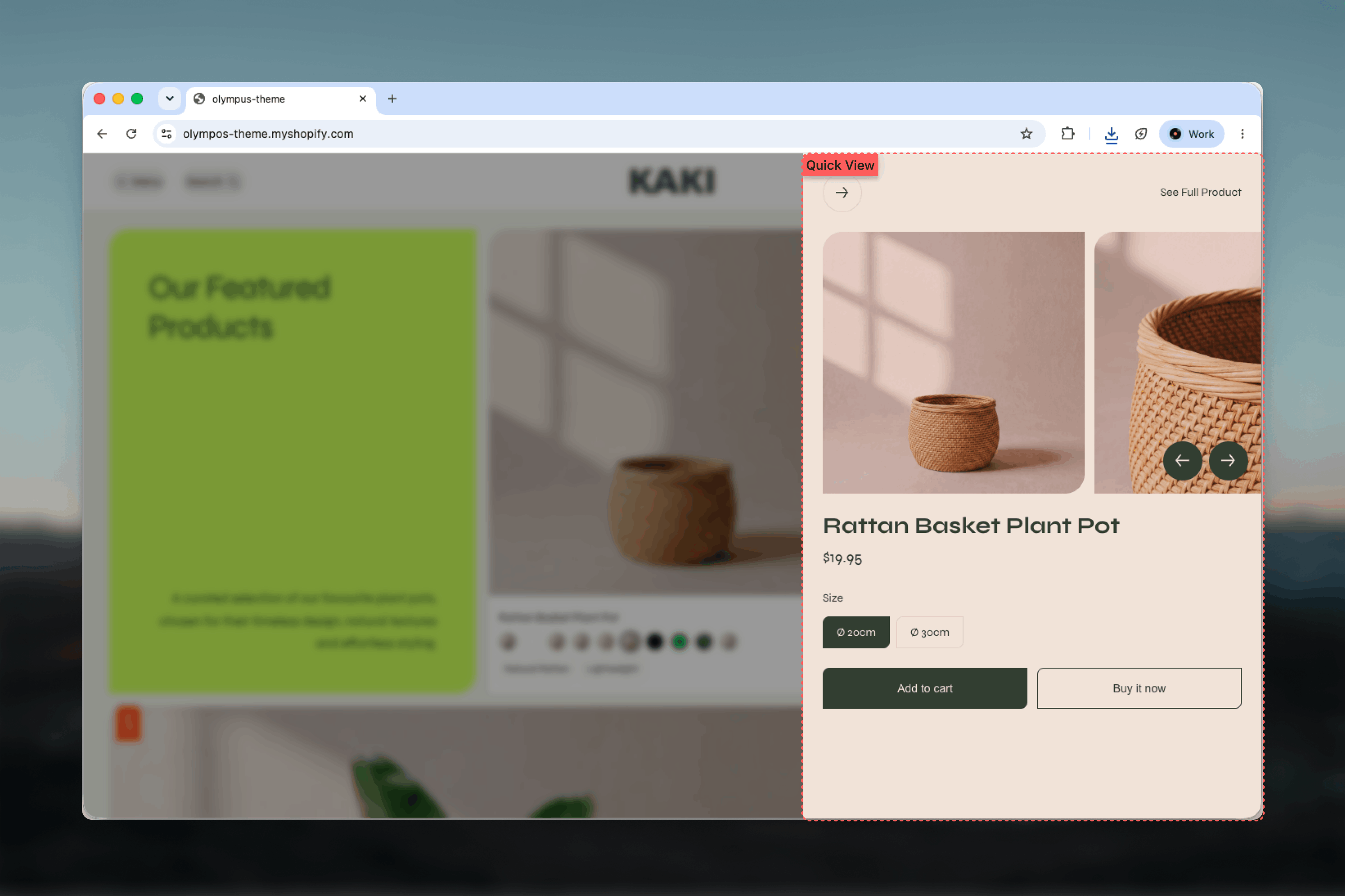
What this section controls
- The color scheme of the drawer panel
- A media slider with arrows when the product has more than one image or video
- Product title and the price of the selected variant
- Option pickers: the color option as swatches, images or text; all other options as text pills
- Add to cart, which reads Sold out when the selected variant is unavailable
- Buy it now, which goes straight to checkout
- A See full product link and a Close control
How it works
Product cards show a plus button in the corner of the image. On screens 750 pixels and wider it stays hidden and fades in when the card is hovered or reached with the keyboard; on smaller screens it is always visible. What it does depends on the product:- Several variants: the button opens Quick view so the shopper can choose options first.
- One variant: the button adds the product to the cart immediately, without opening the drawer, showing a spinner while the request runs.
- Sold out: the button is disabled.
If the Quick view drawer has been removed from the Modals & drawers group, the quick add button on multi-variant products links to the Product Page (PDP) instead, so shoppers can always reach the options.
Quick view cannot be added to a page like a regular section. It is always present in the Modals & drawers group and is used by every product card in the theme, including Featured products, Related products, Recently viewed products and collection grids.
Getting started
1
Open Theme Customizer
From Shopify admin, open the Theme Customizer on any template.
2
Open Modals & drawers
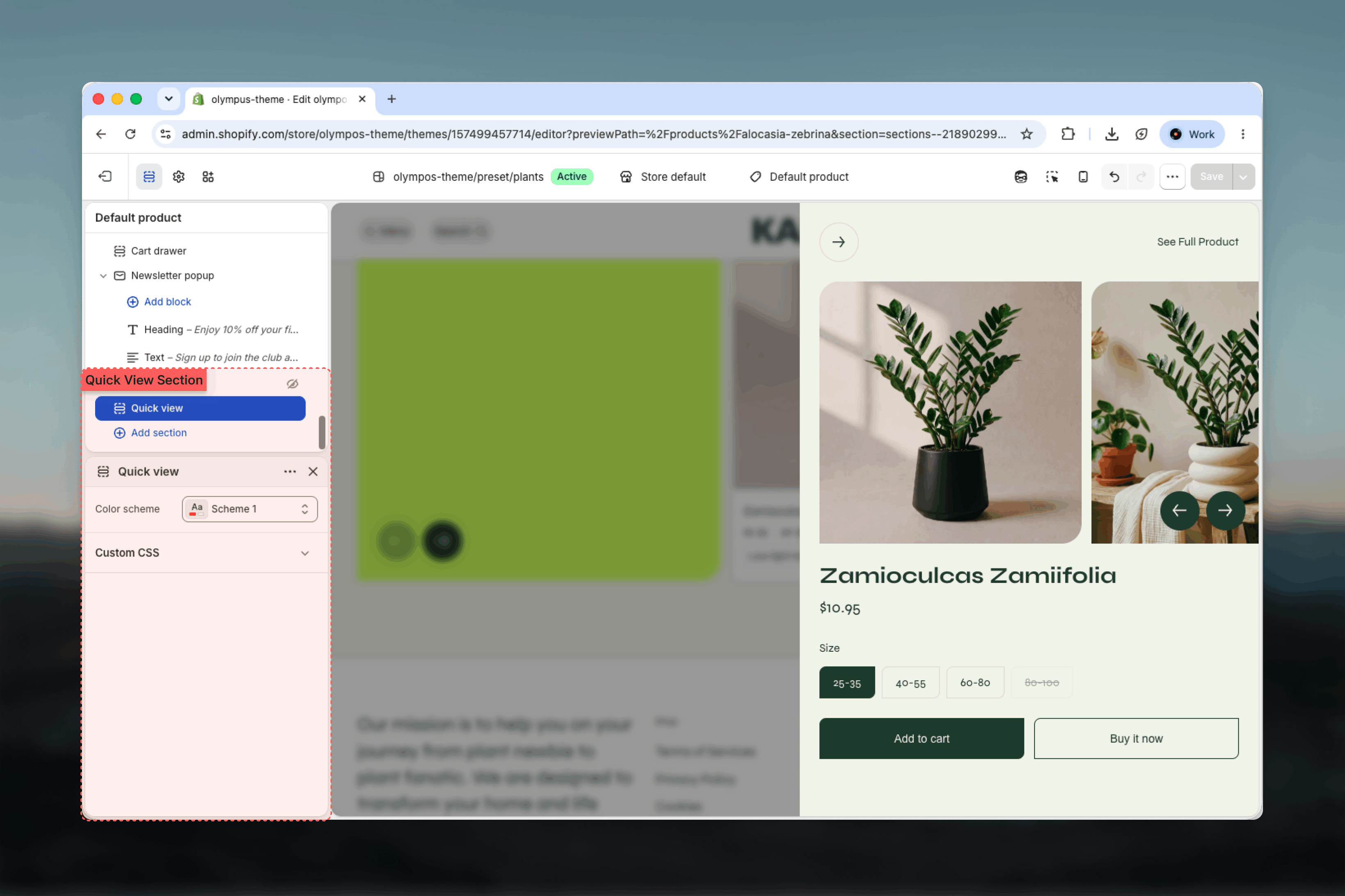
Scroll the left sidebar to the Modals & drawers group and select Quick view.
3
Choose a color scheme
Pick the Color scheme for the drawer panel. Preview by clicking the quick add button on a product with several variants.
4
Set the color option style
In Theme settings, open Product cards and set Quick view — color variant style to Color, Image or Text.
Section settings
Color scheme: paints the drawer panel, its text and the buttons. Default: Scheme 1. We recommend the same scheme as the Cart drawer so the two overlays read as one system; a shopper often sees them back to back.Related theme settings
Two groups of theme settings shape what Quick view shows. Both are on the Product cards page.Quick view — color variant style
Quick view — color variant style
How the color option is presented inside the drawer. Default: Color.
- Color: round swatches filled with the variant’s swatch color or swatch image.
- Image: a small variant image with the value name under it. Falls back to the variant’s own image, then to the color name.
- Text: plain text pills, the same style used for every other option.
Mobile quick add
Mobile quick add
Button background, Button corners and Button placement style the plus button on product cards that opens Quick view. Despite the group name they apply on every screen size — the button is always visible on mobile and fades in on hover or keyboard focus on desktop. They do not change the drawer itself.
What shoppers see
- Media slider: every product image and video, with previous and next arrows when there is more than one item.
- Title and price: the price follows the selected variant.
- Options: one group per product option, with the currently selected value highlighted.
- Add to cart: adds the selected variant in the background and opens the cart drawer with the updated contents. Reads Sold out and is disabled for unavailable variants.
- Buy it now: skips the cart and goes to checkout.
- See full product: opens the Product Page (PDP) for shoppers who want the description, reviews or more media.
Best practices
Match the Cart drawer scheme
Shoppers move from Quick view to the cart in one click. Identical schemes make that transition feel deliberate.
Use Color swatches when data exists
Color mode needs swatch colors or images on your option values. Without them the swatch falls back to the value name as a color, which is unreliable.
Keep option names simple
The drawer detects the color option by its name. Naming it Color or Color ensures the swatch style applies.
Lead with the best image
The featured image is the first slide. Make it the one that sells the product on its own.
Do not hide essentials in the description
Quick view omits the description. Sizing and material details that affect the purchase belong in option names or on the card.
Test on mobile
The drawer stacks media above the details on phones. Check that long option lists still leave the buttons reachable.
Related guides
Product cards
Quick add button styling and the Quick view color variant style
Cart drawer
The overlay that opens after adding from Quick view
Product groups
Metaobject-based groups that link separate products as color variants