

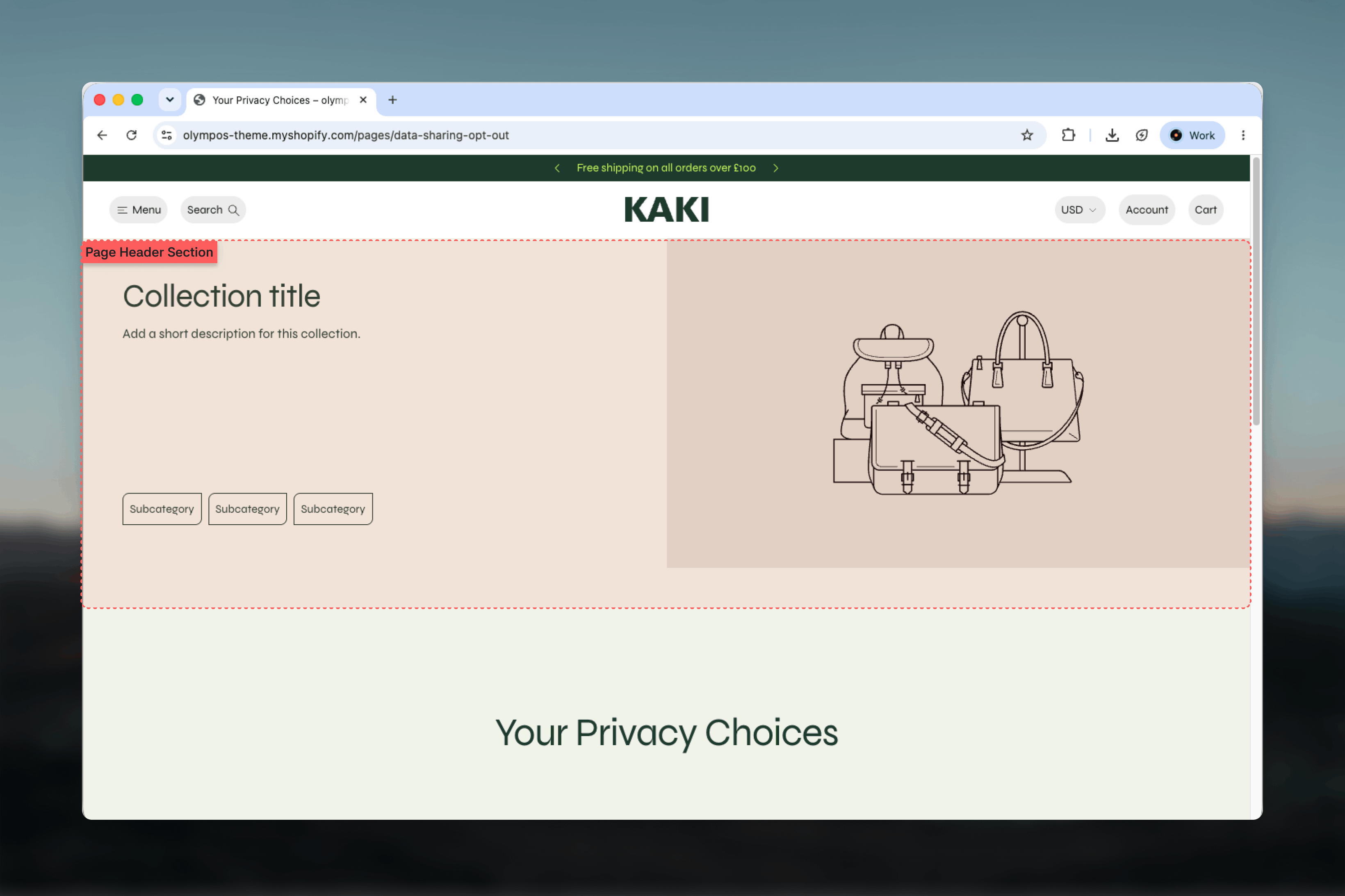
What this section controls
- Split or Background image layout
- Subcategory links shown as pills or cards, from blocks or a metafield
- Pill spacing, corners and an optional separate color scheme
- Breadcrumbs and their alignment
- Desktop and mobile images, image position, overlay and minimum height
- Heading, Text and Subcategory link blocks
Getting started
1
Open Theme Customizer
From Shopify admin, open the Theme Customizer and choose the collection or page template from the page selector.
2
Add Page header
Choose Add section and pick Page header. Place it at the top of the template, above the product grid.
3
Choose a layout
Pick Split or Background image, then add an Image or leave it empty to use the collection image.
4
Add subcategories
Add Subcategory link blocks, or enable Get subcategories from a metafield and enter the metafield reference.
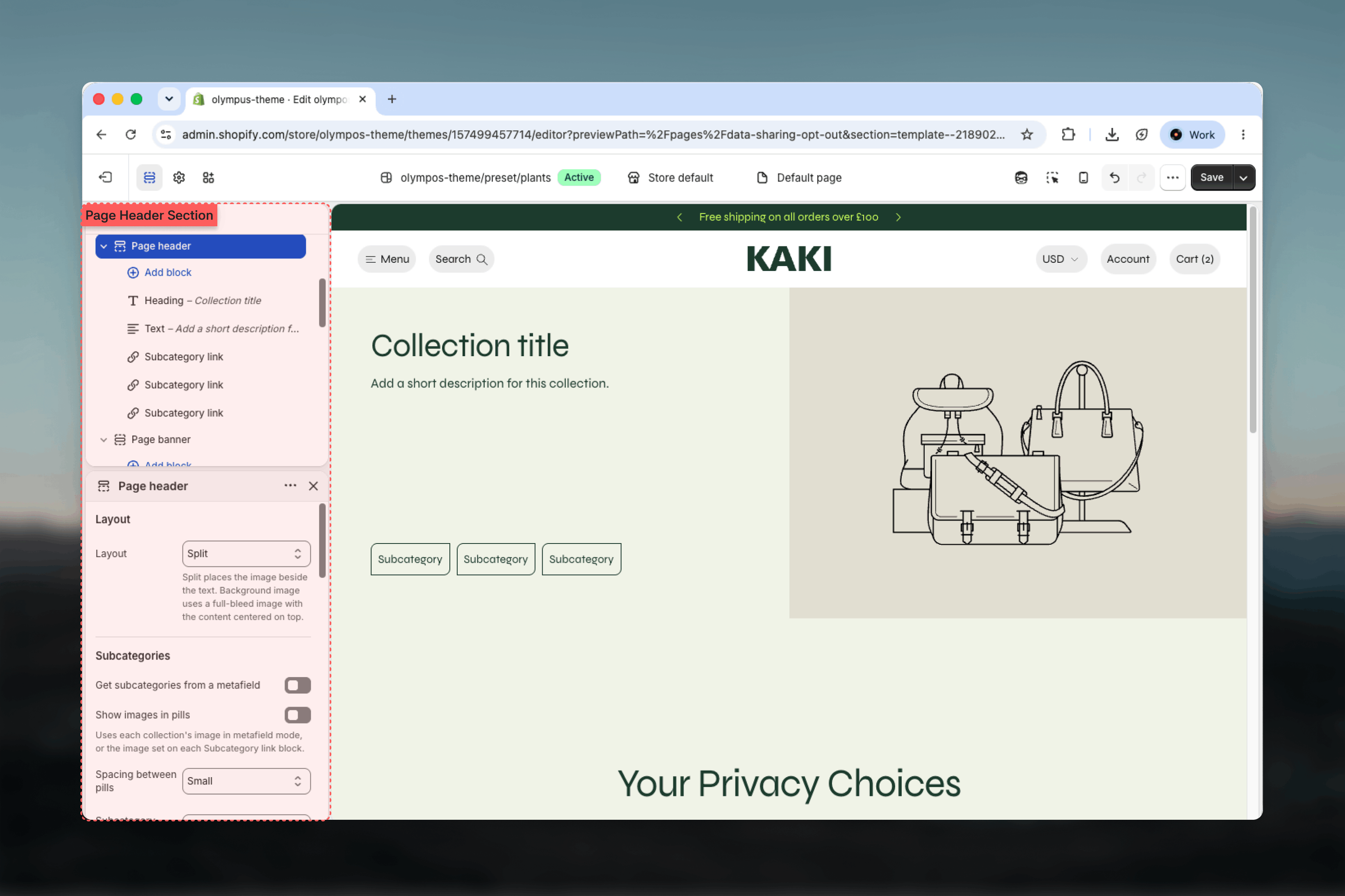
Section settings
Layout
Layout: decides how the image and the copy are arranged. Default: Split.- Split: the image sits beside the text, each in its own half.
- Background image: a full-bleed image with the content centered on top of it.
Subcategories
The subcategory row is the main navigation aid of this section.Subcategory style
Subcategory style
Appears only with the Background image layout.
- Pills (default): compact rounded links in a row.
- Cards: a larger image with the label below, sitting across the bottom edge of the banner.
Get subcategories from a metafield
Get subcategories from a metafield
Off by default. When enabled, the section reads a list of collections from the current collection’s metafield and builds one link per entry. The Metafield field then appears and takes the reference written as namespace and key, for example custom.subcollections. When the metafield is turned off or empty, the Subcategory link blocks are shown instead.
Show images in pills
Show images in pills
Adds a small image before each label. In metafield mode it uses each collection’s image; with blocks it uses the Image set on each Subcategory link block. Off by default.
Spacing between pills
Spacing between pills
None, Small, Medium or Large. Default: Small.
Subcategory corners
Subcategory corners
Theme default, None (no border), Sharp, Slightly rounded or Rounded. Default: Theme default, which follows the Corners theme settings.
Use a separate color scheme
Use a separate color scheme
Fills the pills with their own scheme wherever they appear. When enabled, the Color scheme selector for the pills appears (default: Scheme 1). Leave it off to let the pills inherit the section colors.
Breadcrumbs
Show breadcrumbs: adds a Home to current page trail above the heading. Off by default. When enabled, Alignment appears to align the trail left, center or right (default: left).Media
Show image
Show image
Split layout only. Turn it off for a text-only header. Enabled by default.
Image and Mobile image
Image and Mobile image
Leave Image blank to use the collection image, which keeps every collection header current without manual uploads. Mobile image is shown on phones and falls back to the main image when empty.
Image position
Image position
Split layout only. Left or Right. Default: Right.
Image overlay opacity
Image overlay opacity
Background image layout only. Darkens the image from 0% to 80% in steps of 10 so the text stays readable. Default: 0.
Minimum height
Minimum height
From 280px to 640px in steps of 20. Default: 400px. Both layouts respect it.
Colors
Color scheme: colors the whole section, including the text and, unless a separate scheme is enabled, the pills. Default: Scheme 1.Common settings
Width
Width
Page, Narrow, Narrower, Fluid or Full width. Default: Full width, which is what the Background image layout is designed for.
Top spacing and Bottom spacing
Top spacing and Bottom spacing
None, Small, Medium, Large or Extra large. Defaults: None above, Medium below.
Section border
Section border
None, Top, Bottom or Top and bottom. Default: None.
Blocks
Heading (limit 1)
The title of the header. Leave the Heading field empty to use the title of the page or collection this section sits on, which is the recommended setup for collection templates. Size ranges from Body to Heading 1 (default: Heading 2), with an Alignment control (default: left). See the Theme blocks reference for the shared heading options.Text (limit 1)
A short description under the title. Size: Small, Body or Heading 6 (default: Body), with Alignment. The preset text asks you to add a short description for the collection.Subcategory link
One link in the subcategory row. Add as many as you need; they are shown when metafield mode is off or the metafield is empty.- Label: the text on the pill or card. Default: Subcategory.
- Link: the destination, usually a collection.
- Image: an optional icon shown before the label when Show images in pills is enabled, and the picture used by the Cards style.
Best practices
Let the heading inherit the title
An empty Heading field reuses the collection title, so one section works across every collection template.
Prefer the metafield for large catalogs
Blocks are ideal for a handful of curated links. Past that, a metafield keeps subcategories in sync with your collections.
Limit the row to what fits
Six to eight pills stay readable on desktop. More than that starts wrapping and dilutes the row.
Use Cards only with strong images
Cards need a distinct picture per subcategory. Without one, Pills communicate the same choice with less space.
Enable breadcrumbs on deep collections
Nested collections benefit from the trail; a single top-level collection usually does not need it.
Check the overlay on mobile
Centered content covers more of the image on a phone. Preview the Background image layout at 20-30% overlay before publishing.
Related guides
Collection Page (PLP)
Configure the product grid and filters that follow the header
Page banner
The simpler banner for standard pages without subcategory links
Corners
Theme-wide corner radius that Theme default pills follow