

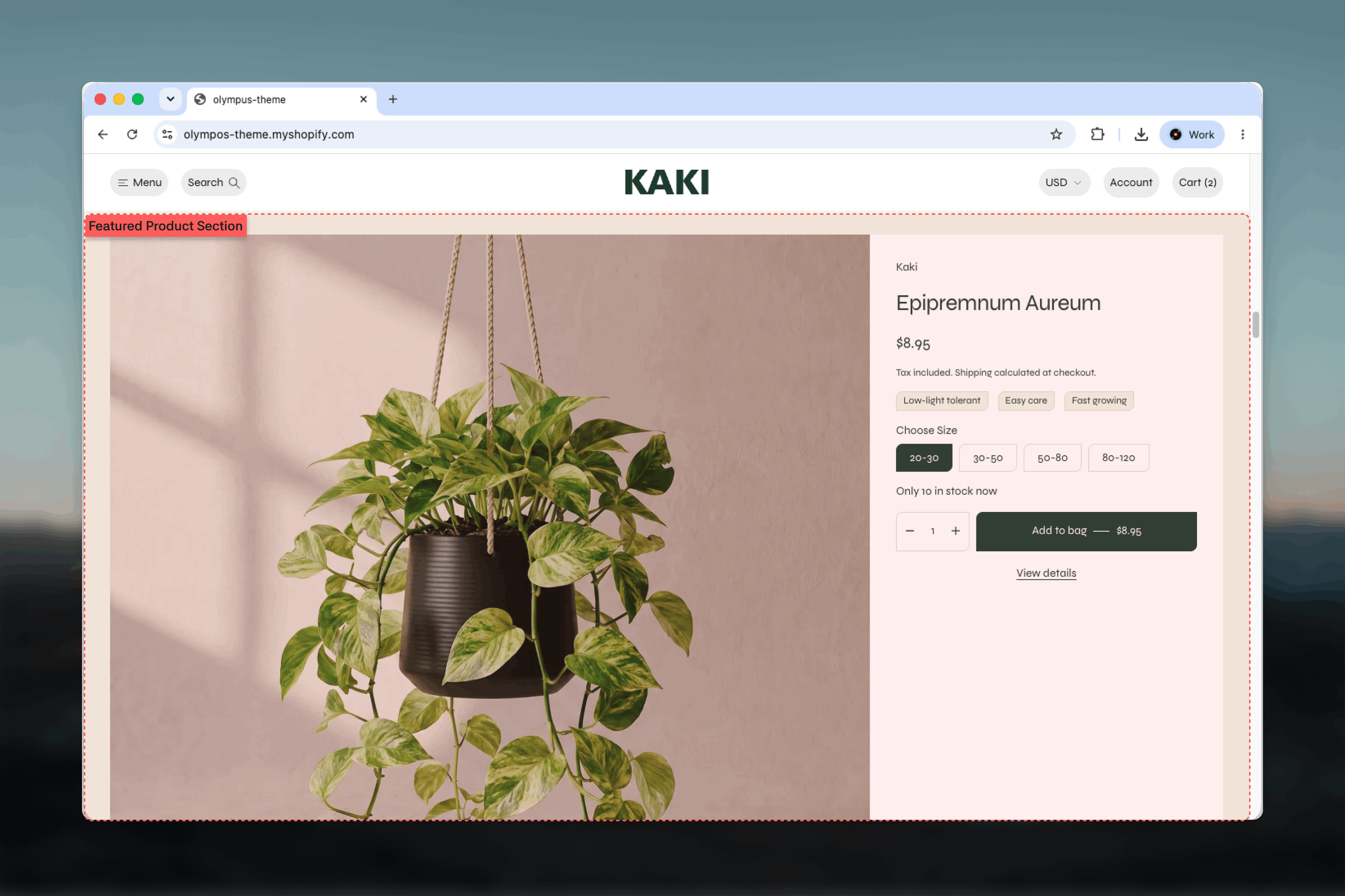
What this section controls
- Which product is featured and the heading shown above it
- Desktop media layout: a single-column grid, a two-column grid or a slider with thumbnails
- Gaps between media items and between the media and the information column
- A background scheme that fills the full width and a separate scheme for the content
- Which product blocks appear in the information column and in what order
- Width, spacing and borders
Getting started
1
Open the Theme Customizer
From the Shopify admin, open Online Store, then Themes, and select Customize on Olympus.
2
Add the section
Select Add section on the template you are editing and choose Featured product. The preset includes a complete set of product blocks.
3
Select a product
In the section settings, pick the Product and edit the Heading.
4
Arrange the information column
Reorder, remove or add product blocks in the sidebar until the buy box shows what customers need.
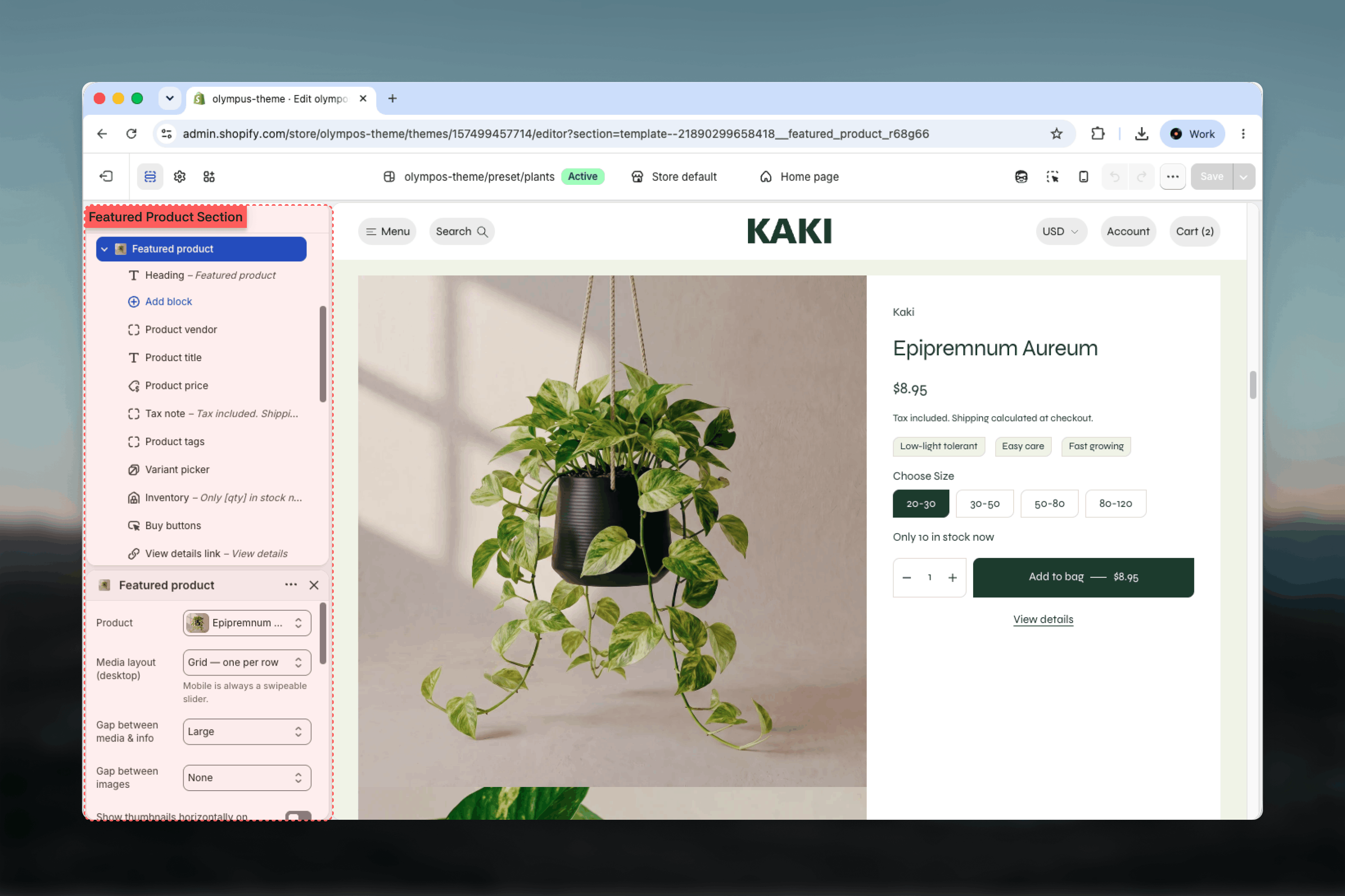
Section settings
Product and media
Product
Product
The product to feature. Every block in the information column reads from this product. If no product is selected the section shows placeholder content in the Theme Customizer.
Heading
Heading
A title above the section. Default: Featured product. Leave it empty to let the product title carry the section.
Media layout (desktop)
Media layout (desktop)
How the product’s images and videos are arranged on desktop. Mobile is always a swipeable slider.
- Grid — one per row (default): media items stack in a single column at full width, so customers scroll down through them.
- Grid — two per row: media items sit in a two-column grid, showing more at once at a smaller size.
- Slider: one media item at a time with arrows, optionally with thumbnails.
Gap between media & info
Gap between media & info
Space between the gallery and the information column, from Extra small to Huge. Default: Extra large.
Gaps inside the grid
Gaps inside the grid
Gap between images applies to the single-column grid and sets the space between stacked items, from None to Extra large. Default: Medium.Row gap and Column gap apply to the two-column grid and control vertical and horizontal spacing separately, from None to Extra large. Default: Medium for both. Each setting appears only for its layout.
Thumbnails
Thumbnails
Show thumbnails adds a strip of small previews under the slider on desktop. On by default and available only in the Slider layout.Show thumbnails horizontally on mobile adds a scrollable thumbnail row under the mobile slider. Off by default; the mobile slider otherwise relies on swiping.
Section colors
- Background color scheme: fills the full width of the section behind the content, even when Width is set to Page. Default: Scheme 1.
- Color scheme: colors the content area, including the information column and buttons. Default: Scheme 1. Choosing a different scheme from the background makes the product sit on a card.
Common settings
Width
Width
Page (default), Narrow, Narrower, Fluid or Full width.
Top spacing and Bottom spacing
Top spacing and Bottom spacing
None, Small, Medium, Large or Extra large. Default: Medium for both.
Section border
Section border
None (default), Top, Bottom or Top and bottom.
Blocks
The information column accepts the product blocks below plus the shared Text and Button blocks. The preset adds every product block in a sensible order; remove the ones you do not need. Full settings for each product block are documented on the Product Page (PDP).- Information
- Purchase
- Content
Product vendor
Product vendor
Shows the vendor name, optionally linked to a page listing that vendor’s products.
Product title
Product title
The product name. Set its visual Size and its Heading level separately; the preset uses a level of H2 so the section does not compete with the page’s own H1.
Product price
Product price
Current and compare-at price for the selected variant, with an optional unit price.
Tax note
Tax note
A short line under the price such as “Tax included. Shipping calculated at checkout.” Edit the text to match your policy.
Blocks placed here are independent of the Product Page (PDP). Changing a block in this section does not change the product template, and vice versa.
Best practices
Feature a product that sells itself
Choose a product with clear imagery and few options. Complex products with many variants are easier to buy from the full Product Page (PDP).
Keep the View details link
Customers who want more than price and options need a way to reach the product page. The link costs little space.
Limit the gallery
Two to four media items in the single-column grid make a strong composition. Switch to the slider when the product has more.
Use the heading level wisely
Keep the product title at H2 or lower so the page’s main heading stays the only H1.
Contrast the card
A different Color scheme from the Background color scheme frames the product as a card and separates it from surrounding sections.
Check on mobile
The gallery becomes a slider on mobile. Confirm the first image is the strongest one, since it is what most customers see.
Related guides
Product Page (PDP)
Full documentation of every product block used in this section
Featured products
Show a row or grid of product cards instead of one product
Theme blocks
Reference for the shared Text and Button blocks