

What these settings control
- The six color schemes available to every section, card and overlay
- Seven color roles per scheme: Background, Background gradient, Text, Button, Button label, Secondary button label and Border
- The default scheme applied to the page body behind all sections
How to access
1
Open the Theme Customizer
From your Shopify admin, go to Online Store, then Themes, and select Customize.
2
Open Theme settings
Select the Theme settings icon at the bottom of the left sidebar.
3
Select Colors
Expand the Colors group. Select a scheme to edit its seven colors, then set the Default color scheme below the list.
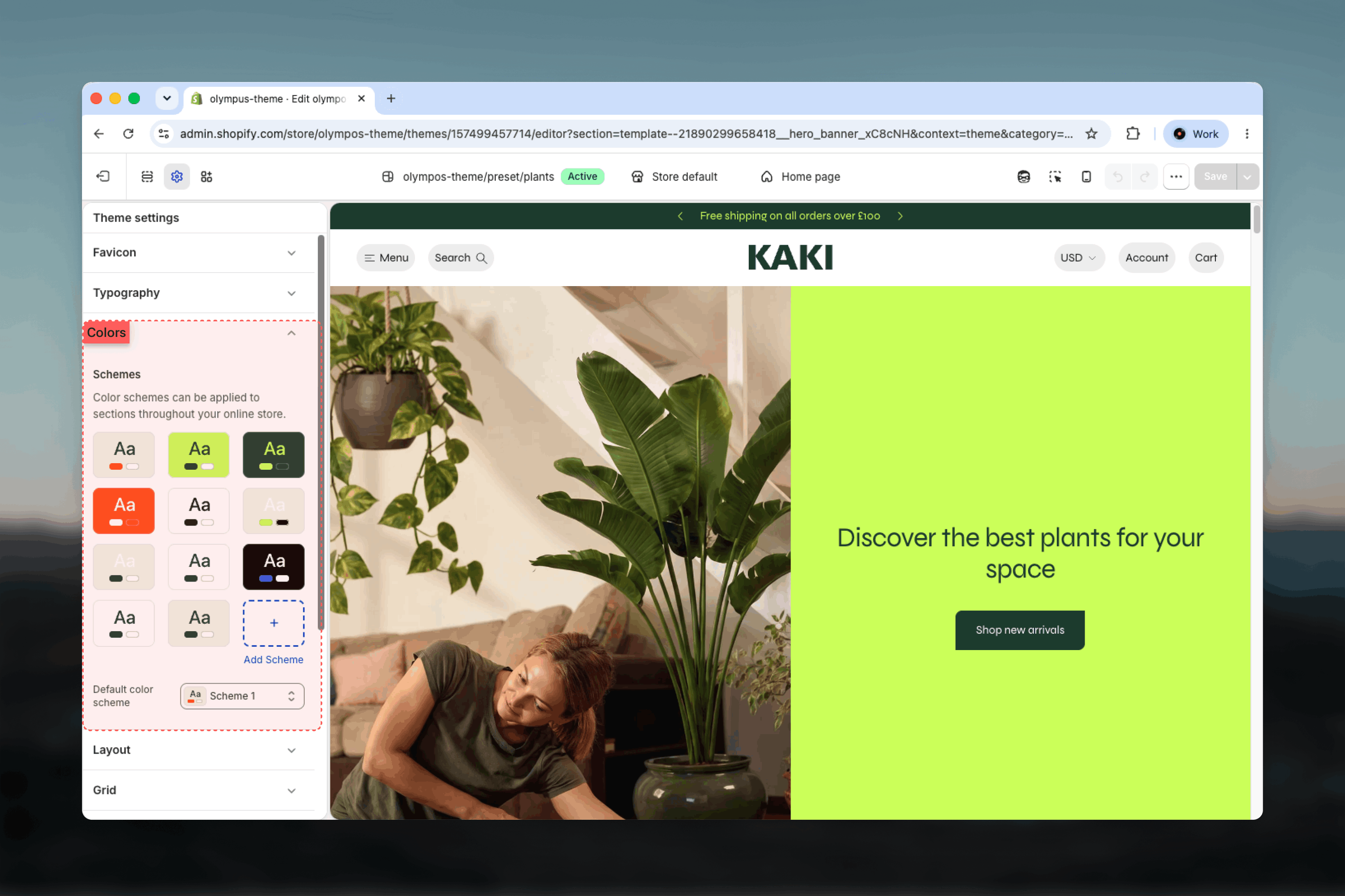
Settings
Color schemes
Olympus ships with six schemes, Scheme 1 to Scheme 6. Each scheme has the same seven roles, so any section can switch from one scheme to another without losing a color.- Background: The solid background of anything using the scheme.
- Background gradient: An optional gradient drawn over the background. Leave it empty for a flat color.
- Text: Headings, body text, links and icons. One color covers all of them, so choose it for contrast against the background.
- Button: The fill and border of filled buttons.
- Button label: The text on filled buttons.
- Secondary button label: The text of outlined buttons. Outlined buttons take their outline from the Border color.
- Border: Dividers, input outlines and the outline of outlined buttons.
Default color scheme
Default color scheme: The scheme applied to the page body itself, the surface behind and between sections. Default: Scheme 1. It shows wherever a section is transparent or does not fill its full width, and it defines the base text color of the page. Sections that set their own scheme cover it.How sections pick a scheme
Every section has a Color scheme setting among its common settings. Choosing a scheme there recolors the section’s background, text, buttons and borders at once; blocks inside the section inherit it. A few elements have their own scheme setting rather than following the section they sit in:- Product cards use the Color scheme in Product cards for their information area, unless a section paints its cards with its own scheme.
- The Load more row uses the Color scheme in Pagination.
- Overlays such as the cart drawer, quick view drawer and popups have a Color scheme setting on their own section.
The sale price color, shown when a compare-at price is present, is fixed across all schemes so discounts are always recognizable. Badge colors are set in Product cards and do not follow the scheme either.
Best practices
- Check text contrast in every scheme: Text, links and icons share one color, so it must be readable against the Background, and against the gradient if you use one.
- Design buttons as pairs: Button and Button label must contrast with each other, and Secondary button label must contrast with the Background, since outlined buttons have no fill.
- Reserve one scheme for accents: A high-saturation scheme such as Scheme 2 or Scheme 4 works best on a single callout or banner per page rather than on long content sections.
- Keep the border subtle: The Border color also outlines inputs and outlined buttons, so a mid-tone works better than pure black on light schemes.
- Change the default scheme last: Because it sits behind everything, changing it after sections are configured can reveal gaps between sections in an unexpected color.
- Preview product cards separately: Cards use their own scheme, so a section scheme change will not recolor them; confirm the pairing looks intentional.