

What these settings control
- Whether grids paginate with numbered links or a Load more button
- The width of the Load more button relative to the grid
- The color scheme of the Load more row
How to access
1
Open the Theme Customizer
From your Shopify admin, go to Online Store, then Themes, and select Customize.
2
Open Theme settings
Select the Theme settings icon at the bottom of the left sidebar.
3
Select Pagination
Expand the Pagination group. The Load more settings appear only after you choose that style.
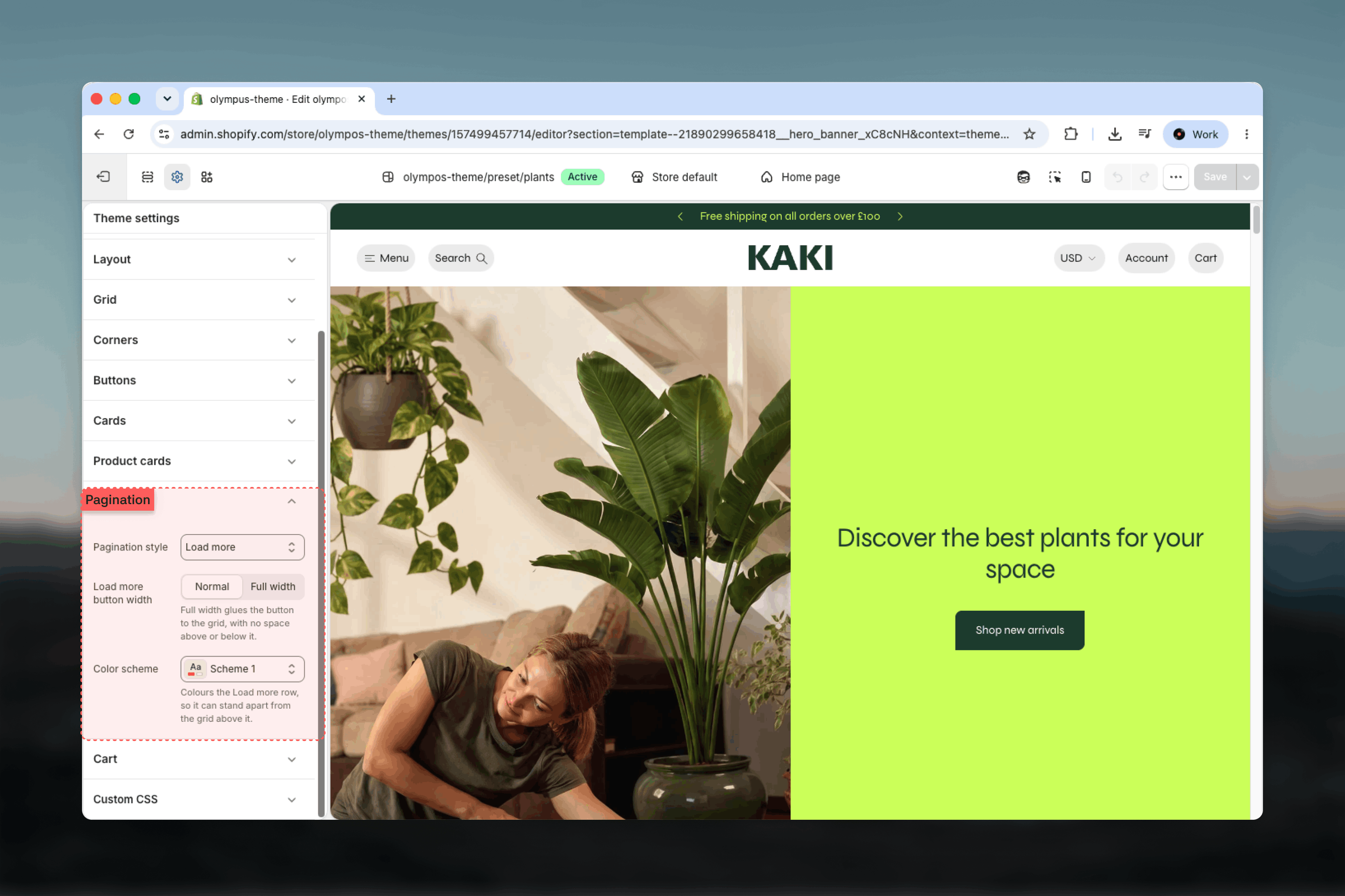
Settings
Pagination style: How long grids are split. Default: Numbered.- Numbered: Standard page links with previous and next arrows below the grid. Customers can jump to a specific page and share a link to it. Best for large catalogs where position matters.
- Load more: A Load more button below the grid appends the next page of items under the ones already shown, without reloading the page, and updates the address bar to the page that was loaded so the position can be shared or returned to. The button disappears once the last page has been reached. When a customer lands on a later page directly, a Load previous button also appears above the grid so earlier items remain reachable.
- Normal: A regular button centered below the grid.
- Full width: The button stretches to the grid’s full width and sits flush against it, with no space above or below, so it reads as the final row of the grid.
With Load more, Olympus still includes regular numbered page links for search engines and for visitors without scripts, so every page of a collection stays reachable and indexable. Customers do not see them once the page has loaded, and if a request cannot be completed the button simply opens the next page as an ordinary link.
Best practices
- Prefer Numbered for very large collections: When a collection runs to many pages, customers benefit from knowing where they are and being able to return to the same page later.
- Prefer Load more for browsing-led stores: For visual catalogs where customers scroll rather than search, Load more keeps them in the grid and avoids a page reload.
- Use Full width with bordered cards: A full-width button that sits flush against a bordered grid completes the lattice; with floating cards, Normal looks lighter.
- Choose a contrasting scheme deliberately: A different scheme for the Load more row makes the action obvious; the same scheme as the section keeps it understated.
- Set products per page to fill rows: On the Collection Page (PLP), choose a count that is a multiple of your column count so the last row before the button is complete.