

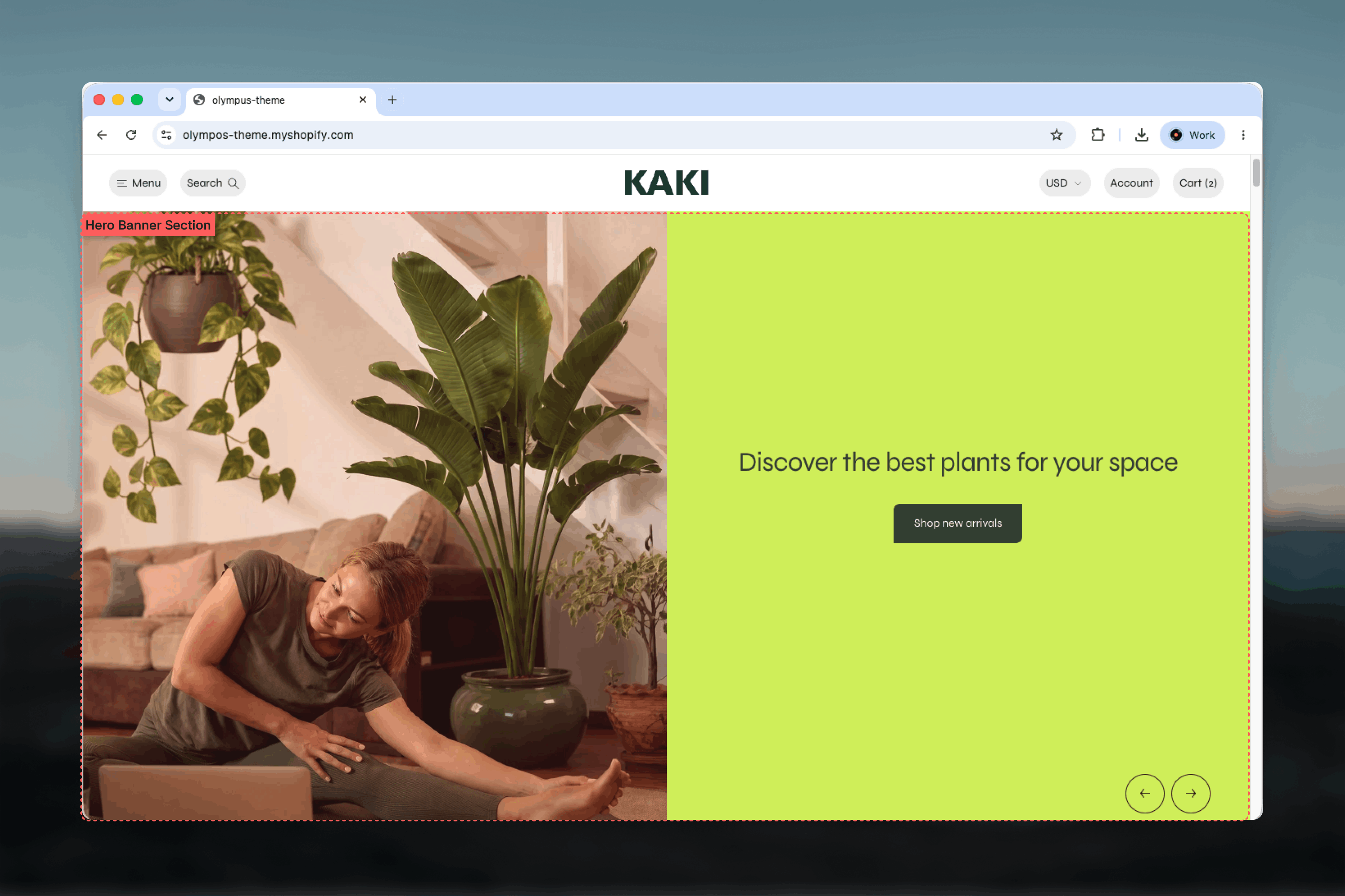
What this section controls
- Minimum height of the banner
- Auto-rotation, slide interval and transition speed
- Arrow position, spacing and style
- A color scheme for the section frame
- Slides with full-image or split layouts, desktop and mobile media, content position and overlay
- Heading, Text and Button blocks inside each slide
- Width, spacing and borders
Getting started
1
Open the Theme Customizer
From the Shopify admin, open Online Store, then Themes, and select Customize on Olympus.
2
Add the section
Select Add section and choose Hero banner. The preset adds two slides: a full-image slide and a split slide, each with a heading, text and button.
3
Set up each slide
Select a Slide block, choose its layout and upload desktop and mobile media. Edit the nested Heading, Text and Button blocks.
4
Tune the slideshow
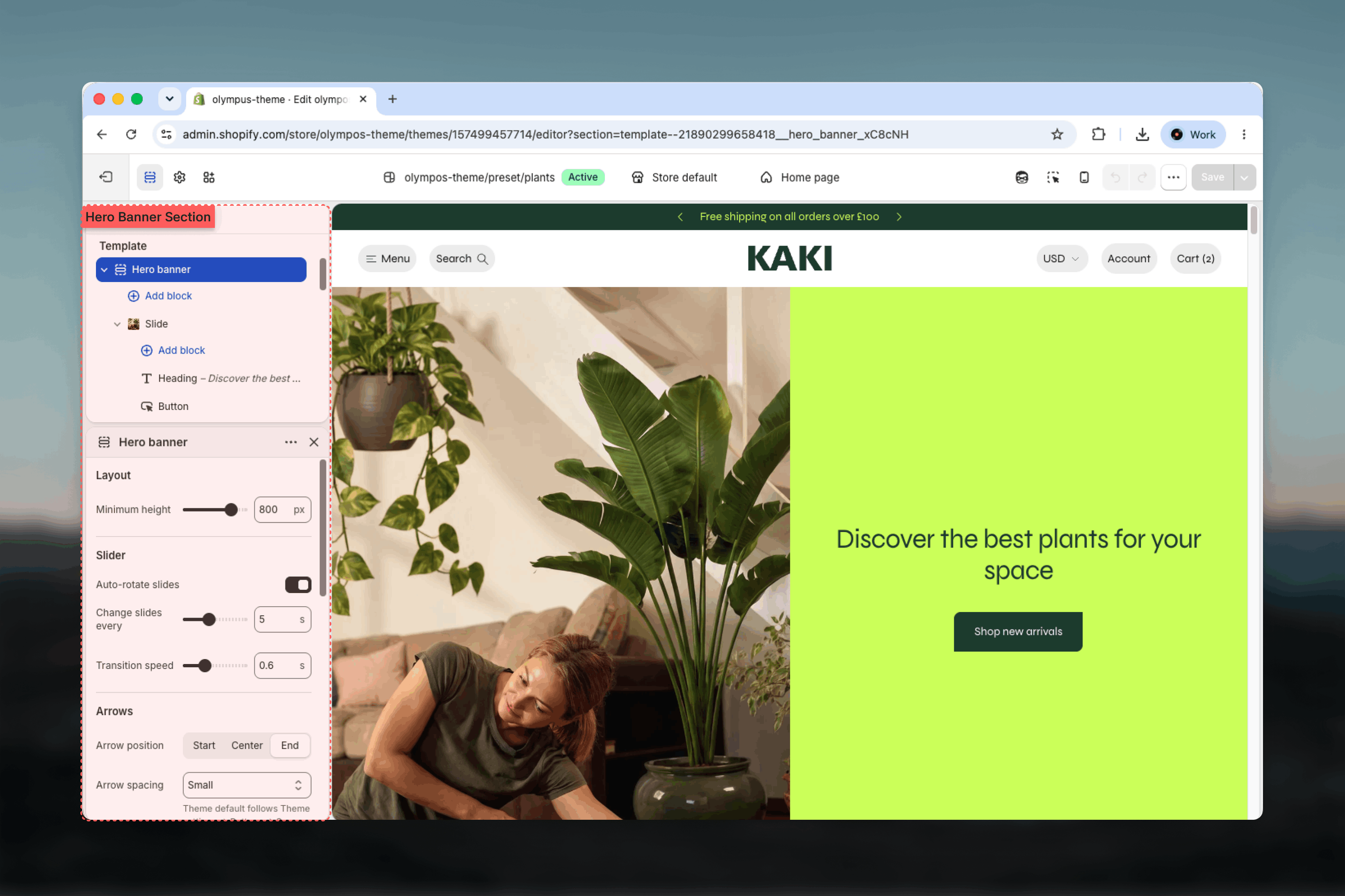
In the section settings, adjust Minimum height, Auto-rotate slides and the arrow options, then save.
How it works
A single Slide block renders as a static banner with no arrows. Adding a second slide turns the section into a slideshow: arrows appear along the bottom edge at the position you choose, and when Auto-rotate slides is on, slides advance on a timer. On mobile the arrows are hidden and a row of pagination dots takes their place, with swiping to move between slides. Each slide carries its own color scheme, so a dark photographic slide can be followed by a light split slide without changing the section.Section settings
Layout
Minimum height: the banner is never shorter than this value, from 360 to 900 pixels in steps of 20. Default: 560. Slides grow taller if their content needs more room. Around 560 to 640 fills most laptop screens below the header without pushing the next section entirely out of view.Slider
Slider settings take effect once the section has two or more slides.Auto-rotate slides
Auto-rotate slides
Advances slides automatically and loops back to the first. On by default. Rotation pauses while the pointer rests on the banner and resumes when it leaves.
Change slides every
Change slides every
Seconds each slide stays on screen, from 2 to 10. Default: 5. Appears only when Auto-rotate slides is enabled. Allow enough time to read the longest heading and text.
Transition speed
Transition speed
Duration of the slide animation, from 0.2 to 1.5 seconds in steps of 0.1. Default: 0.6. Slower transitions feel calmer; faster ones feel more energetic.
Arrows
Arrow position
Arrow position
Where the previous and next arrows sit along the bottom of the banner: Start, Center or End. Default: End. Choose the side opposite your slide content so arrows never overlap the button.
Arrow spacing
Arrow spacing
Gap between the two arrows: Theme default, None, Small, Body or Large. Default: Theme default, which follows Theme settings, Buttons, Space between slider arrows. Any other choice fixes this section’s own spacing and stops following the theme setting.
Arrow style
Arrow style
Outline (default) draws the arrows in the text color. Solid fills them with the button color, which is easier to see over full-image slides.
Colors
Color scheme: colors the section frame around the slides, visible when Width is not Full width or when spacing is added. Default: Scheme 1. Each slide sets its own scheme separately.Common settings
Width
Width
Page, Narrow, Narrower, Fluid or Full width. Default: Full width.
Top spacing and Bottom spacing
Top spacing and Bottom spacing
None, Small, Medium, Large or Extra large. Default: None for both, so the hero sits directly under the header.
Section border
Section border
None (default), Top, Bottom or Top and bottom.
Blocks
Slide
Every Slide block is one banner. It holds the media and layout, and nests the Heading, Text and Button blocks that make up its content. A slide with no nested blocks shows media alone.- Layout
- Desktop
- Mobile
- Nested blocks
Layout
Layout
- Full image (default): the media fills the slide and the content sits on top of it.
- Image and text: the slide is split in two, with media on one side and content on a colored panel on the other.
Image position
Image position
Puts the media on the Left (default) or Right in the split layout. Appears only when Layout is Image and text.
Divider between image and text
Divider between image and text
Draws a hairline in the border color where the media meets the content panel. Off by default.
Content padding
Content padding
Space around the content: S, M or L. Default: M. Larger padding gives text more room from the edges on full-image slides.
Image overlay opacity
Image overlay opacity
Darkens the media from 0% to 80% in steps of 5 so text stays readable. Default: 0%. Appears only in the Full image layout.
Highlight color
Highlight color
Any word you make bold in the nested Heading or Text is colored with this accent. Default: a bright lime. Pick a color that contrasts with the slide’s media and scheme.
Color scheme
Color scheme
Text, button and, in the split layout, panel colors for this slide. Default: Scheme 2. Slides can use different schemes from one another.
Best practices
Two or three slides
Most customers see only the first slide. Put the most important message first and keep the total small.
Give each slide a mobile image
A portrait crop keeps the subject and leaves room for the content at the bottom.
Prefer uploaded video
Shopify-hosted video is optimized for the storefront. External players add weight and can delay the page.
Keep arrows clear of the button
Set Arrow position to the side opposite your content’s Horizontal position so controls never collide.
Use the overlay sparingly
Add 20 to 40% overlay only when text sits on a busy part of the image. Otherwise let the photograph carry the slide.
Related guides
Theme blocks
Settings for the Heading, Text and Button blocks nested in each slide
Buttons
Global button styles and the default space between slider arrows