

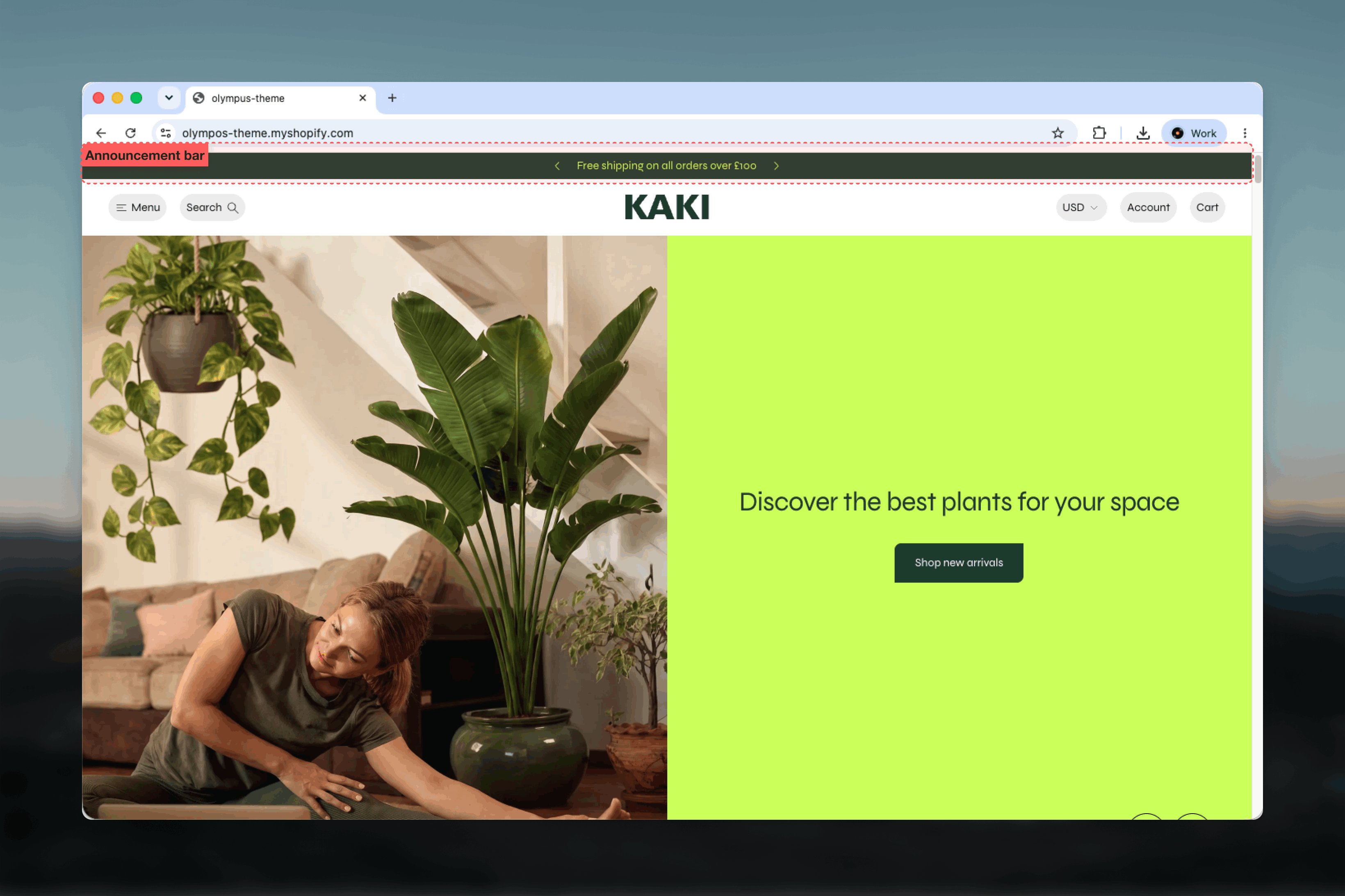
What this section controls
- Whether messages rotate one at a time (Slide) or scroll continuously (Marquee)
- Rotation timing, slider arrows, and marquee speed
- Up to six Text blocks, each with an optional icon and accent-colored link
- Up to two Link blocks positioned at the left or right edge of the bar
- The bar’s color scheme, width, spacing, and border
Getting started
1
Open the Theme Customizer
From your Shopify admin, open Online Store, then Themes, and click Customize on Olympus.
2
Locate Announcement bar
The section is pre-added in the Header group above the Header section. If it was removed, click Add section in the header group and choose Announcement bar.
3
Edit the messages
Select a Text block to change its message, or click Add block to add more messages and side links.
Layout
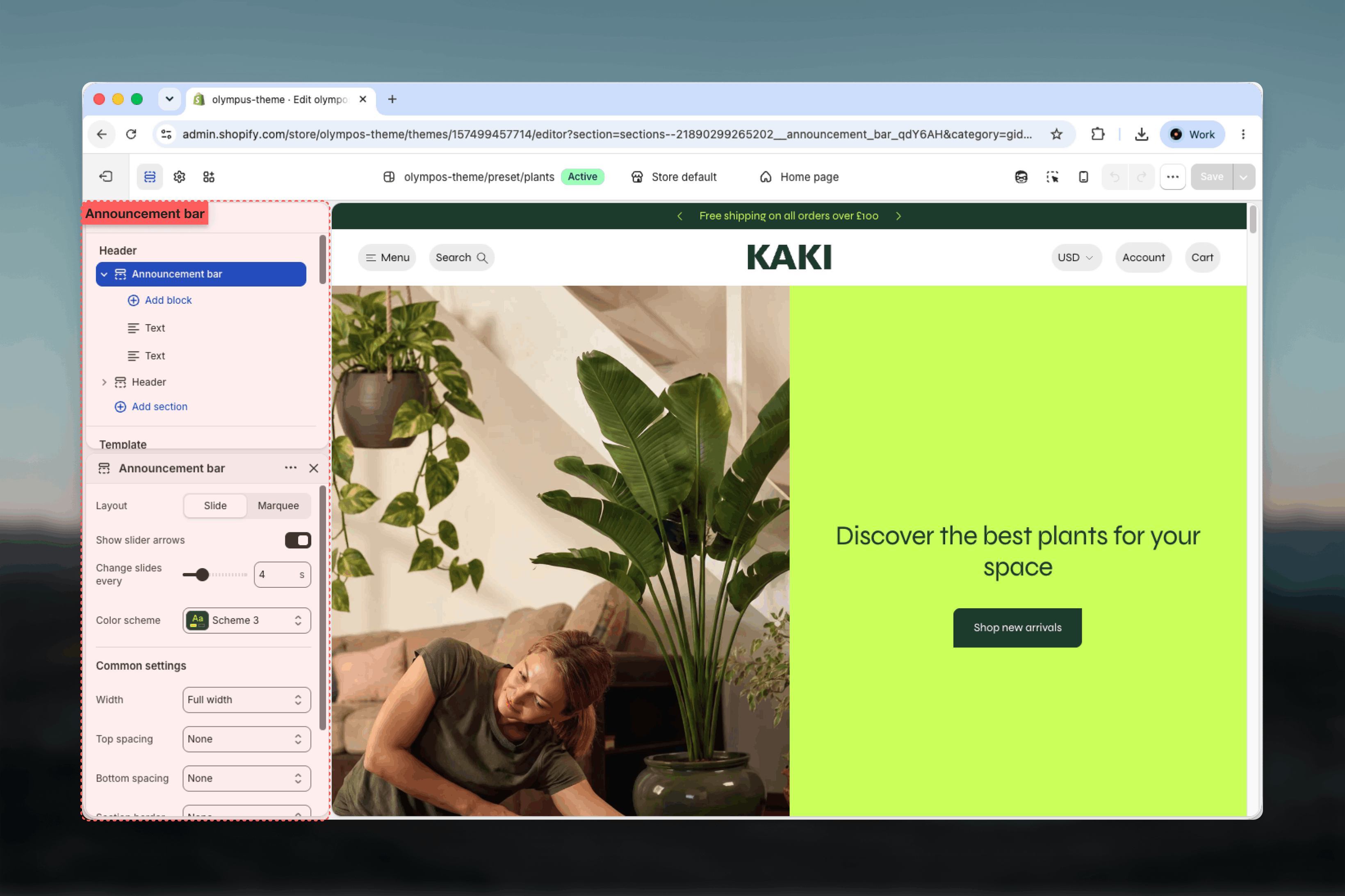
The Layout setting decides how multiple messages are presented. Both options show the same Text blocks; they differ in motion and timing.Slide
Slide
One message is visible at a time and the bar rotates through the Text blocks. Default.
- Show slider arrows: adds previous and next arrows so customers can move between messages. On by default. Using an arrow restarts the countdown to the next message.
- Change slides every: 2 to 10 seconds between messages. Default: 4 seconds.
Marquee
Marquee
All messages scroll continuously across the bar in one seamless loop. Scrolling pauses while the pointer is over the bar and resumes when it leaves. Arrows are not shown in this layout.
- Scroll speed: 10 to 80. Default: 40. Lower values scroll more slowly.
On mobile the bar is always a marquee, whichever Layout you choose. Slide and its arrows apply on desktop only, so every message still passes by on a phone, and side links are hidden to leave room for the message.
Colors
Color scheme: the scheme for the bar’s background, text, and accent. Default: Scheme 2, which contrasts with the header so the bar reads as a separate strip. Words you link inside a Text block take the scheme’s accent color.Common settings
Width
Width
Page, Narrow, Narrower, Fluid, or Full width. Default: Full width, so the bar runs edge to edge like the header. The message and links stay inside the chosen width.
Top spacing and Bottom spacing
Top spacing and Bottom spacing
None, Small, Medium, Large, or Extra large. Both default to None so the bar sits flush against the top of the page and the header.
Section border
Section border
None, Top, Bottom, or Top and bottom. Default: None. Use Bottom to draw a hairline between the bar and a header that shares its color scheme.
Blocks
The Announcement bar accepts two block types. Text blocks are the messages; Link blocks are the fixed links at the sides.Text (limit 6)
One message. The default preset includes two Text blocks.- Text: rich text for the message. Default: Free shipping on all orders. Add a link to a word to give it the accent color and make it clickable.
- Icon: an optional small image shown before the message.
Link (limit 2)
A standalone link pinned to one edge of the bar, independent of the rotating messages.- Position: Left or Right. Default: Left. Use one block per side to place a link at each edge.
- Label: the link text.
- Link: the destination.
- Icon: an optional small image shown before the label.
Best practices
Lead with the offer
Put the most valuable message first. In Slide layout it is the first one customers see; in Marquee it appears first in the loop.
Limit rotation
Two or three messages rotate comfortably. Beyond that, customers rarely wait to see them all; use Marquee or remove the weakest message.
Give slides time
Keep Change slides every at 4 seconds or more so a message can be read before it moves on.
Use links for utilities
Side links suit Help, Track order, or Store locator. Promotional calls to action belong in the message itself.
Contrast with the header
Choose a color scheme that differs from the header’s so the bar is noticed without competing with navigation.
Check mobile
Preview on a phone. Mobile always scrolls the messages and hides side links, so anything essential must be in a Text block.
Related guides
Header
Configure the navigation bar that sits directly below the announcement bar.
Common settings
Width, spacing, border, and color scheme controls shared across sections.