

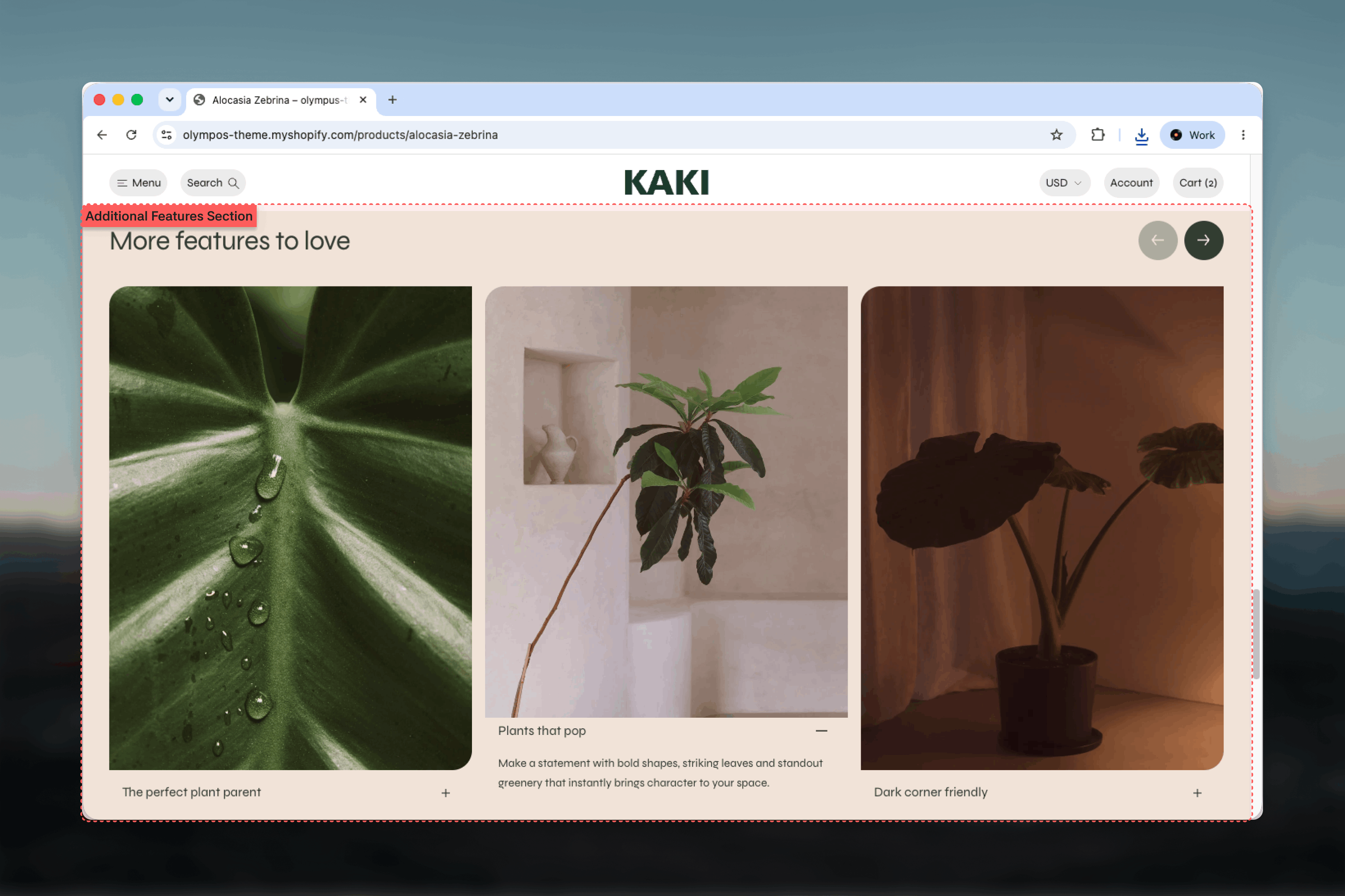
What this section controls
- How many feature tiles appear side by side on desktop
- How many tiles peek into view on mobile
- The style of the carousel arrows
- A section heading shown above the tiles, next to the arrows
- Color scheme, width, spacing and section border
How it works
Every feature is a Feature block rendered as one slide of a carousel. On desktop the carousel shows as many tiles as the Columns setting allows and the arrows in the section header move through the rest. On mobile the tiles become a swipeable strip with pagination dots, and the Slides shown on mobile setting controls how much of the next tile is visible as a hint to swipe. Each tile shows its heading in a bar under the image. The heading always stays visible; if the tile also has a description, a plus toggle appears beside it, and using the toggle slides the description open under the heading while the whole bar rises over the image. Using it again slides the description closed. Tiles open and close independently, and can be set to start open. Visitors who prefer reduced motion see the same content open and close without the sliding animation, and selecting a Feature block in the Theme Customizer opens that tile in the preview.Getting started
1
Open the Theme Customizer
From Shopify admin, open the Theme Customizer and go to the template where the features belong.
2
Add the section
Click Add section and choose Additional features. The preset adds a heading and four Feature tiles, one of them open.
3
Fill in the tiles
Select each Feature block to add an image, a heading and a short description. Add or remove Feature blocks to match your list.
4
Set the carousel
Choose the number of Columns, how many slides show on mobile and the arrow style.
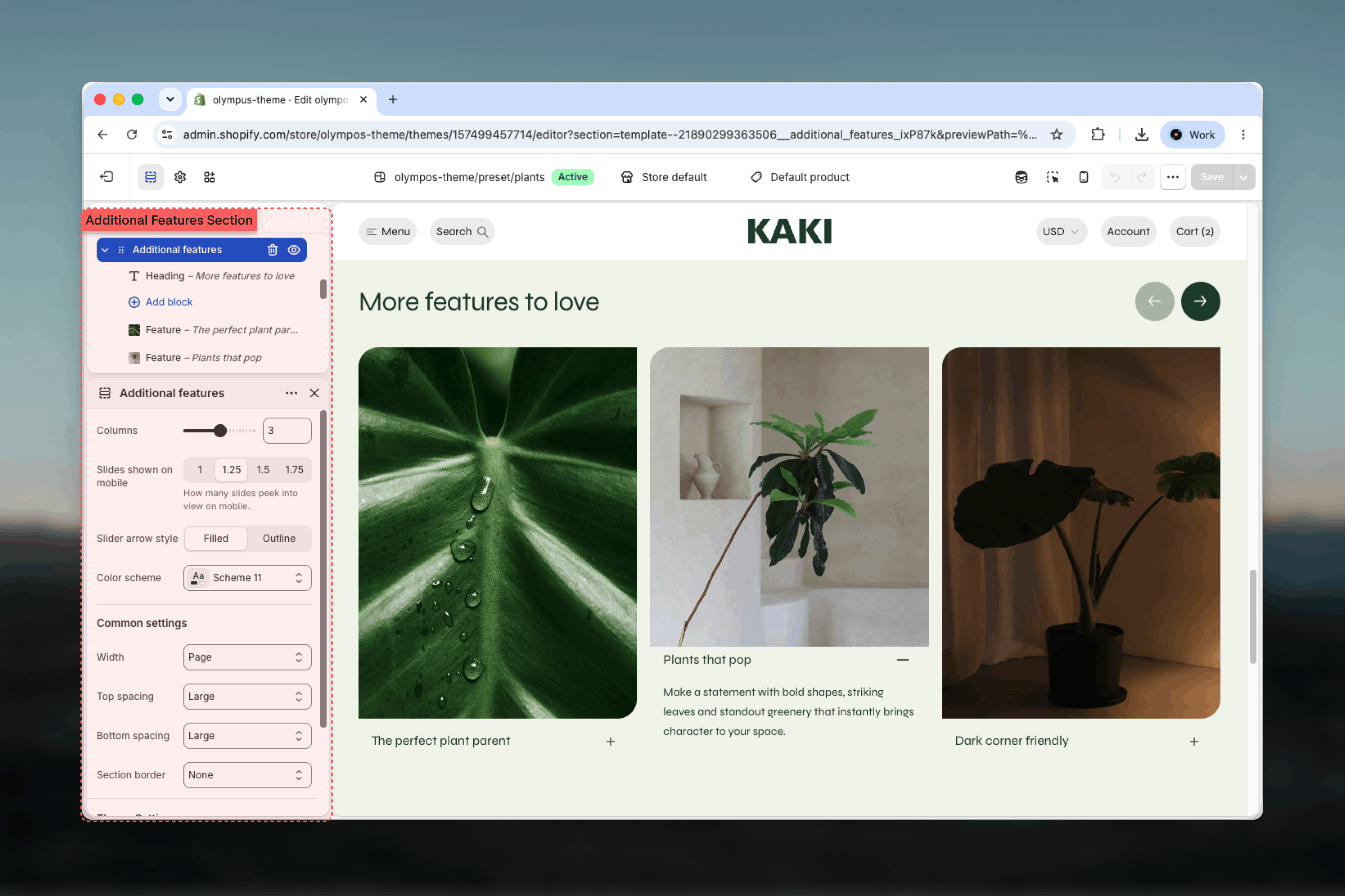
Section settings
Carousel
Columns
Columns
Number of tiles visible at once on desktop, from 1 to 5. Default: 3.Fewer columns make each tile larger and give the description more room; more columns show more of the list without scrolling. When you have more tiles than columns, the arrows page through them.
Slides shown on mobile
Slides shown on mobile
How many tiles fit across the screen on mobile: 1, 1.25, 1.5 or 1.75. Default: 1.25.A fractional value leaves part of the next tile visible at the edge, which signals that the row can be swiped. Use 1 when you want each tile to fill the width.
Slider arrow style
Slider arrow style
The look of the previous and next arrows that sit beside the section heading. Options: Filled (default) or Outline.
Color scheme
Color scheme
Background and text colors for the whole section. Default: Scheme 1.
The arrows are shown on desktop. On mobile the carousel uses pagination dots and swiping instead.
Common settings
Width
Width
Page, Narrow, Narrower, Fluid or Full width. Default: Page.
Top spacing and Bottom spacing
Top spacing and Bottom spacing
None, Small, Medium, Large or Extra large above and below the section. Default: Large for both.
Section border
Section border
None, Top, Bottom or Top and bottom. Default: None.
Blocks
The section accepts one Heading block and any number of Feature blocks.Heading
The section title, rendered in the header row above the tiles with the arrows to its right. In the preset it reads “More features to love” at Heading 5 size, aligned left. Heading, Heading level, Size and Alignment are shared block settings; see Theme blocks.Feature
Each Feature block is one tile in the carousel. Heading and description are settings of the block itself rather than nested blocks, so the heading can sit in the bar and the description in the reveal panel.Image and Mobile image
Image and Mobile image
The tile image. Mobile image is shown on mobile and falls back to the main image when empty. A placeholder illustration appears until an image is set.
Aspect ratio
Aspect ratio
The shape of the tile image: Portrait (default), Square or Landscape. Every tile in the section should use the same value so the row lines up.
Heading
Heading
The feature name shown in the bar along the bottom of the tile. Default: “Title of the feature”.
Description
Description
Rich text revealed over the image when the plus toggle is opened. Leave it empty to show a plain image tile with no toggle.
Open by default
Open by default
Starts the tile with its description already revealed. Disabled by default. The preset opens the second tile to show customers that the tiles expand.
Best practices
Keep descriptions short
The copy reveals over the image, so two or three sentences is the practical limit before it covers the whole tile.
Open one tile
Setting one tile to Open by default shows customers that the tiles expand without having to guess.
Use one aspect ratio
Mixed ratios produce uneven tile heights in the row. Pick Portrait, Square or Landscape and apply it to every Feature.
Match columns to count
With four features and three columns, one tile is always hidden. Either add features or set Columns to 4 so the row is complete.
Leave a mobile peek
A value of 1.25 or 1.5 for Slides shown on mobile reveals the edge of the next tile, which makes swiping obvious.
Name features, not benefits
Put the short feature name in the Heading and the benefit in the Description, so the bar stays on one line.
Related guides
Theme blocks
Settings for the shared Heading block used as the section title
Feature highlights
An alternative layout for presenting product features
Additional details
Accordion or tab layout for longer supporting copy