

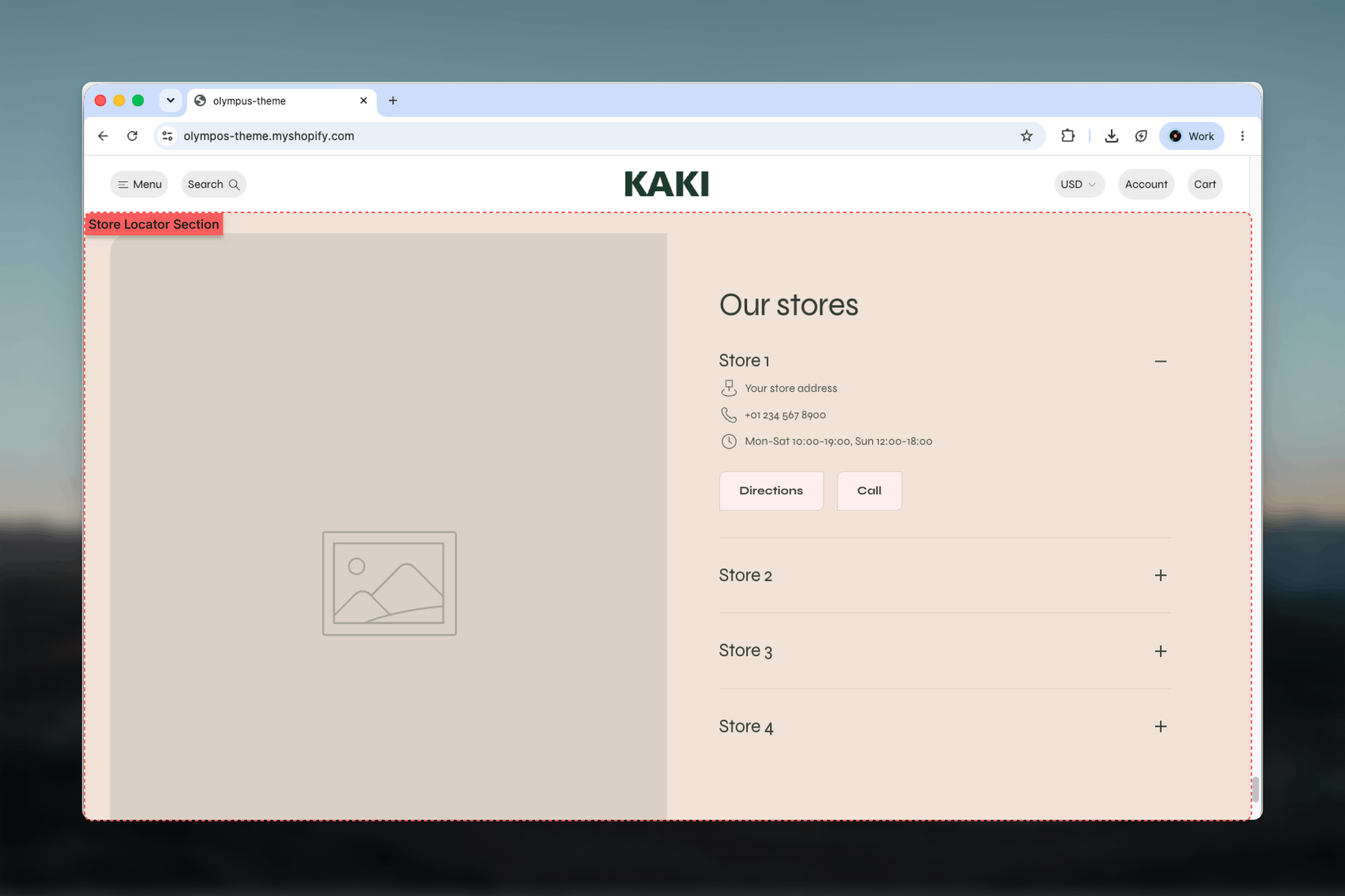
What this section controls
- List with media, Cards or Banner layout
- Store name size and the media shown beside the list: image, map or none
- Grid columns, spacing and card aspect ratio
- Banner height, content position and alignment
- Get directions and Call buttons and their style
- Color schemes for the section and the cards, plus an image overlay
- Heading, Text and Store blocks
Getting started
1
Open Theme Customizer
From Shopify admin, open the Theme Customizer on the template where the locator should appear, for example a Stores page or the Contact template.
2
Add Store locator
Choose Add section and pick Store locator. The preset includes a heading and four example stores.
3
Fill in each Store block
Replace the example name, address, phone and hours, then add an image or a map address.
4
Choose a layout
Pick List with media, Cards or Banner and adjust the layout-specific settings.
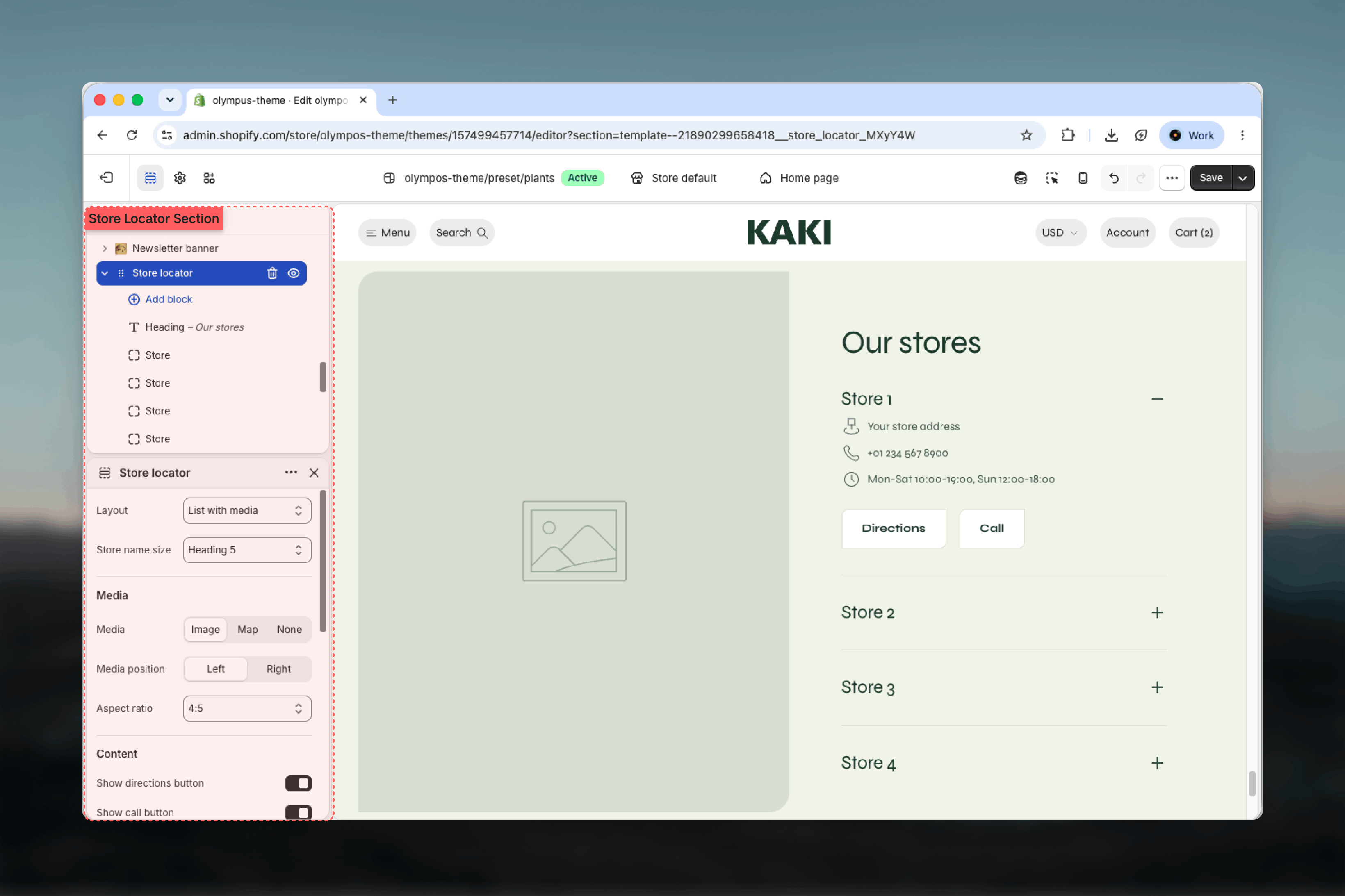
Section settings
Layout
Layout
Layout
Default: List with media.
- List with media: stores stack as expandable rows with the first one open. Selecting a store opens its details and shows its own panel beside the list, with that store’s image or map. Only one store is open at a time, and the arrow keys move between stores once a store name has keyboard focus, with Home and End jumping to the first and last.
- Cards: every store is a card in a grid with its image behind the details.
- Banner: each store fills a tall banner. With more than one store the banners rotate as a slideshow with bullet pagination.
Store name size
Store name size
Body, Heading 6, Heading 5, Heading 4, Heading 3 or Heading 2. Default: Heading 5.
Media
These settings appear for the List with media layout.Media
Media
What is shown beside the list. Image (default) uses each store’s Image; Map embeds a Google map of the store’s Map address or Address; None stacks the list without a media panel.
Media position
Media position
Left (default) or Right. Hidden when Media is None.
Aspect ratio
Aspect ratio
1:1, 5:4, 4:3, 3:2, 16:9, 4:5, 3:4 or 2:3. Default: 4:5. Hidden when Media is None.
Grid
These settings appear for the Cards layout.- Columns: 1, 2 or 3 columns. Default: 2 columns.
- Spacing between cards: 0px to 48px in steps of 4. Default: 32px.
- Aspect ratio: the card shape, same options as the media ratio. Default: 4:5.
Banner
Minimum height: the banner is at least this tall, from 360px to 900px in steps of 20. Default: 700px. Appears for the Banner layout.Content
Content position and Content alignment
Content position and Content alignment
Cards and Banner layouts only. Position places the details at the Top, Middle or Bottom of the card (default: Bottom); alignment sets them Left, Center or Right (default: Left).
Style
Style
Button style for both buttons: Filled or Outlined. Default: Outlined.
Colors
- Color scheme: the section background and the list. Default: Scheme 1.
- Card color scheme: the store cards in the Cards and Banner layouts. Default: Scheme 3.
- Image overlay opacity: darkens card images from 0% to 90% in steps of 5 so the details stay readable. Default: 0. Cards and Banner only.
Common settings
Width
Width
Page, Narrow, Narrower, Fluid or Full width. Default: Page.
Top spacing and Bottom spacing
Top spacing and Bottom spacing
None, Small, Medium, Large or Extra large. Default: Large for both.
Section border
Section border
None, Top, Bottom or Top and bottom. Default: None.
Blocks
Heading (limit 1)
The section title. Default: Our stores, at Heading 2. Sizes run from Small to Heading 1. Shared heading options are in the Theme blocks reference.Text (limit 1)
An introduction under the heading, for example an invitation to visit for styling advice or repairs.Store
One physical location. Add one block per store; the block order is the display order.Store details
Store details
Store name (default: Flagship store), Address, Phone number and Opening hours (for example Mon-Sat 10:00-19:00). Address, phone and hours each appear with an icon; empty fields are skipped.
Media
Media
Image for the media panel, card or banner, and an optional Mobile image that falls back to the main image.
Directions
Directions
Map address is used for the embedded map and the directions route and falls back to the Address. Enter a precise address here when the display address is shortened or stylized. Directions link replaces the automatic map link entirely, useful when you prefer a specific maps provider.
Embedded maps load from Google Maps and are shown only for the selected store in the list, so several map stores do not slow the page down.
Best practices
Use List for up to five stores
The expandable list with a shared media panel is compact and lets visitors compare locations quickly.
Switch to Cards past that
A grid shows many stores at once. Two columns keep addresses readable; three suits short details.
Fill in Map address
A full postal address with postcode gives accurate maps and routes even when the displayed Address is short.
Keep hours on one line
Group days with the same hours, for example Mon-Fri 10:00-19:00, Sat 11:00-17:00. Long schedules wrap awkwardly on cards.
Add an overlay on busy photos
Cards and banners place text over the image. 20-40% keeps details legible without hiding the store.
Test the buttons on a phone
Call and Get directions matter most on mobile. Confirm the number dials and the route opens the maps app.
Related guides
Contact
The contact template where a store locator often lives
Pickup availability
Show which of these stores can hand over a specific product
Theme blocks reference
Heading and Text block settings