

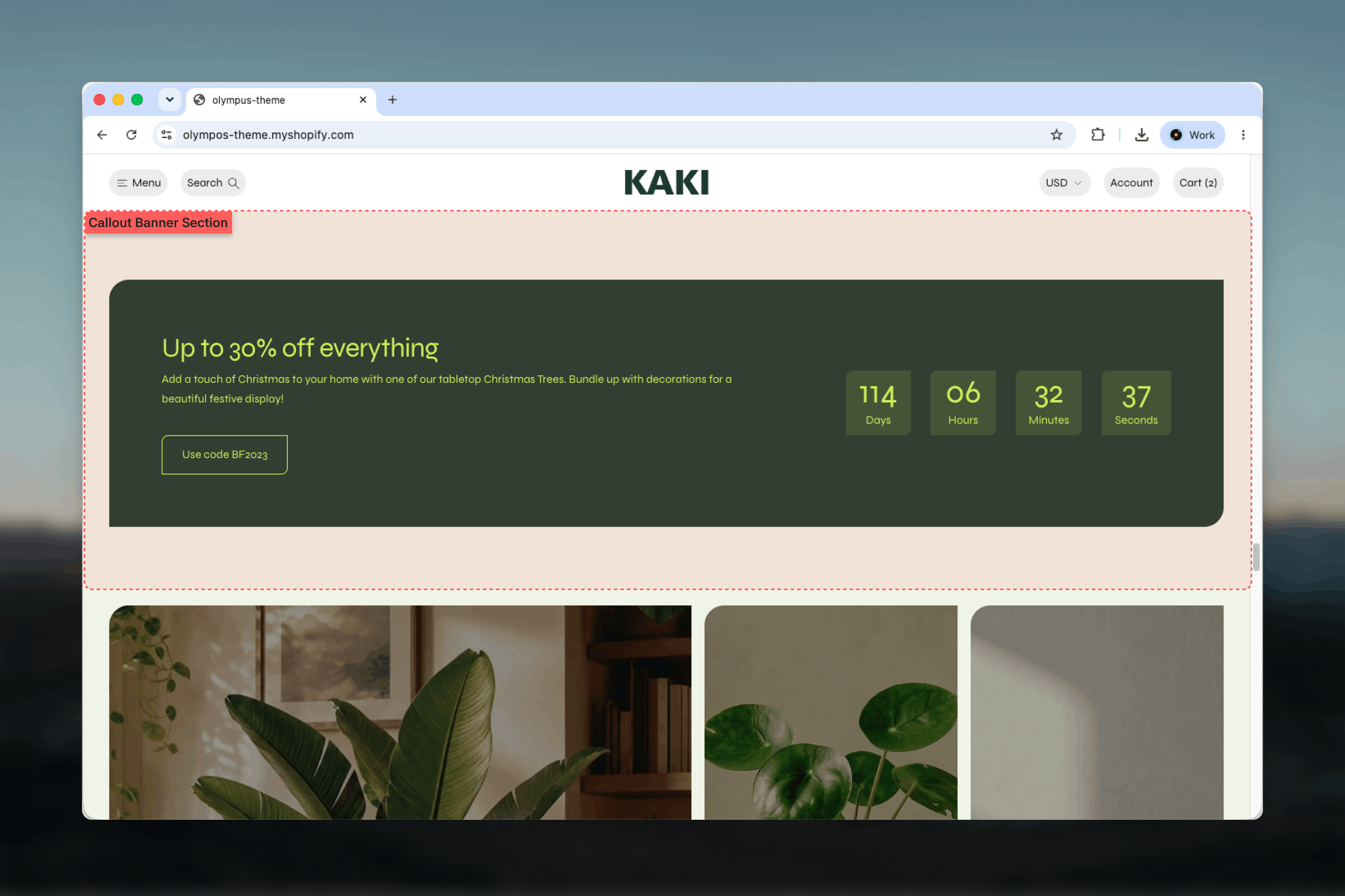
What this section controls
- Whether content is arranged in a horizontal row or stacked and centered
- The color scheme of the page area behind the card and of the card itself
- Which blocks appear: Label, Heading, Text, Button and Countdown
- Width, spacing and section border
How it works
The section paints the Background color scheme across its full width, then draws a card in the Card color scheme inside the chosen width. Your blocks render inside the card. In the Horizontal layout the label, heading, text and button stack in a left column while the countdown sits on the right, forming a single band; in the Centered layout every block stacks and centers, which suits a taller, more editorial card. On mobile the horizontal layout stacks as well.Getting started
1
Open the Theme Customizer
From Shopify admin, open the Theme Customizer and go to the template where the promotion should appear.
2
Add the section
Click Add section and choose Callout banner. The preset includes a Label, Heading, Text, Button and Countdown.
3
Edit or remove blocks
Change the copy in each block, set the countdown end date and the button link. Delete any block the promotion does not need.
4
Style the card
Choose the Content layout and the two color schemes, then adjust width and spacing.
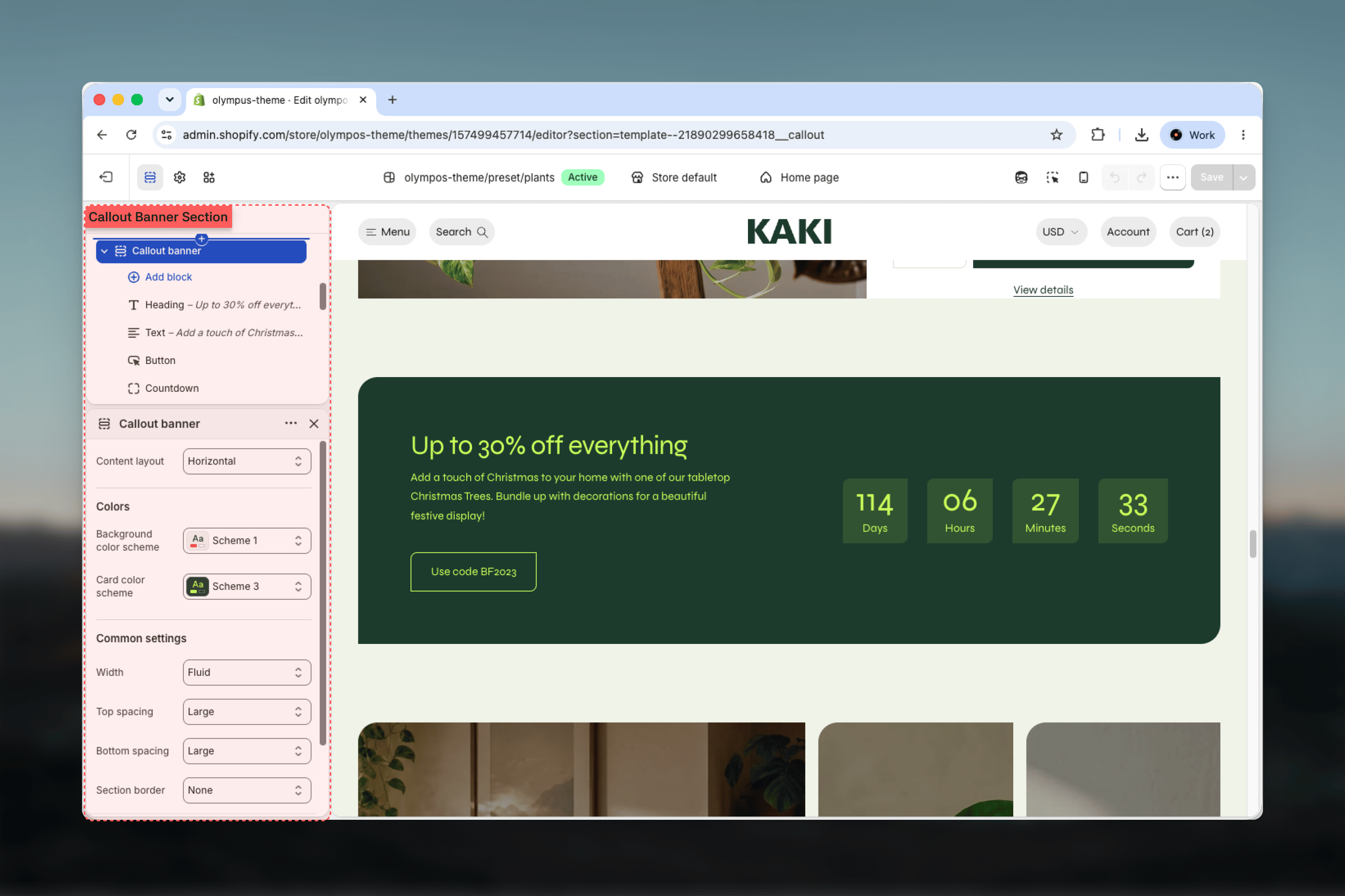
Section settings
Layout
Content layout — how blocks are arranged inside the card. Default: Horizontal.- Horizontal — label, heading, text and button on the left, countdown on the right. Compact; works as a band between other sections.
- Centered — blocks stacked and centered. Taller; works as a focal point with a large heading.
Colors
Background color scheme
Background color scheme
The scheme painted behind the card, across the full width of the page. Default: Scheme 1. Match it to the neighbouring sections so the card appears to float on the page.
Card color scheme
Card color scheme
The scheme of the card itself, including the text, label, countdown and button colors inside it. Default: Scheme 4. A scheme that contrasts strongly with the background is what makes the callout read as a callout.
Common settings
Width
Width
Page, Narrow, Narrower, Fluid or Full width. Default: Page. The card follows this width; the background scheme always spans the page.
Top spacing and Bottom spacing
Top spacing and Bottom spacing
None, Small, Medium, Large or Extra large. Default: Large for both.
Section border
Section border
None, Top, Bottom or Top and bottom. Default: None.
Blocks
The section accepts Label, Heading, Text, Button and Countdown blocks. All five are shared theme blocks documented in full at Theme blocks; the notes below cover what matters inside the callout.Label
Label
A short eyebrow line above the heading, such as “Deal of the day”. Label style can be an Outlined pill (default), a Filled pill or Plain text; pills also offer Corners (Pill or Theme default). Size runs Extra small to Body, and Bottom spacing adds room beneath it.
Heading
Heading
The offer itself, for example “Up to 30% off everything”. Choose the Heading level for accessibility and the Size separately. The preset uses Heading 3.
Text
Text
One or two sentences of supporting copy in rich text, with Size and Alignment.
Countdown
Countdown
A live timer to the offer’s end. Layout is Boxed (default) or Divider; Boxed can show or hide the Background behind each unit. Set the End date by Year, Month, Day, Hour and Minute, choose which Units to show (days, hours, minutes, seconds) and write the Message after end date (default: “The sale has ended”).
Best practices
One offer per banner
A callout works because it is singular. Put one promotion in it and add a second section for a second offer.
Contrast the card
Pick a Card color scheme that differs clearly from the Background color scheme; a subtle difference reads as a mistake rather than a highlight.
Use real deadlines
Set the countdown to the actual end of the offer and write an honest end message. Timers that restart erode trust.
Show only relevant units
Hide days for offers that end today and hide seconds for offers that run a week, so the timer matches the campaign’s pace.
Keep horizontal copy short
In the Horizontal layout the text column shares the card with the countdown. Two lines of text is the practical maximum on a laptop screen.
Check the stacked mobile view
On phones every block stacks. Preview to confirm the label, heading, text, countdown and button still fit without the card becoming a full screen.
Related guides
Theme blocks
Full settings for the Label, Heading, Text, Button and Countdown blocks
Announcement bar
A slimmer place for store-wide messages at the top of every page
Hero banner
Full-bleed media banners for campaigns that need imagery