

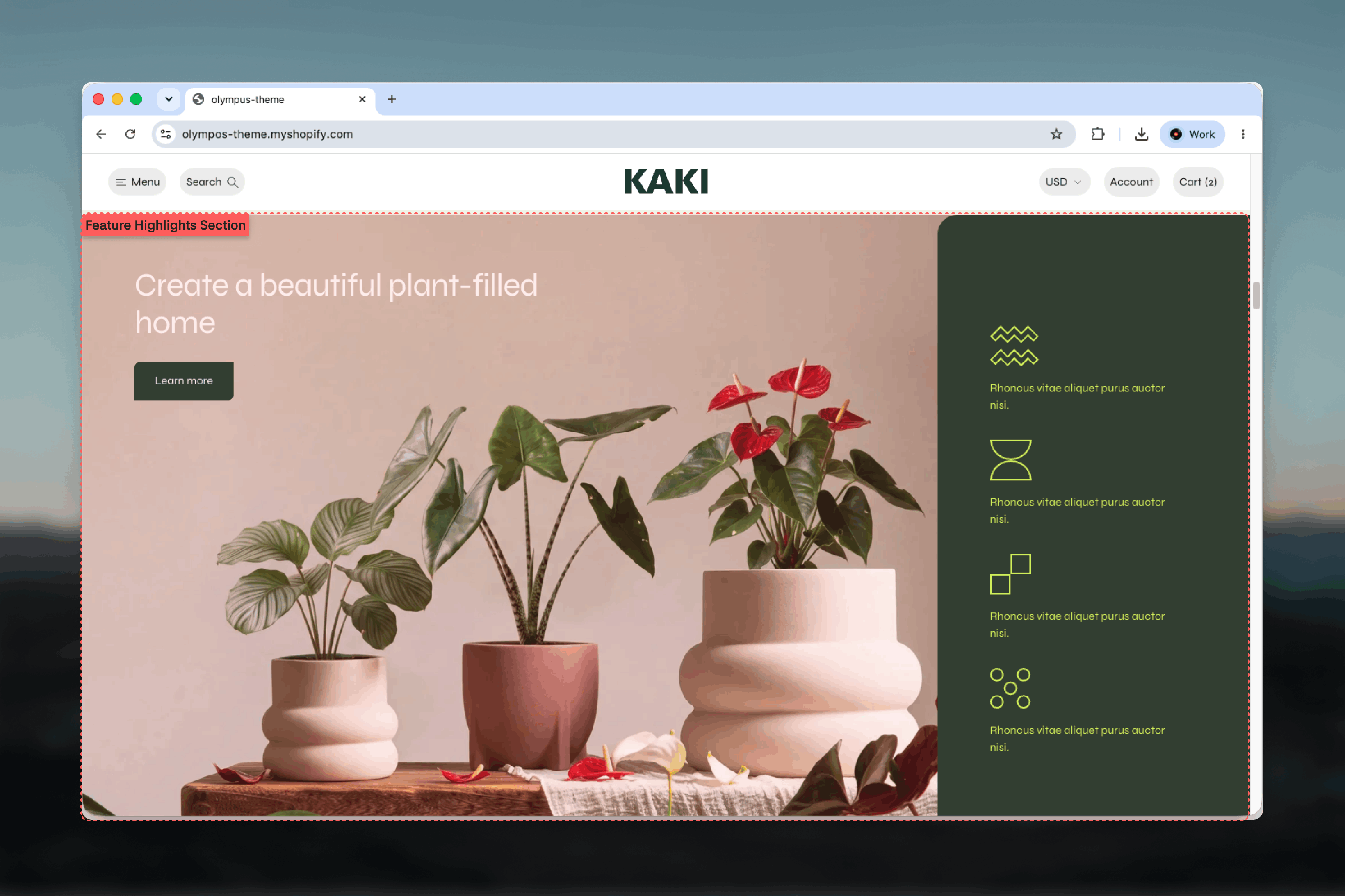
What this section controls
- The image, with an optional mobile version and aspect ratio
- Layout: image beside the text, features overlaid on the image, or the image behind the whole section
- Image position, feature columns, vertical positions of the text and features
- Icon size, overlay opacity and an optional panel behind the features
- Separate color schemes for the section, the content and the button
- Minimum height, a divider between image and text, width, spacing and borders
Getting started
1
Open the Theme Customizer
From the Shopify admin, open Online Store, then Themes, and select Customize on Olympus.
2
Add the section
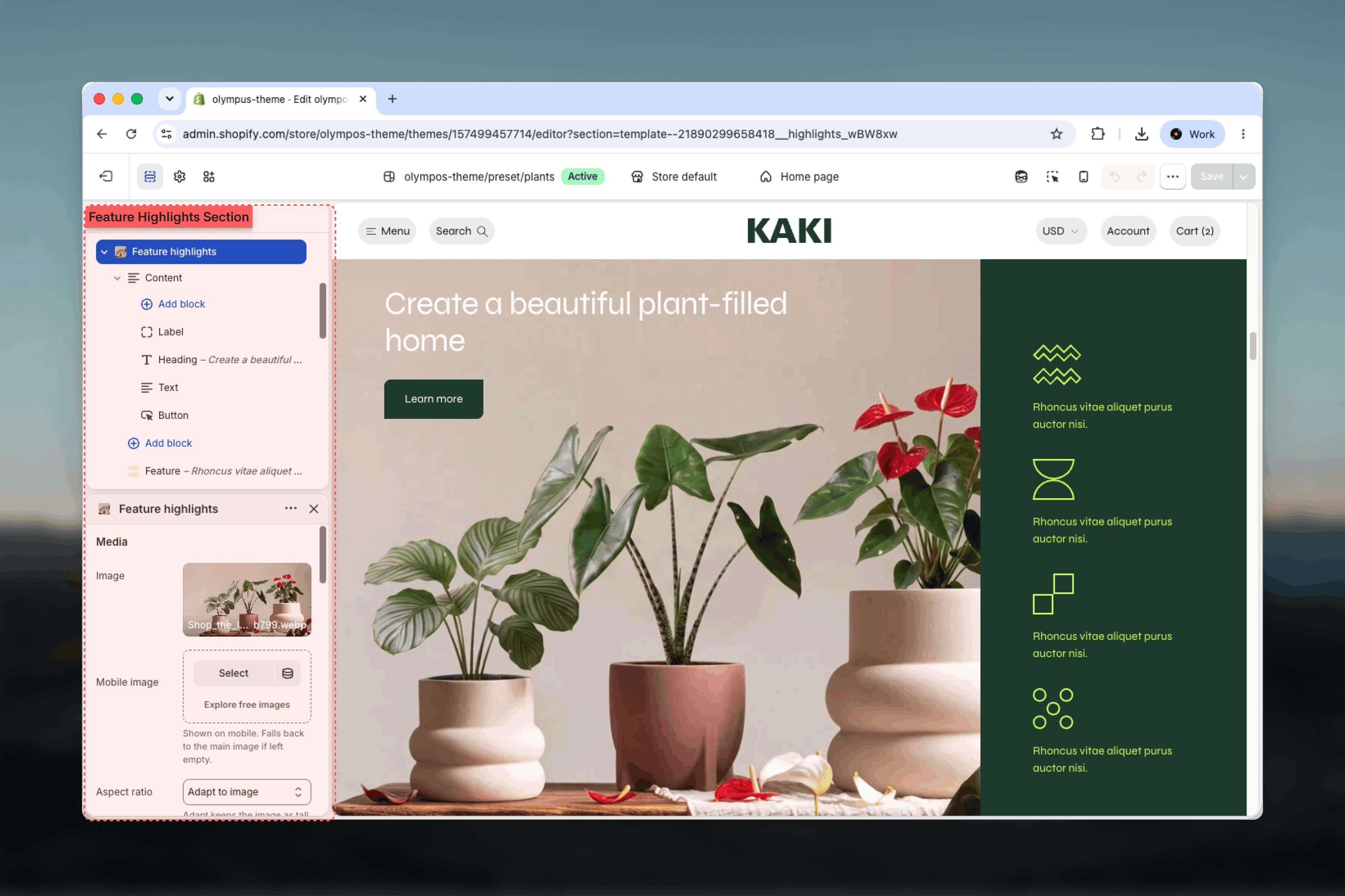
Select Add section and choose Feature highlights. The preset adds a Content block with a label, heading, text and button, plus four Feature blocks.
3
Upload the image
In the Media group, add the Image and, if needed, a Mobile image.
4
Edit the features
Select each Feature block to set its icon, heading and text. Add or remove blocks to match your list.
Section settings
Media
Image and Mobile image
Image and Mobile image
Image is the main visual. Mobile image replaces it on small screens and falls back to the main image when empty. Use a portrait or square crop for mobile so the image does not become a thin strip.
Aspect ratio
Aspect ratio
Shape of the image in the split and overlay layouts: Adapt to image, Square, Landscape, Portrait or Widescreen. Default: Adapt to image, which keeps the image as tall as the copy beside it, using Minimum height as its floor. Not shown for the background layout, where the image fills the section.
Layout
- Image and text
- Overlay on image
- Image behind the section
The default layout. The image occupies one half and the intro and features occupy the other.
- Image position: Left (default) or Right.
- Text vertical position: aligns the whole text column to the Top (default), Center or Bottom of the image on desktop.
- Show features on a panel places the features on a colored panel using the Panel color scheme (default: Scheme 4), separating them from the intro.
- Feature columns: 1 or 2 columns of features. Default: 2. One column suits longer feature text; two keeps four features compact.
- Icon size: 24 to 80 pixels in steps of 2. Default: 48.
Colors
Color scheme
Color scheme
Background and default text colors for the section. Default: Scheme 1.
Use a separate color scheme for the content
Use a separate color scheme for the content
Recolors the text and button of the content with the Content color scheme while the background stays the section’s own. Off by default. Useful when the overlay layout needs light text over a dark photo but the section scheme has dark text.
Minimum height
Minimum height
The section is never shorter than this value, from 320 to 900 pixels in steps of 20. Default: 520. Increase it when the image should dominate even with few features.
Divider between image and text
Divider between image and text
Draws a hairline in the border color where the image meets the copy. Off by default.
Common settings
Width
Width
Page, Narrow, Narrower, Fluid or Full width. Default: Full width, so the image reaches the screen edge.
Top spacing and Bottom spacing
Top spacing and Bottom spacing
None, Small, Medium, Large or Extra large. Default: None for both, because the section is designed to sit flush against its neighbors.
Section border
Section border
None (default), Top, Bottom or Top and bottom.
Blocks
The section accepts a single Content block and any number of Feature blocks.Content
The Content block is the intro that sits above the features. It is a container for up to four shared blocks and has no settings of its own.- Label: a small eyebrow line, as an outlined pill, filled pill or plain text.
- Heading: rich text with heading level, size and alignment.
- Text: supporting copy with size and alignment.
- Button: label, link, Filled or Outlined style, optional icon.
Feature
Each Feature block is one benefit in the list.- Icon: an SVG or PNG on a transparent background. It is scaled to the section’s Icon size, so upload icons of a consistent visual weight.
- Heading: a short title, with inline formatting such as bold or a link.
- Text: one or two sentences describing the benefit. Default: “Describe a key benefit of your product or brand.”
Best practices
One idea per feature
Keep each heading to a few words and the text to a single sentence. Customers scan this section; they do not read it.
Use a matching icon set
Icons from one family, at the same stroke weight, look designed. Mixed sources look accidental at any size.
Check overlay contrast
In the overlay and background layouts, raise Image overlay opacity or use a separate content scheme until text is legible over the busiest part of the image.
Provide a mobile image
Wide images become very short on phones. A square or portrait mobile crop keeps the subject visible.
Let the image set the height
Adapt to image with a reasonable Minimum height keeps the section proportional. Fixed ratios can leave empty space beside long feature lists.
Keep spacing at None when flush
The default Full width and zero spacing make the section read as a band. Add spacing only when it sits between padded sections.
Related guides
Theme blocks
Settings for the Label, Heading, Text and Button blocks used in the intro
Image with text
A simpler image-and-copy section without the feature list
USP bar
A compact strip of selling points without an image