

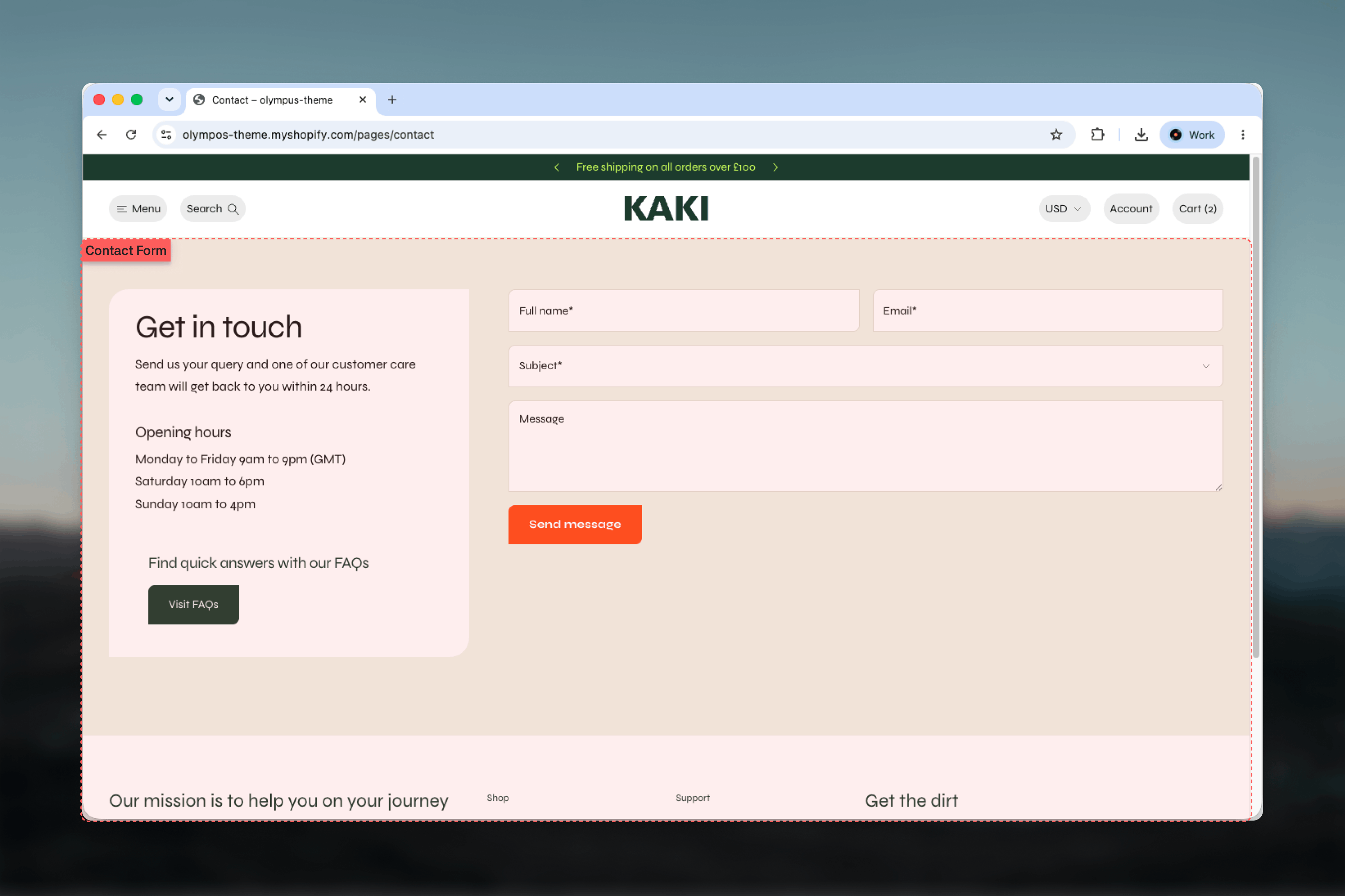
What this template controls
- Which fields the form shows: name, email, optional subject dropdown, optional phone, and message.
- The list of subjects customers can choose from.
- The submit button’s label and style.
- The side panel’s position, width and sticky behavior.
- Separate color schemes for the background, the panel, the fields and the button, plus the field border style.
- The blocks inside the panel and the callout pinned to its bottom.
Getting started
1
Open the Theme Customizer
From your Shopify admin go to Online Store, then Themes, and click Customize on Olympus.
2
Choose the contact template
Use the page selector at the top of the Theme Customizer, open Pages and pick contact. Assign this template to your contact page in the Shopify admin under Content, then Pages, if it is not already.
3
Select the Contact form section
Click Contact form in the left sidebar to open its settings. The panel blocks are listed underneath it.
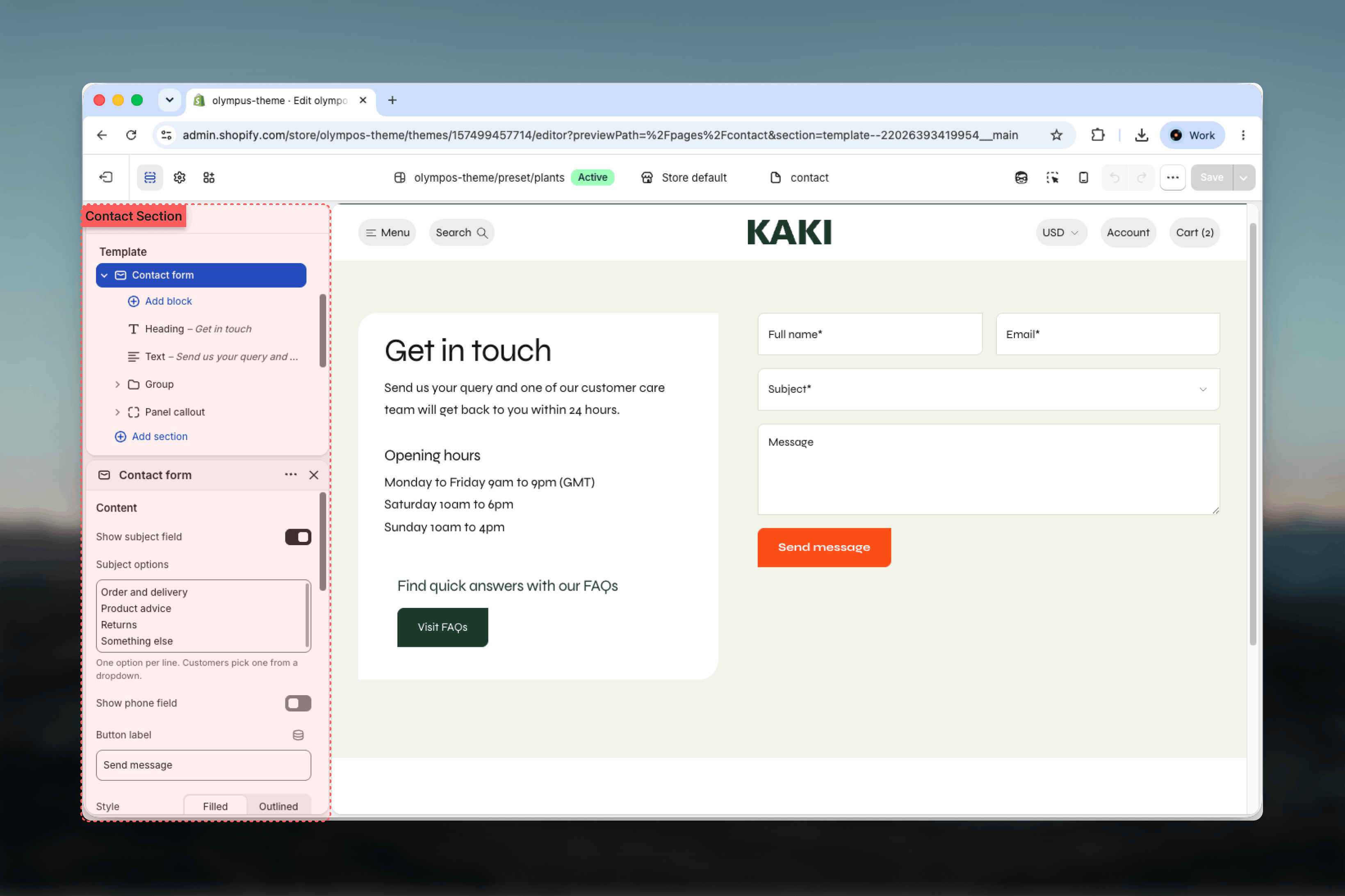
How it works
The section is a two-column grid. One column is the panel: a colored card that holds your blocks and, at its foot, the Panel callout. The other column is the form. Name and email are always required; the subject dropdown and phone field are optional; the message field completes the form. After a successful submission the form is replaced by a “Your message was sent successfully” confirmation. On smaller screens the panel stacks above the form.Shopify sends every submission to the sender email set under Settings, then Notifications, in your admin. The form also includes Shopify’s spam protection.
Template settings
- Form
- Panel
- Colors
- Layout
Show subject field
Show subject field
Adds a required dropdown above the message so customers classify their request. Default: on.
Subject options
Subject options
One option per line. Default: Order and delivery, Product advice, Returns, Something else. The chosen subject is included in the email you receive, which makes triage faster. Appears only when Show subject field is on; if the list is empty the dropdown is hidden.
Show phone field
Show phone field
Adds an optional phone number field. Default: off. Turn it on only if your team actually calls customers back.
Style
Style
Filled or Outlined button. Default: Filled.
Blocks
All blocks live inside the panel. The default template ships with a Heading (“Get in touch”), a Text block promising a reply within 24 hours, and a Group holding an “Opening hours” heading and text.Panel callout
A private block pinned to the bottom of the panel, below the other blocks. It accepts one Heading and one Button block and has a single Color scheme setting (Default: Scheme 1) so it can stand out from the panel around it. The preset uses it to point customers to the FAQ page (“Find quick answers with our FAQs” with a Visit FAQs button). Remove its inner blocks to hide the callout entirely.Group
Arranges nested blocks as a column or row. Layout direction is Vertical or Horizontal (Default: Vertical); Alignment (Left, Center, Right or Stretch) appears for vertical groups. Spacing between blocks (0 to 48 pixels) and Padding (0 to 200 pixels) control inner spacing; Background can be None or Card, and a Color scheme appears when Card is chosen. Use a Group to keep a label and its detail together, such as opening hours or an address.Heading, Text and Button
Standard theme blocks with their usual size, alignment and style settings. Use Heading for the page title (set its heading tag to H1 since the section prints no title of its own), Text for the intro or contact details, and Button for a link to a store locator or support policy. See Theme blocks for the full settings.Best practices
Ask only what you need
Every extra field lowers completion. Keep the phone field off unless you call customers back.
Use subjects for routing
Match the subject options to how your team actually splits work so each email lands with the right person.
Set a response expectation
A Text block such as “We reply within 24 hours” reduces follow-up messages asking for status.
Give the panel a real H1
Set the first Heading block’s tag to H1. The section does not print the page title, so this keeps the page structure correct.
Point the callout at self-service
Link the Panel callout to your FAQ page. Many questions are answered before a message is ever sent.
Check the stacked view
On phones the panel sits above the form. Keep panel content short so the form is not pushed too far down.
Related guides
FAQ
The FAQ template uses the same panel layout with question categories
Theme blocks
Reference for the Heading, Text, Button and Group blocks
Store locator
Add a map of your locations below the contact form