

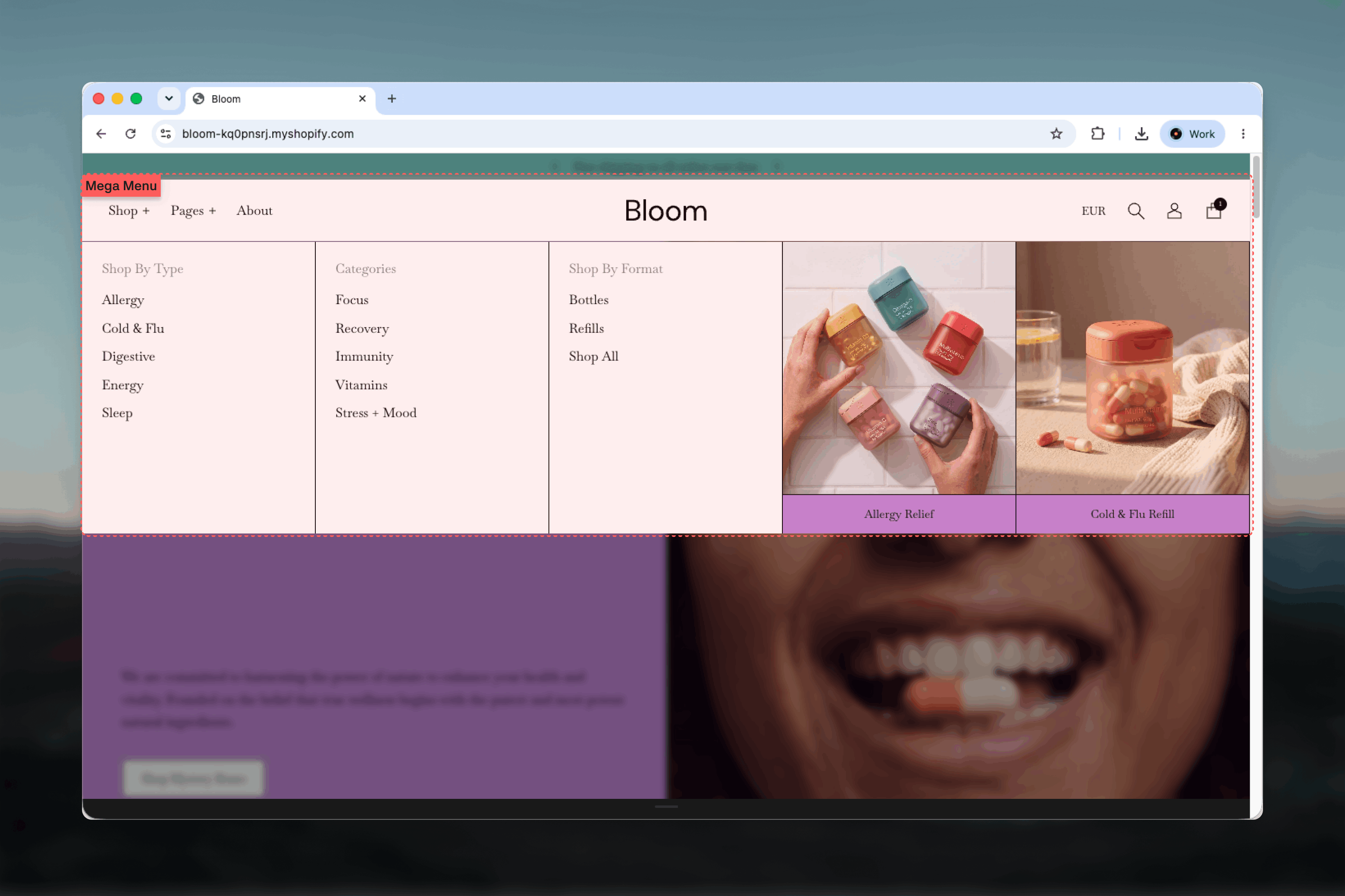
What this section controls
- Whether a top-level item opens a plain dropdown or a mega menu
- Dividers, padding, and spacing between link columns and tiles
- Tile caption style, aspect ratio, and how tiles are arranged in the mobile drawer
- The Tile block: what each tile shows, which menu item it belongs to, and where it appears
- The color scheme used by dropdown and mega menu panels
How it works
Menu items are created under Online Store, then Navigation, and selected in the Header section’s Menu setting. Each top-level item behaves according to its structure and the tiles assigned to it:- Plain link: an item with no sub-items links directly to its destination.
- Dropdown: an item with sub-items opens a panel. When the sub-items have their own children, each sub-item becomes a column with a linked heading and its children listed beneath. When they do not, the panel shows one simple list.
- Mega menu: an item that has at least one Tile block assigned to its position (and shown on desktop) opens a wider panel with the link columns on one side and the tiles beside them.
A top-level item without sub-items can still open a mega menu if tiles are assigned to it. The panel then shows only the tiles.
Getting started
1
Structure the menu
Under Online Store, then Navigation, nest items under a top-level item. Add a third level to create headed columns.
2
Select the menu in the Header
In the Theme Customizer, select the Header section and choose the menu under Navigation. Set Desktop navigation to Inline menu to see dropdowns in the bar.
3
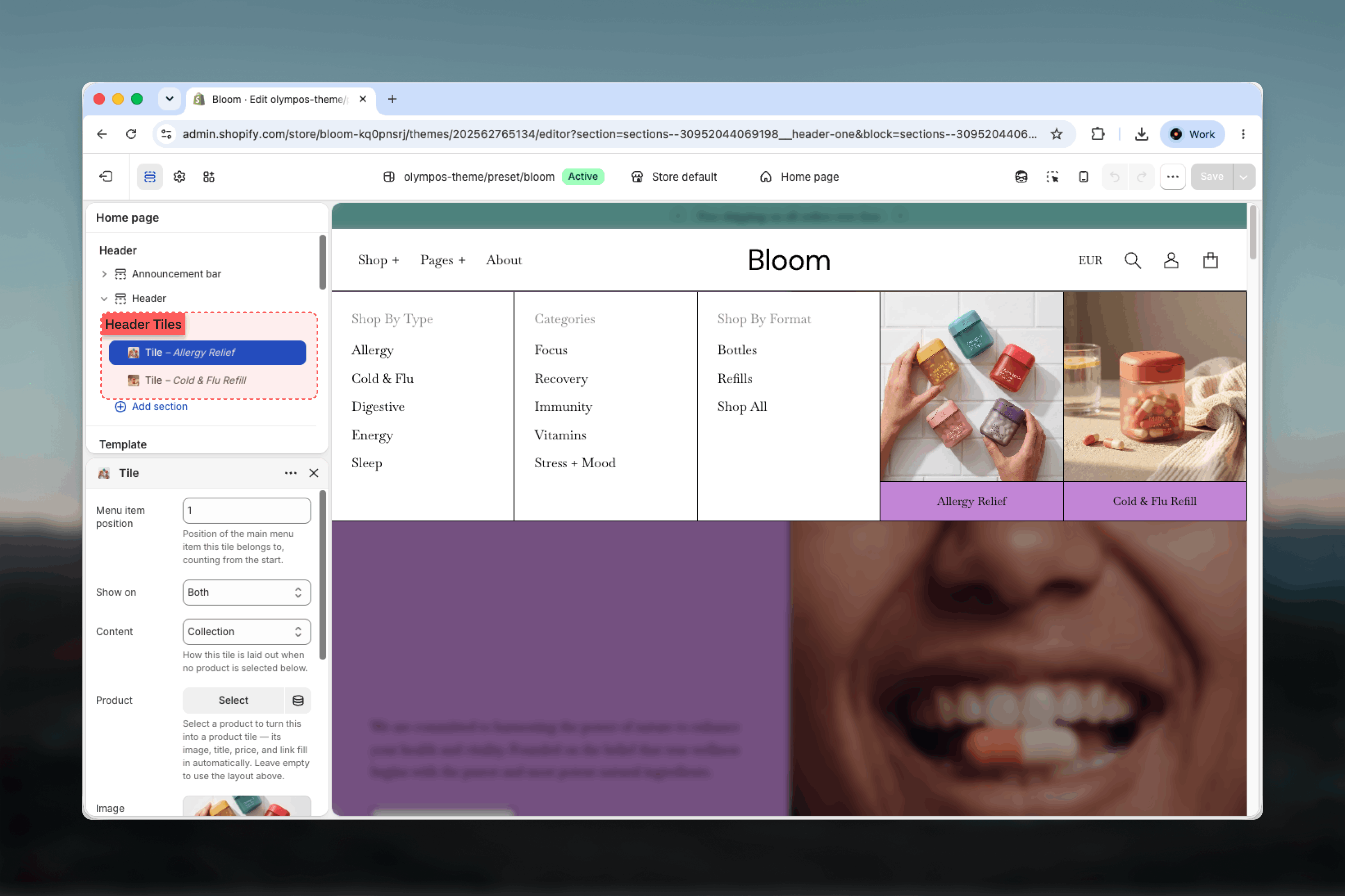
Add a Tile block
Click Add block under the Header and choose Tile. Set Menu item position to the position of the top-level item the tile belongs to, counting from the start.
4
Tune the panel
Under Mega menu in the Header settings, adjust dividers, spacing, and tile captions, then preview desktop and the mobile drawer.
Mega menu settings
These settings live in the Header section under the Mega menu heading and apply to every mega menu panel.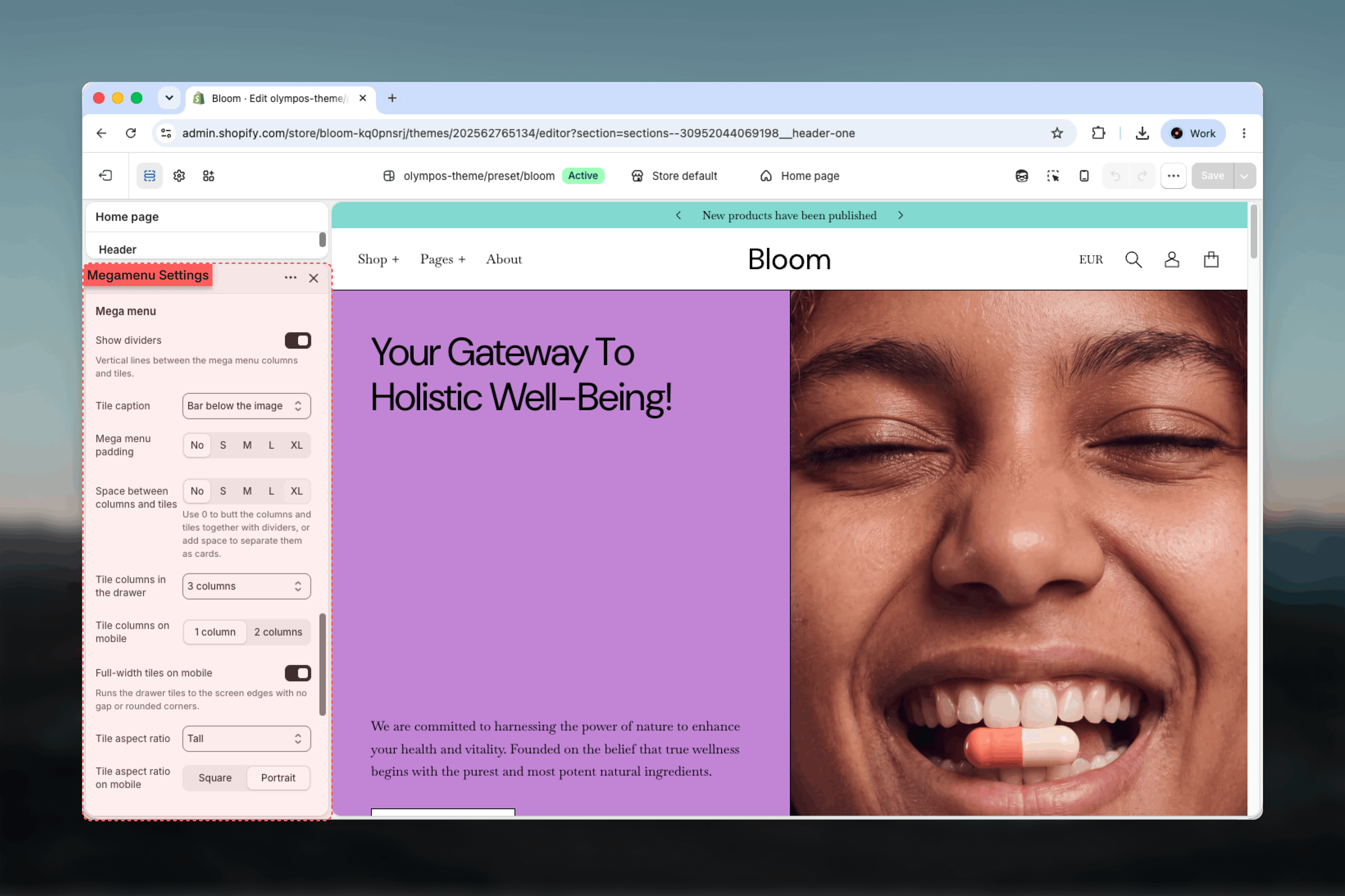
Show dividers
Show dividers
Draws vertical lines between the link columns and the tiles. On by default. Dividers work best with a small or zero Space between columns and tiles, where they separate cells that would otherwise touch.
Tile caption
Tile caption
How the heading of a collection tile is shown.
- Pill on the image: a small pill overlaid on the image. Default.
- Bar below the image: a full-width bar under the image in the tile’s color scheme.
- Text below the image: plain text under the image.
Space between columns and tiles
Space between columns and tiles
The gap between cells: No, S, M, L, or XL. Default: L. Use No to butt the columns and tiles together with dividers, or add space to separate them as cards.
Tile aspect ratio
Tile aspect ratio
Shape of tile images on desktop: Square, Landscape, Tall, or Portrait. Default: Tall. Tile aspect ratio on mobile offers Square or Portrait for the drawer. Default: Square.
Tiles in the drawer
Tiles in the drawer
Tiles that are shown on mobile appear in a grid at the bottom of the navigation drawer, below the menu.
- Tile columns in the drawer: 1, 2, or 3 columns when the drawer is used on desktop. Default: 3.
- Tile columns on mobile: 1 or 2 columns on phones. Default: 2.
- Full-width tiles on mobile: runs the grid to the screen edges with no gap or rounded corners.
- Tile group heading: a heading above the tile grid, for example Featured.
- Tile group link: adds a View all link next to the heading.
Panel colors
Color scheme for dropdowns (under Colors in the Header section) sets the background, text, and border colors of every dropdown and mega menu panel. Default: Scheme 1. Tiles carry their own color scheme, so they can contrast with the panel. The drawer uses the separate Color scheme for drawers.Blocks
Tile
A Tile is one promotional card in a mega menu and, when shown on mobile, in the drawer’s tile grid. The Header accepts any number of tiles; each one belongs to a single top-level menu item.Placement
Placement
- Menu item position: the position of the top-level menu item this tile belongs to, counting from the start. Default: 1. Several tiles can share a position; they appear in block order.
- Show on: Both, Desktop, or Mobile. Default: Both. Desktop tiles build the mega menu; mobile tiles fill the drawer grid. A tile set to Mobile does not turn its menu item into a mega menu.
Content type
Content type
Content decides the tile layout when no product is selected: Collection, Article, or Promo. Default: Collection.
- Collection: an image with the heading shown according to the Tile caption setting. Best for category shortcuts.
- Article: an image with the heading and a Read article call to action overlaid at the bottom. Best for guides and editorial content.
- Promo: a text-only card in the tile’s color scheme with the heading and an arrow button. No image is used.
Media and text
Media and text
- Image: the tile image. Hidden for Promo tiles. If empty, a placeholder is shown.
- Heading: the text shown on the tile. For product tiles, leave empty to use the product title.
- Link: the destination. Product tiles always link to the product page instead.
- Button label: the call-to-action text on Promo tiles. Default: Shop bundles.
- Content position: Bottom or Top, for the text on Promo tiles. Default: Bottom.
Color scheme
Color scheme
The tile’s own scheme, used for the caption pill or bar, the article overlay, the promo card background, and the product tile text. Default: Scheme 1. Choose a scheme that differs from the panel scheme to make tiles stand out as cards.
Best practices
Design the menu first
Decide the second and third levels in Shopify Navigation before adding tiles. Column headings should read as categories, not as a second copy of the top-level item.
Count positions carefully
Menu item position counts top-level items from the start. If you reorder the menu in Shopify, revisit the tiles so they still belong to the intended item.
Mix tile types
Pair a Collection tile with one Promo or Product tile. Different tile layouts make the panel easier to scan than a row of identical images.
Keep images consistent
Use the same crop and subject size across tiles. The Tile aspect ratio frames every image identically, so mismatched photos are obvious.
Check the drawer
Tiles shown on mobile sit under the whole menu. Give the group a heading and keep it to a handful of tiles so the drawer stays short.
Contrast tiles with the panel
Use one scheme for dropdowns and a different scheme on the tiles so cards and links are visually distinct.
Related guides
Header
Navigation style, bar layout, logo, search, and color schemes.
Multi tile
Tile grids for the homepage, built from the shared Tile block.