

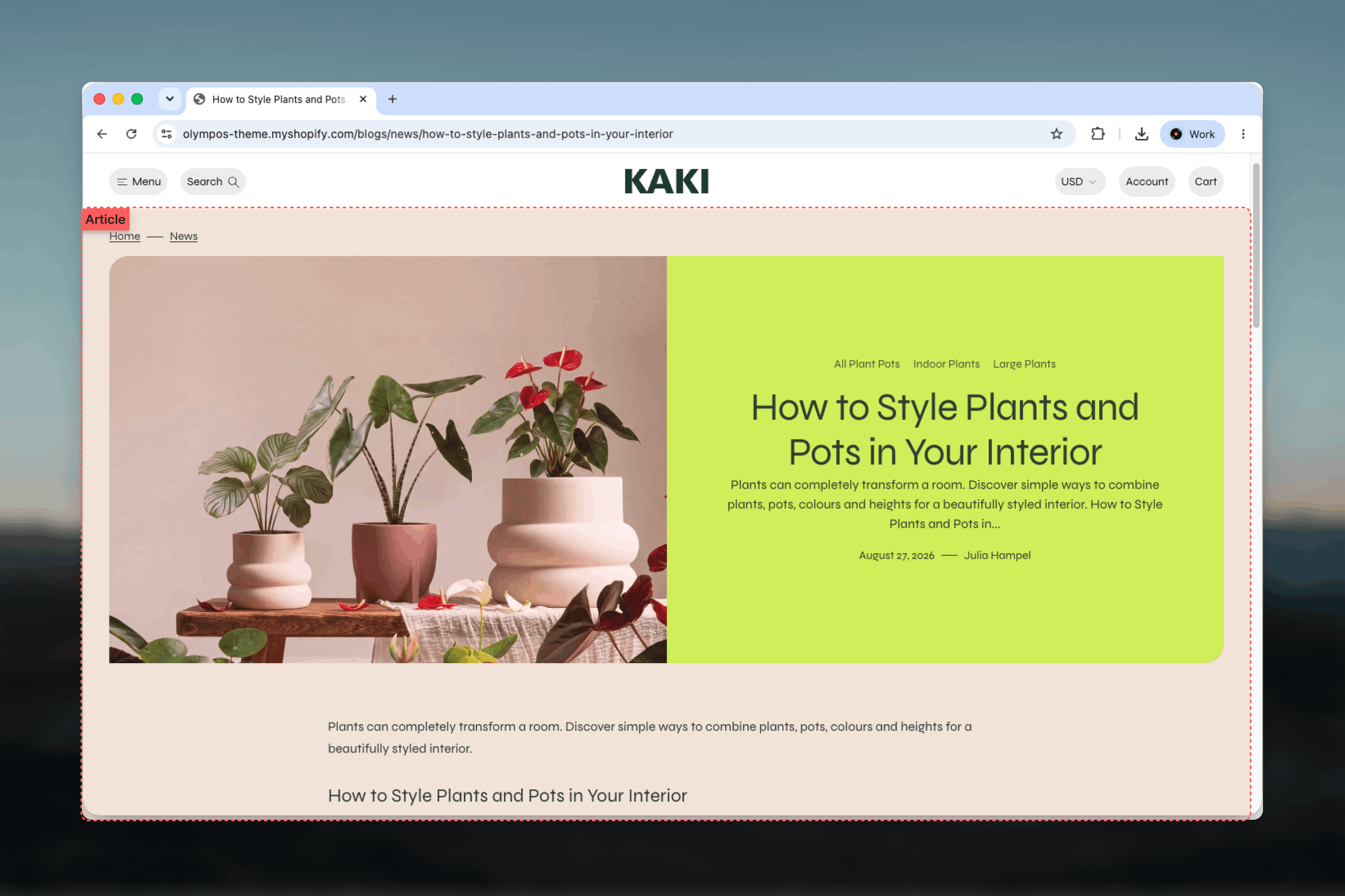
What this template controls
- Which article blocks appear and in what order.
- The banner that pairs the featured image with the tags, title, description and author line.
- The reading width of the body content, share row and comments, independently of the section width.
- Whether readers can share the post and leave comments, and how many comments load per page.
- The page color scheme and the spacing between blocks.
- Additional theme blocks or app blocks placed anywhere in the post.
Getting started
1
Open the Theme Customizer
From your Shopify admin go to Online Store, then Themes, and click Customize on Olympus.
2
Choose the article template
Use the page selector at the top of the Theme Customizer, open Blog posts and pick Default article. A sample article is loaded so you can see every block with real content.
3
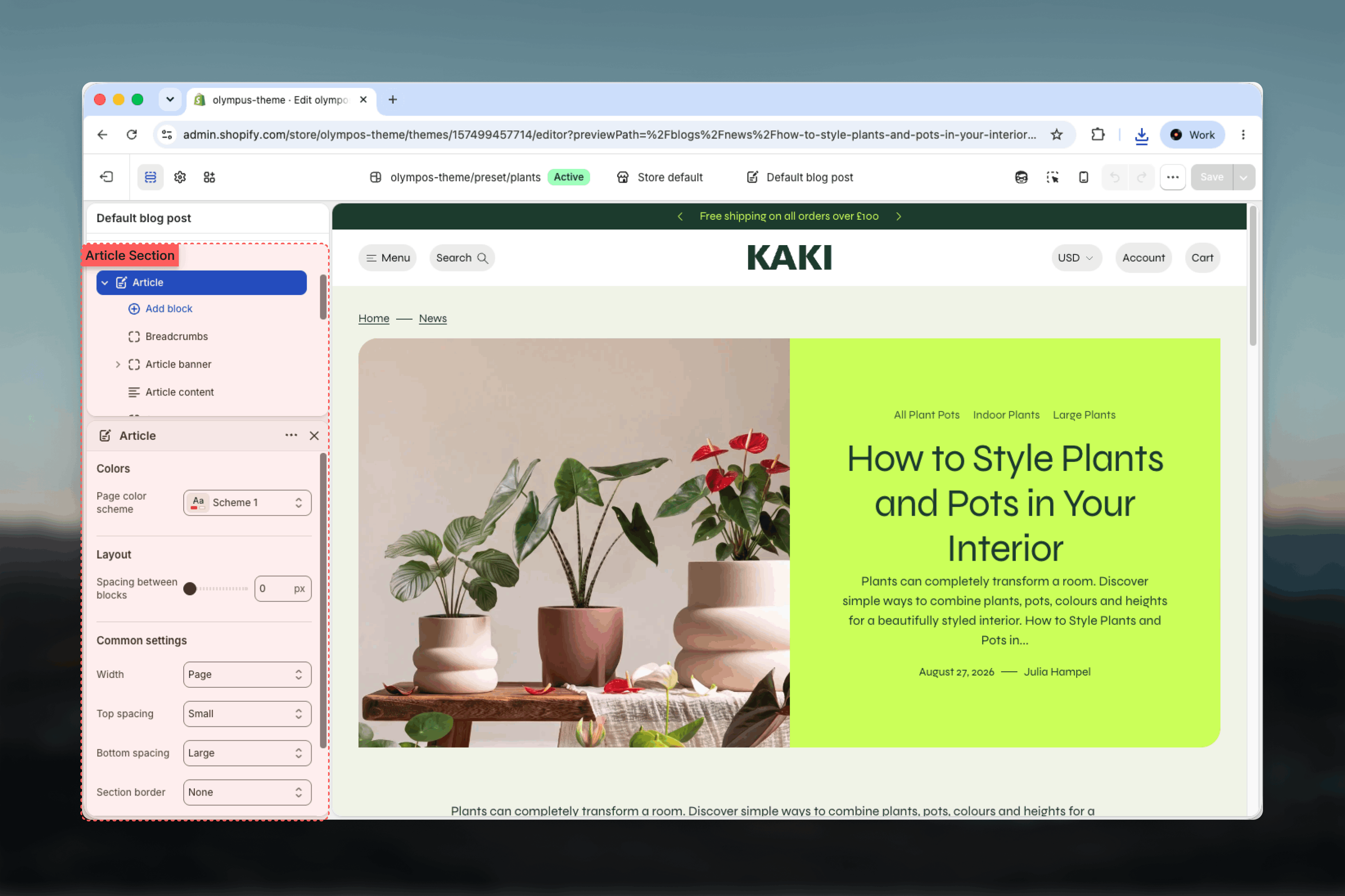
Select the Article section
Click Article in the left sidebar. Its blocks are listed underneath; click any block to edit it, or drag blocks to reorder them.
How it works
The section stacks its blocks vertically in the order shown in the sidebar. Out of the box the order is Article banner (which nests Article tags, Article title, Article description and Date and author), then Article content. Breadcrumbs, Share and Comments are available to add from the block picker. Because the Article section accepts any theme block, you can also drop in a Heading, Text, Button, Image, Video or Group block, and any app block that supports articles.The article itself (text, featured image, excerpt, tags, author) is written in the Shopify admin under Content, then Blog posts. The template only controls how those fields are displayed.
Settings
Page color scheme: The scheme applied to the whole article page. Default: Scheme 1. Individual blocks such as the banner can override it with their own scheme. Spacing between blocks: The vertical gap between consecutive blocks, from 0 to 96 pixels in steps of 4. Default: 0. Increase it when you use several stand-alone blocks; leave it low when blocks carry their own Bottom spacing.Common settings
Width
Width
Page, Narrow, Fluid or Full width. Default: Page. Content-heavy blocks (Article content, Share, Comments) have their own Width setting so the banner can stay wide while the text stays narrow.
Top spacing and Bottom spacing
Top spacing and Bottom spacing
None, Small, Medium or Large. Defaults: Medium on top and Large at the bottom.
Section border
Section border
None, Top, Bottom or Top and bottom. Default: None.
Blocks
Every article block offers a Bottom spacing setting that adds extra space under that block on top of the section’s own gap. The header blocks use the block spacing scale (No, S, M, L, XL); the wider blocks use the section spacing scale (None, Small, Medium, Large).- Header
- Content
- Engagement
The header blocks introduce the post: a breadcrumb trail and a banner that frames the title area.
Article title
Article title
The post title. Size chooses the visual size from Body up to Heading 1 (Default: Heading 1). Heading level sets the semantic level, H1, H2 or H3, for accessibility and SEO independently of the visual size (Default: H1). Keep one H1 per page.
Article description
Article description
The post excerpt. Size is Small, Body or Heading 6 (Default: Body). Fall back to the post content shows the opening words of the body when the post has no excerpt (Default: on), so the banner never looks empty.
Best practices
Keep the body narrow
Leave Article content at Narrower. Shorter lines are easier to read, and the banner above still fills the page width.
One H1 per page
Keep the Article title at Heading level H1 and give any extra Heading blocks H2 or lower so search engines read the structure correctly.
Always fill the excerpt
Write a real excerpt in the admin. The fallback to post content works, but a deliberate summary reads better in the banner and on blog cards.
Place Share after the content
Readers share once they have finished. Put the Share block directly under Article content and keep its width matched.
Moderate comments
Enable moderation in the Shopify admin before turning on the comment form so spam never appears publicly.
Add related posts as a section
Use a Featured articles section below the Article section instead of a block; it keeps the post layout clean and can be reused on other templates.
Related guides
Blog Template (main-blog)
Configure the listing page that links to your articles
Theme blocks
Reference for the Heading, Text, Button, Image, Video and Group blocks
Featured articles
Show related or recent posts below an article