

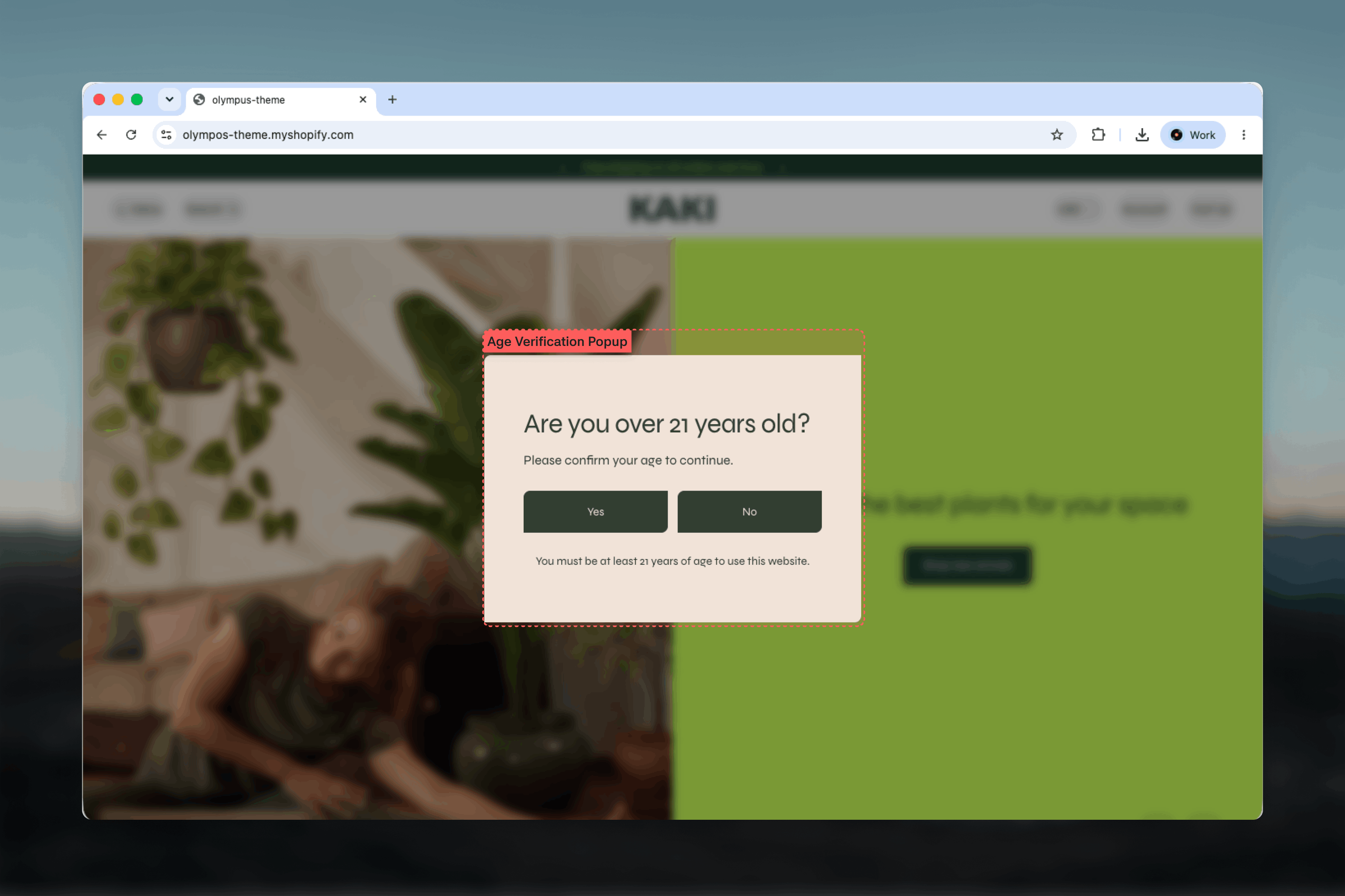
What this section controls
- An optional image or logo at the top of the dialog
- The heading, text and any extra buttons, added as blocks
- The labels of the confirm and decline buttons
- The fine print shown under the buttons
- Whether the popup stays open while you edit in the Theme Customizer
- The color scheme of the dialog
How it works
The popup opens on the first page load and stays until the visitor answers. It is a centered dialog with a darkened, blurred backdrop so the store behind it is not readable, and background scrolling is locked while it is open. On mobile it slides up from the bottom of the screen. The dialog stacks its content vertically: the image, then your blocks, then the two buttons side by side, then the fine print. The confirm button uses the scheme’s text color as a solid fill and the decline button is outlined, so the intended action is visually primary. Unlike every other dialog in Olympus, this one cannot be closed with the Escape key or by clicking the dimmed backdrop. There is no close icon either — the visitor has to choose one of the two buttons.- Confirm closes the dialog and remembers the answer for one year in that browser, so the popup does not reappear on later visits.
- Decline sends the visitor to the store’s home page and does not record them as verified, so the popup appears again straight away.
Getting started
1
Open the Theme Customizer
From Shopify admin, open the Theme Customizer on any template.
2
Find the Modals & drawers group
In the left sidebar, scroll past the template’s sections to the Modals & drawers group and select Age verification.
3
Edit the content
Change the Heading and Text blocks, set the confirm and decline labels, and update the fine print to match your legal requirement.
4
Preview and disable when not needed
Keep Show in theme editor enabled while you style the dialog. Turn the section off with the eye icon if your store does not need age verification.
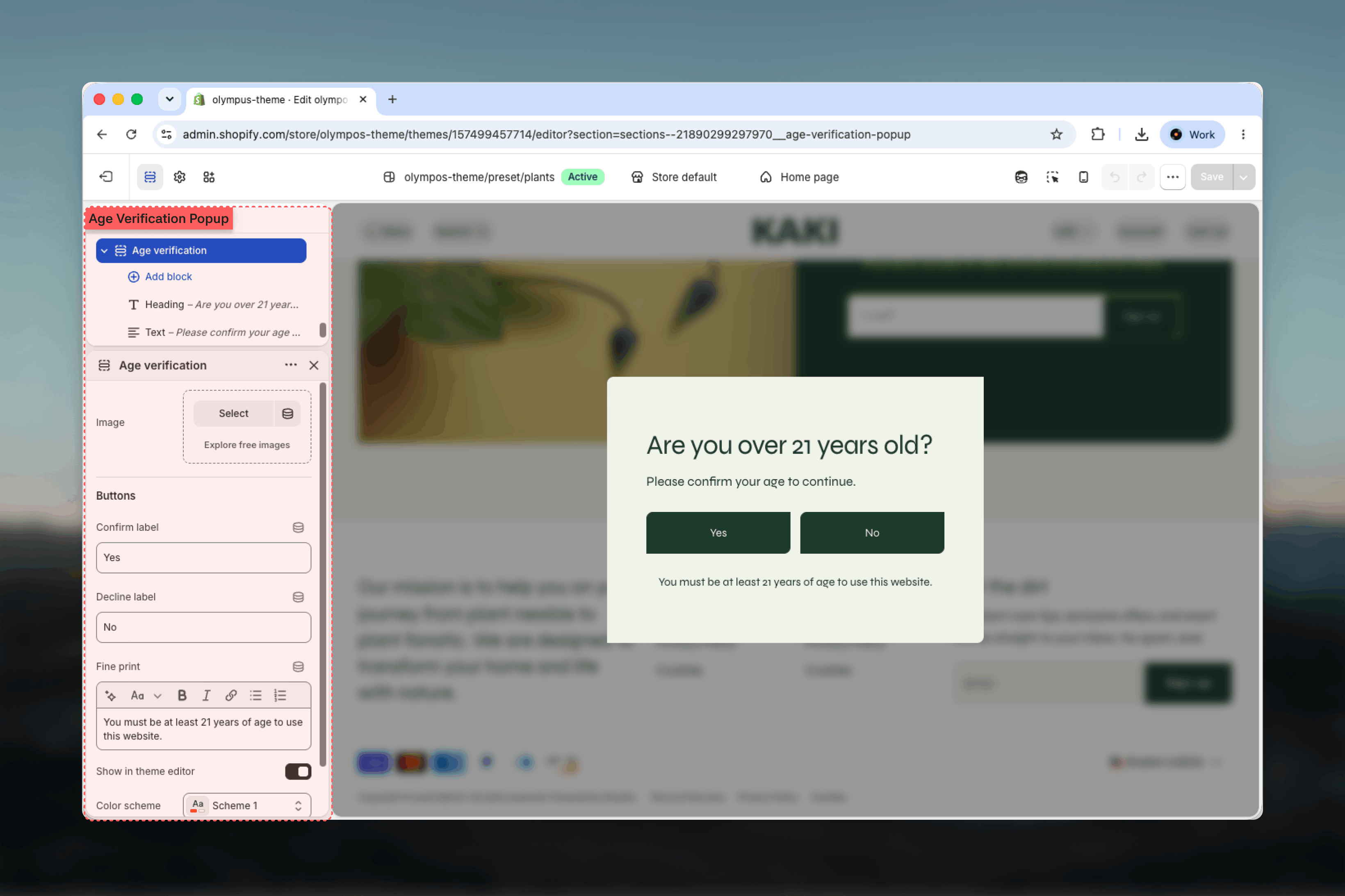
Section settings
Image
An optional image displayed centered above the content, constrained to a small width so it reads as a logo or badge rather than a banner. Leave it empty to start the dialog with the heading.Buttons and fine print
Confirm label
Confirm label
Text of the button that confirms the visitor’s age and lets them continue to the store. Default: Yes. Choosing it remembers the visitor for one year in that browser.
Decline label
Decline label
Text of the button for visitors who do not meet the age requirement. Default: No. Choosing it returns the visitor to the store’s home page, where the popup opens again.
Fine print
Fine print
Rich text shown in small type under the buttons. Default: “You must be at least 21 years of age to use this website.” Use it for the legal statement and, where required, a link to your terms.
Display and colors
Show in theme editor
Show in theme editor
Keeps the dialog open in the Theme Customizer so you can see your changes. Enabled by default. It has no effect on the storefront, where the popup opens for visitors on arrival regardless of this setting.
Color scheme
Color scheme
Background, text and button colors of the dialog. Default: Scheme 1. The backdrop behind the dialog is always dark and blurred, so choose a scheme that contrasts with it.
The popup has no width, spacing or border settings. It is an overlay, so the common section settings do not apply.
Blocks
The dialog’s content between the image and the buttons is built from blocks. The default configuration uses one Heading (“Are you over 21 years old?”) and one Text (“Please confirm your age to continue.”).- Heading — the question posed to the visitor. Heading level, Size and Alignment are available.
- Text — supporting copy in rich text with Size and Alignment.
- Button — an extra link button, for example to a policy page or an alternative store. It is separate from the confirm and decline buttons, which are section settings.
Best practices
Ask one clear question
Keep the heading to a single question that states the age, so visitors can answer without reading the fine print.
Check the legal wording
Requirements differ by region and product type. Confirm the age and the fine print with your legal adviser before publishing.
Use a logo, not a banner
The image area is small by design. A square logo or mark keeps the dialog compact on mobile.
Preview on mobile
The dialog docks to the bottom of the screen on phones. Check that the heading, buttons and fine print fit without scrolling.
Hide it while editing
Disable Show in theme editor after styling so the popup does not block the rest of the Theme Customizer preview.
Disable when not required
The gate blocks the whole store until it is answered, and declining returns visitors to the home page. If only a few products are age-restricted, consider whether a site-wide gate is worth that cost.
Related guides
Newsletter popup
The other modal in the Modals & drawers group, with its own timing and display rules
Colors
Define the color schemes available to the dialog