

What this section controls
- Overlay or Split layout and the image side in Split
- Desktop and mobile images, aspect ratio or section height
- Whether product cards show a variant row
- Three color schemes: section, title and dots, and cards
- A Heading block and any number of Dot blocks with hotspot positions
How it works
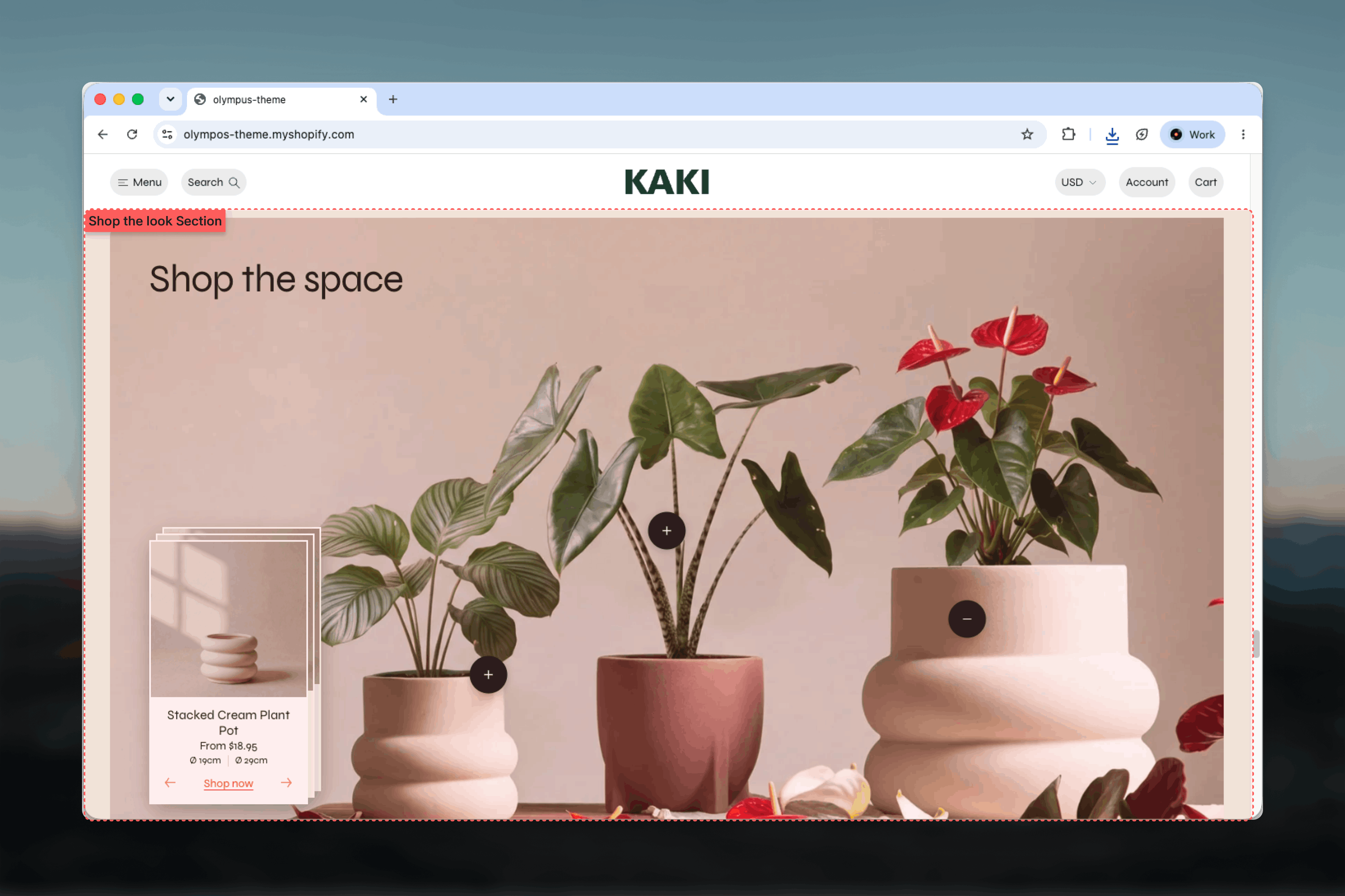
Each Dot block draws a plus marker at its horizontal and vertical position on the image. The product cards form a stacked deck, one card in front and the rest layered behind it, and the deck is kept in sync with the dots: the first dot is active when the section loads and its card is at the front, and selecting a dot brings that product’s card forward while the active dot shows a minus. Previous and next controls sit beside the Shop now action on the card and step through the same deck. Cards animate between their stacked positions as the active product changes, so the movement reads as one shuffling stack rather than a jump. In the Split layout the deck also carries bullet pagination with its own pair of arrows beneath it, and the card’s own arrows are hidden. Hotspots are anchored to the image, not to the section frame, so a dot keeps pointing at the same item as the screen changes shape and the image is cropped.Getting started
1
Open Theme Customizer
From Shopify admin, open the Theme Customizer on the template where the section should live, typically the homepage.
2
Add Shop the look
Choose Add section and pick Shop the look. The preset includes a heading and three dots.
3
Upload the scene
Add an Image and, if the desktop crop hides a product on phones, a Mobile image.
4
Place the dots
Select each Dot block, choose its Product and drag the Hotspot horizontal and vertical position sliders until the marker sits on the item.
Section settings
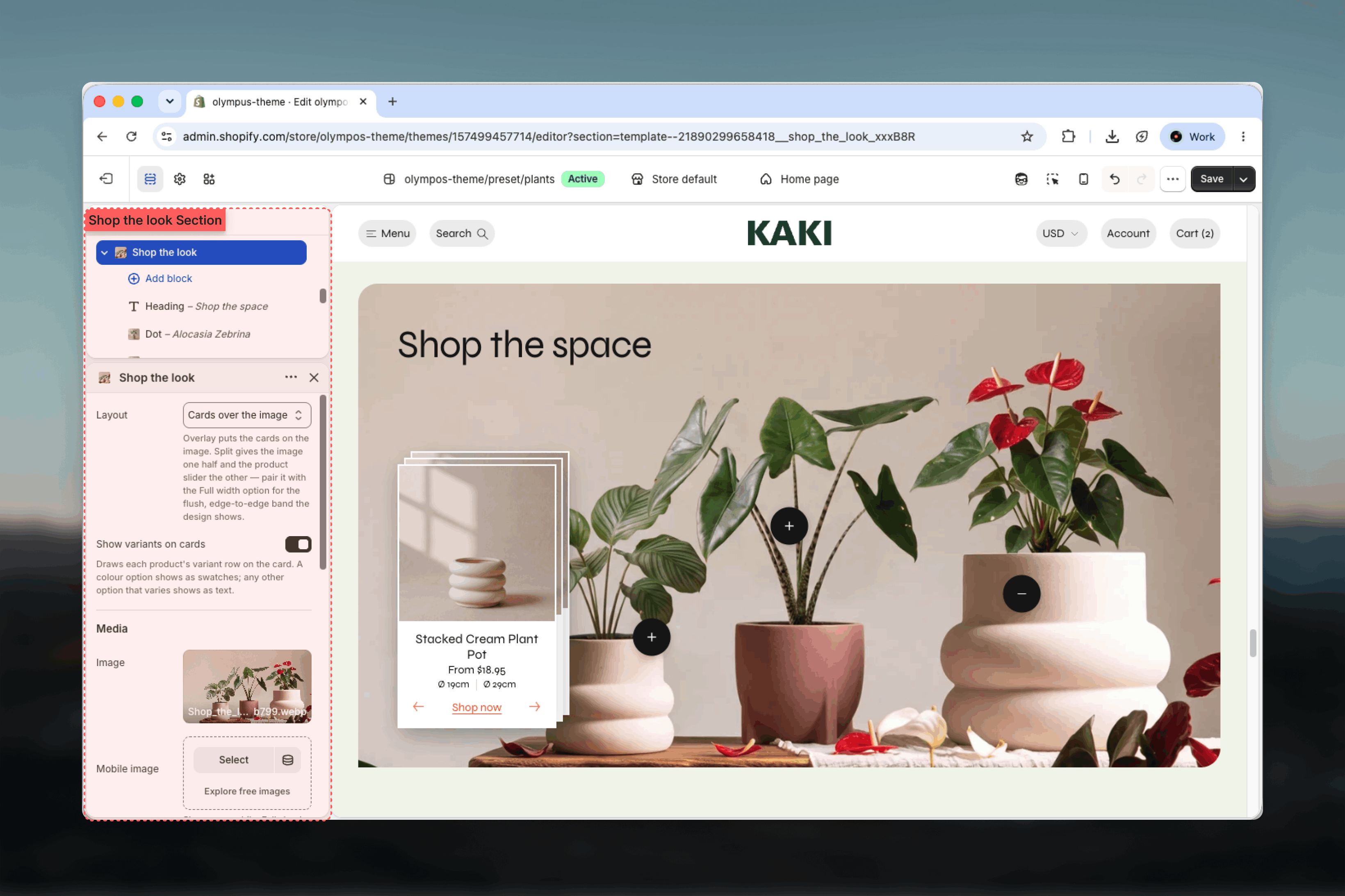
Layout
Layout
Layout
Default: Cards over the image.
- Cards over the image: the product card sits on the photo near the dots. Compact and immersive.
- Image and slider side by side: the image takes one half and the product deck the other. Pair it with the Full width option for the flush, edge-to-edge band the design is built around.
Image position
Image position
Split layout only. Left (default) or Right.
Show variants on cards
Show variants on cards
Draws each product’s variant row on the card. A color option shows as swatches; any other option that varies shows as text. Enabled by default. Turn it off for a cleaner card when products have many options.
Media
Image and Mobile image
Image and Mobile image
The scene photo. Mobile image replaces it on phones and falls back to the main image when empty. Dots keep their percentage positions, so a mobile image should frame the same products in roughly the same places.
Aspect ratio
Aspect ratio
Overlay layout only. Landscape (default), Widescreen or Square.
Section height
Section height
Split layout only. Both halves are this tall, from 420px to 1000px in steps of 20: the image fills its half and the slider sits centered in the other. Default: 760px, which matches the design.
Colors
- Color scheme: the section background. Default: Scheme 1.
- Title & dots color scheme: the heading and the hotspot markers. Default: Scheme 2. Pick a scheme whose button color contrasts with the photo so dots are easy to find.
- Card color scheme: the product cards and, in Split, the panel behind them. Default: Scheme 1.
Common settings
Width
Width
Page, Narrow, Narrower, Fluid or Full width. Default: Page. Use Full width for the Split layout.
Top spacing and Bottom spacing
Top spacing and Bottom spacing
None, Small, Medium, Large or Extra large. Default: Large for both.
Section border
Section border
None, Top, Bottom or Top and bottom. Default: None.
Blocks
Heading (limit 1)
The section title, shown above the image in the Overlay layout and above the deck in Split; on phones in Split it moves over the image. Default text: Shop the look. Size from Heading 5 to Heading 1 (default: Heading 3). Shared heading options are described in the Theme blocks reference.Dot
One hotspot and its product card. Add one Dot per item in the scene; the order of the blocks is the order of the cards.Product
Product
The product the dot points at. Its featured image, title, price and variant row fill the card. Products with several prices show “From” and the lowest price. An empty Product shows a placeholder card in the editor.
Hotspot horizontal position
Hotspot horizontal position
Where the marker sits across the image, from 0% (left edge) to 100% (right edge). Default: 50.
Hotspot vertical position
Hotspot vertical position
Where the marker sits down the image, from 0% (top) to 100% (bottom). Default: 50.
Best practices
Three to five products
Enough to make the scene worth exploring without covering the photo in markers.
Choose a photo with clear items
Hotspots work when each product is visible and separable. Crowded flat lays make dots ambiguous.
Keep dots off the edges
Positions near 0% or 100% can be clipped or fall under the card in the Overlay layout. Stay inside 10-90%.
Provide a mobile crop
A portrait Mobile image with the same products in similar positions keeps the dots accurate on phones.
Contrast the dot scheme
Light photos need a dark dot scheme and dark photos a light one. Check both the plus and minus states.
Use Split at Full width
The side-by-side layout is designed as an edge-to-edge band. At Page width the image half becomes small.
Related guides
Featured products
A curated product slider without hotspots
Product cards
Swatch style and variant display used by the variant row
Image with text
Pair a single image with copy when the products do not need hotspots