

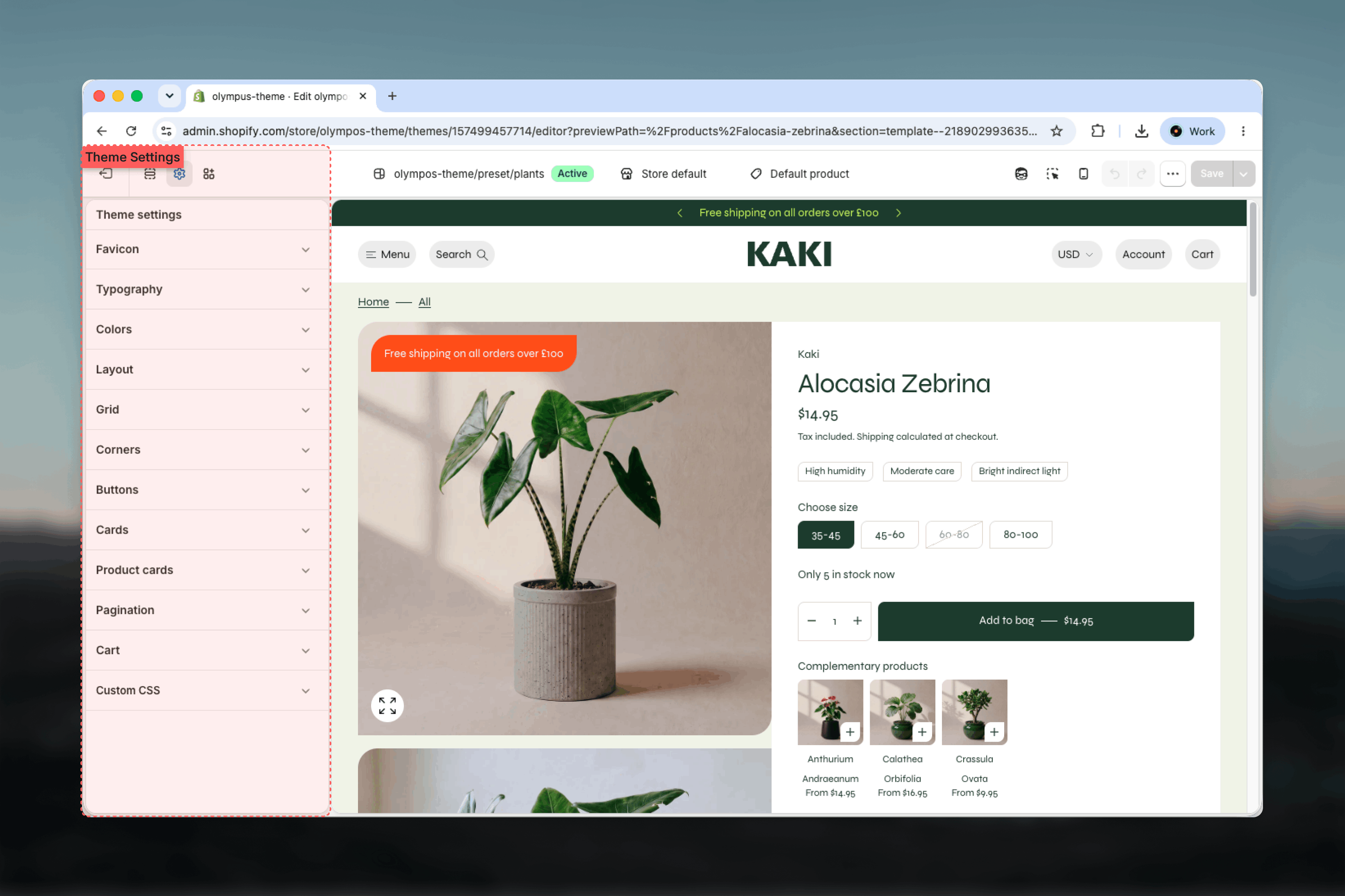
What these settings control
- Heading and body fonts and the scale that sizes headings
- Favicon, page width and the minimum margin at the page edges
- Column and row gaps in every grid, on desktop and mobile
- Corner rounding for cards, media, buttons and form fields
- Shared card styling and every detail of the product card, including swatches, tags, quick add, badges and product groups
- Pagination style for collection, blog and search grids
- The six color schemes and the default scheme the page body uses
- Cart type and the free shipping threshold
How to access
1
Open the Theme Customizer
From your Shopify admin, go to Online Store, then Themes, and select Customize on Olympus.
2
Open Theme settings
Select the Theme settings icon at the bottom of the left sidebar.
3
Choose a group
Expand a group such as Typography or Colors to see its settings. Changes preview immediately and apply to all pages when you save.
Setting groups
Olympus has ten theme setting groups. Each has its own guide.Typography
Heading font, body font and the font scale that sizes headings
Layout
Favicon, page width and page margin
Grid
Column and row gaps for desktop and mobile grids
Corners
Corner style for cards and media, and the corner radius of inputs
Buttons
Button corners and the shape and spacing of slider arrows
Cards
Card border and media aspect ratio for product, collection and article cards
Product cards
Vendor, hover image, swatches, tags, mobile quick add, badges and product groups
Pagination
Numbered pagination or a Load more button for every paginated grid
Colors
Six color schemes with seven roles each, and the default scheme
Cart
Cart drawer or cart page, and the free shipping threshold
How theme settings and section settings work together
Theme settings define the defaults; sections inherit them and override only what they expose. A section can pick its own color scheme, width and spacing through its common settings, but fonts, corners, grid gaps, card styling and pagination always come from Theme settings. This keeps the storefront consistent while still letting individual sections stand out where needed.A small number of sections carry their own switch for a theme-wide feature, such as showing variants on cards. In those cases the section setting wins for that section only.
Recommended order
1
Colors
Define the six color schemes first, because every section and card references them.
2
Typography and Layout
Choose fonts, the font scale, page width and page margin to set the overall proportions.
3
Corners and Buttons
Pick one corner language for cards, media, inputs and buttons.
4
Cards, Product cards and Grid
Tune how product grids read: media ratio, gaps, swatches, badges and quick add.
5
Pagination and Cart
Decide how grids load more products and whether the cart opens as a drawer or a page.
Best practices
- Change one group at a time: preview the home page, a Collection Page (PLP) and a Product Page (PDP) after each change so you see the full effect before saving.
- Keep one corner language: align Corner style, Input corner radius and Button corners so cards, fields and buttons feel like one system.
- Check every scheme: after editing Colors, look at a section using each of the six schemes to confirm text and buttons remain readable.
- Set card styling globally: use Cards and Product cards rather than section settings so grids look the same across collections, search and featured products.
- Preview on mobile: Grid, Product cards and Layout each have mobile consequences that are easy to miss on desktop.
- Duplicate before large changes: duplicating the theme gives you a safe copy to return to if a new direction does not work out.