

What these settings control
- The favicon shown in browser tabs, bookmarks and history
- The maximum width of page-width content on large screens
- The minimum space between content and the viewport edge on every screen size
- The Narrow and Narrower section widths, which are calculated as fractions of the page width
How to access
1
Open the Theme Customizer
From your Shopify admin, go to Online Store, then Themes, and select Customize.
2
Open Theme settings
Select the Theme settings icon at the bottom of the left sidebar.
3
Select Layout
Expand the Layout group to see the favicon, page width and page margin settings.
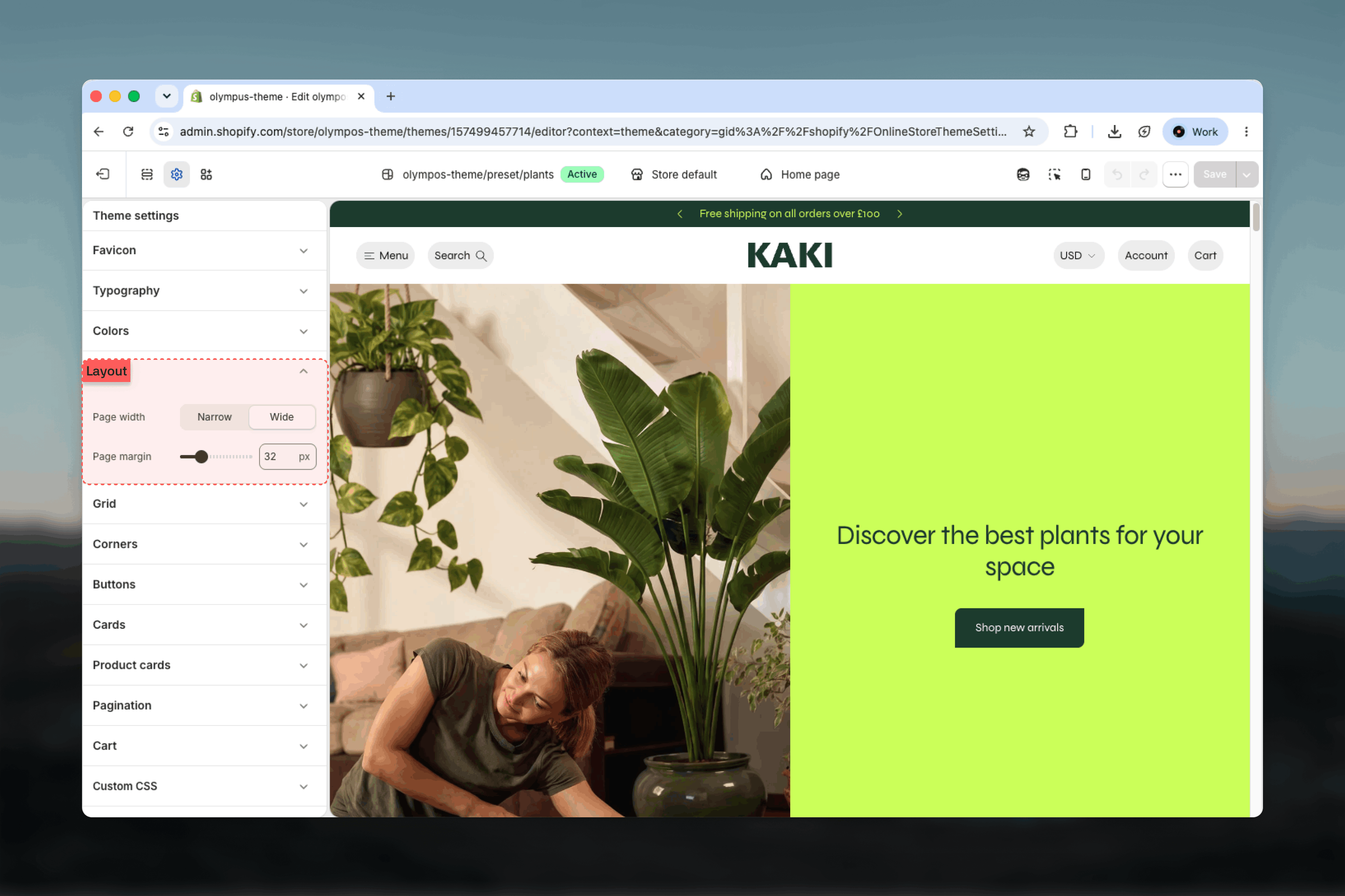
Settings
Favicon: The small icon displayed in the browser tab. Upload a square image; it is scaled down to 32 by 32 pixels, so simple shapes and strong contrast read best. There is no separate Favicon group in Olympus; this is the only favicon setting. Page width: The maximum width of content in sections set to Page width.- Narrow: Content is capped at a compact width, leaving generous side margins on large monitors. Default.
- Wide: Content stretches further, which lets product grids show more columns comfortably and gives hero images more presence.
Sections set to Full width ignore the page width and page margin and run edge to edge. Sections set to Fluid keep the page margin but ignore the page width cap.
Best practices
- Choose Wide for large catalogs: Wide gives collection grids room for more columns without shrinking cards, which shortens browsing on desktop.
- Choose Narrow for editorial stores: A narrower measure keeps text-heavy sections comfortable to read and makes images feel deliberate.
- Keep the page margin modest on mobile: Values above 24 pixels start to noticeably squeeze two-column product grids on phones.
- Match hero images to the width: If you switch to Wide, check hero and banner images at full desktop width so they are not upscaled beyond their resolution.
- Use a simple favicon: Wordmarks become unreadable at 32 pixels; a monogram or symbol works better.