

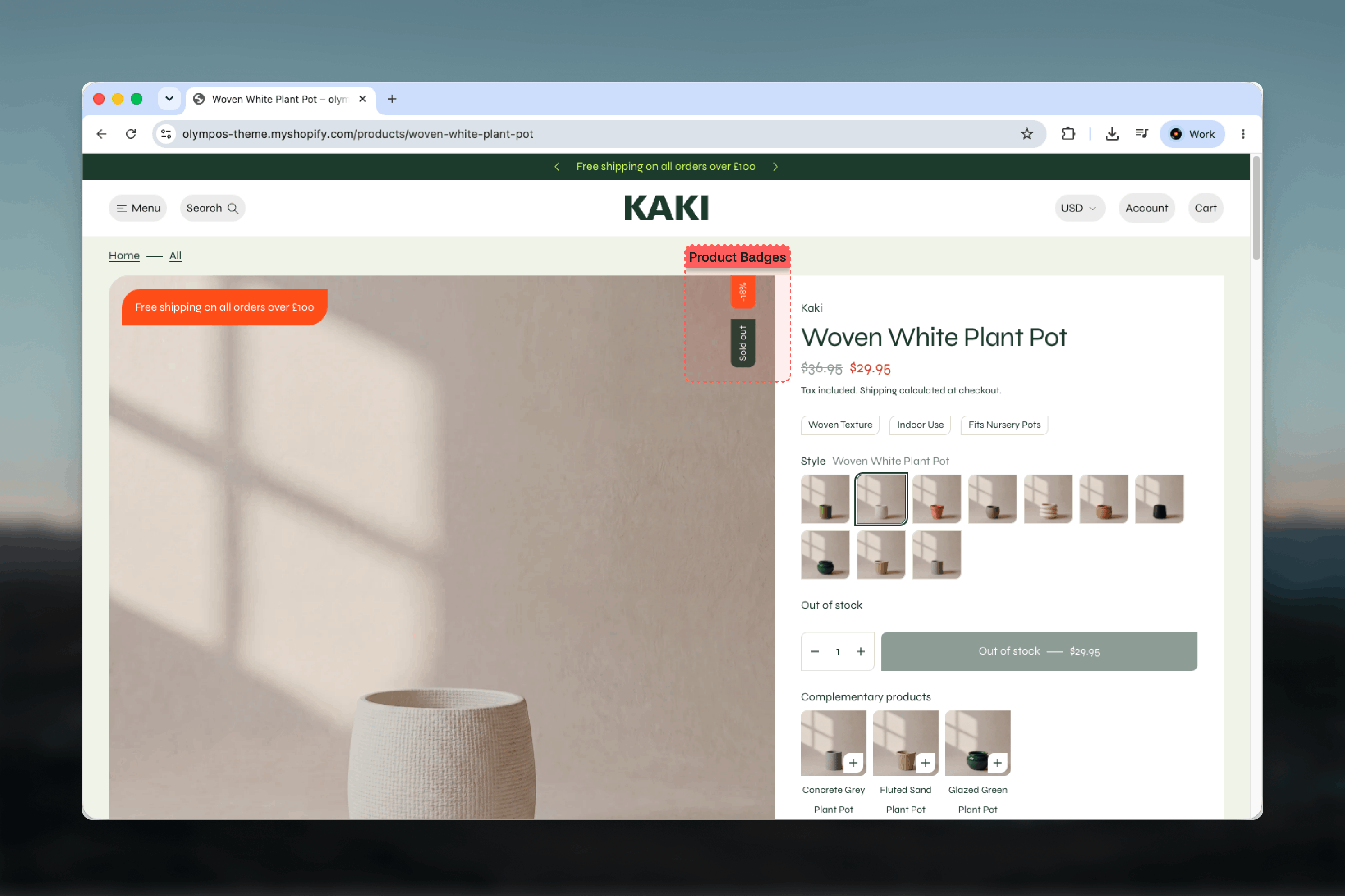
What this feature controls
- Automatic discount badges showing the percentage saved, and Sold out badges on unavailable products
- Custom badges created by tagging a product, with any label you choose
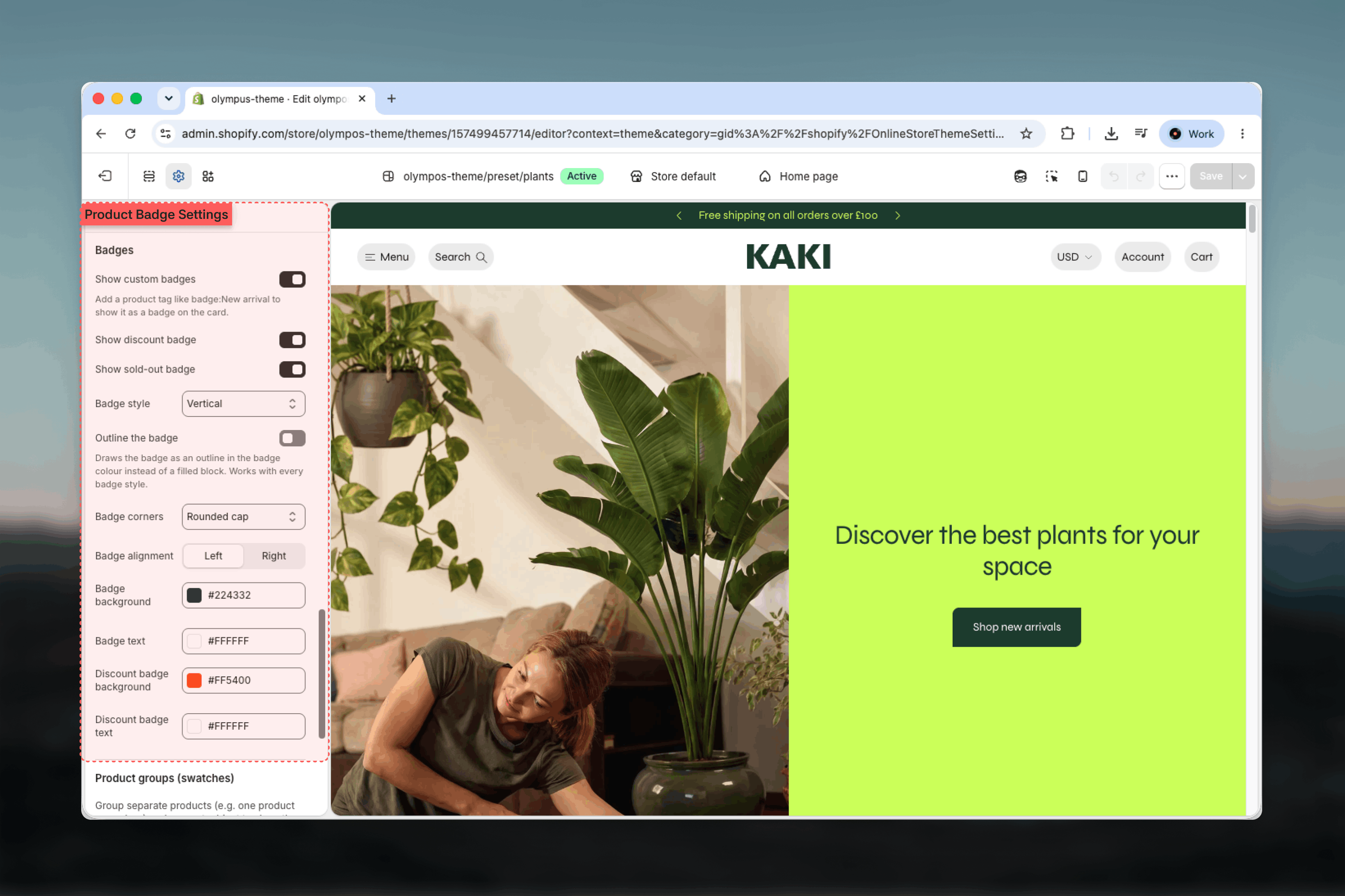
- Badge style (Vertical, Tag or Ribbon), outline mode, corners and alignment
- Badge colors, with a separate color pair for the discount badge
- Whether badges appear over the product gallery on the product page, and on which side
Getting started
1
Tag products that need a custom badge
In Shopify admin open a product and add a tag written as badge:Label, for example badge:New arrival or badge:Bestseller. The text after the colon is shown as the badge.
2
Open the badge settings
In the Theme Customizer open Theme settings → Product cards and scroll to Badges.
3
Choose which badges show and how they look
Turn the custom, discount and sold-out badges on or off, pick a Badge style and set the colors.
4
Check the product page
Open the Products → Default product template, select the Product section and confirm Badges is enabled under Navigation. Choose a Badge position.
How badges work
Three kinds of badge can appear on a product, always in this order: discount first, then custom badges, then Sold out.Discount badge
Discount badge
Shown when the selected (or first available) variant has a compare-at price higher than its price. The label is the saving as a percentage, for example -20%, calculated from those two prices. It uses its own background and text colors so it can stand apart from custom badges. Controlled by Show discount badge (on by default).
Custom badges
Custom badges
Any product tag that starts with badge: becomes a badge, using the text after the colon as its label. A product can carry several such tags and each one becomes its own badge. Because the label comes straight from the tag, it is not translated; write it in the language of your storefront. Controlled by Show custom badges (on by default).
Sold out badge
Sold out badge
Shown when no variant of the product is available, with the storefront’s Sold out text. Controlled by Show sold-out badge (on by default).
Tags are matched on the badge: prefix exactly. Tags such as New or Sale without the prefix are ordinary tags and are shown by the Product tags block or the card tag row instead, not as badges.
Badge settings
All badge settings live in Theme settings → Product cards → Badges and apply to cards and to the product page alike.Style
Badge style sets the shape of every badge. Default: Tag.- Vertical: the label is rotated to read from the bottom upwards, flush against the top edge of the media with a small inset from the side. Discreet, and it takes almost no horizontal space on narrow cards.
- Tag: a filled label set into the top corner of the media, inset from both edges. The most common and most legible choice.
- Ribbon: a square-cornered label that straddles the top edge of the media, half over the image and half above it, for a stronger promotional look.
Corners and alignment
Badge corners appears for the Tag style with Square, Rounded (default) or Pill, and for the Vertical style with No corners or a Rounded cap on the outer end (default). The Ribbon style keeps square corners and has no corner setting. Badge alignment places the badges in the Left (default) or Right corner of the media on product cards, and stacked badges follow that corner. On the product page the equivalent setting is the section’s own Badge position.Colors
Badge background and Badge text color custom and sold-out badges. Discount badge background and Discount badge text color the discount badge only. In outline mode the badge sits on the card background with a border in the scheme’s border color and the badge color becomes the text color. We recommend keeping a strong contrast between the two pairs so a discounted product with a custom badge stays readable.Badges on the product page
The Badge block
Olympus also has a shared Badge theme block: a small positioned label with editable Badge text (default Promo), an optional Show icon with pasted Icon SVG code, and a Badge position in one of the four corners. It is designed for tiles in sections such as Multi-tile and Dual tile, where it labels a promotional tile. It does not read product data, so it is not a replacement for the automatic product badges described above. Its settings are listed on the Theme blocks page.Best practices
Keep labels short
One or two words such as New, Limited or Bestseller fit every style. Long labels overflow the Vertical and Ribbon styles.
Limit badges per product
A discount badge plus one custom badge is enough. Several stacked badges hide the image and dilute each message.
Use tags you can remove in bulk
Because badges come from tags, a seasonal badge can be added and cleared with Shopify’s bulk editor without touching the theme.
Reserve the discount color
Keep the discount pair distinct from the custom badge pair so customers learn what the color means.
Check both media backgrounds
Preview badges on light and dark product photos. Outline mode can disappear on busy imagery; filled badges are safer there.
Match badge and card corners
Rounded badge corners suit the Soft and Rounded theme corner styles; Square badges suit Sharp.
Related guides
Product cards
All card settings, including tags, swatches and quick add
Product Page (PDP)
Gallery navigation settings, including Badges and Badge position