

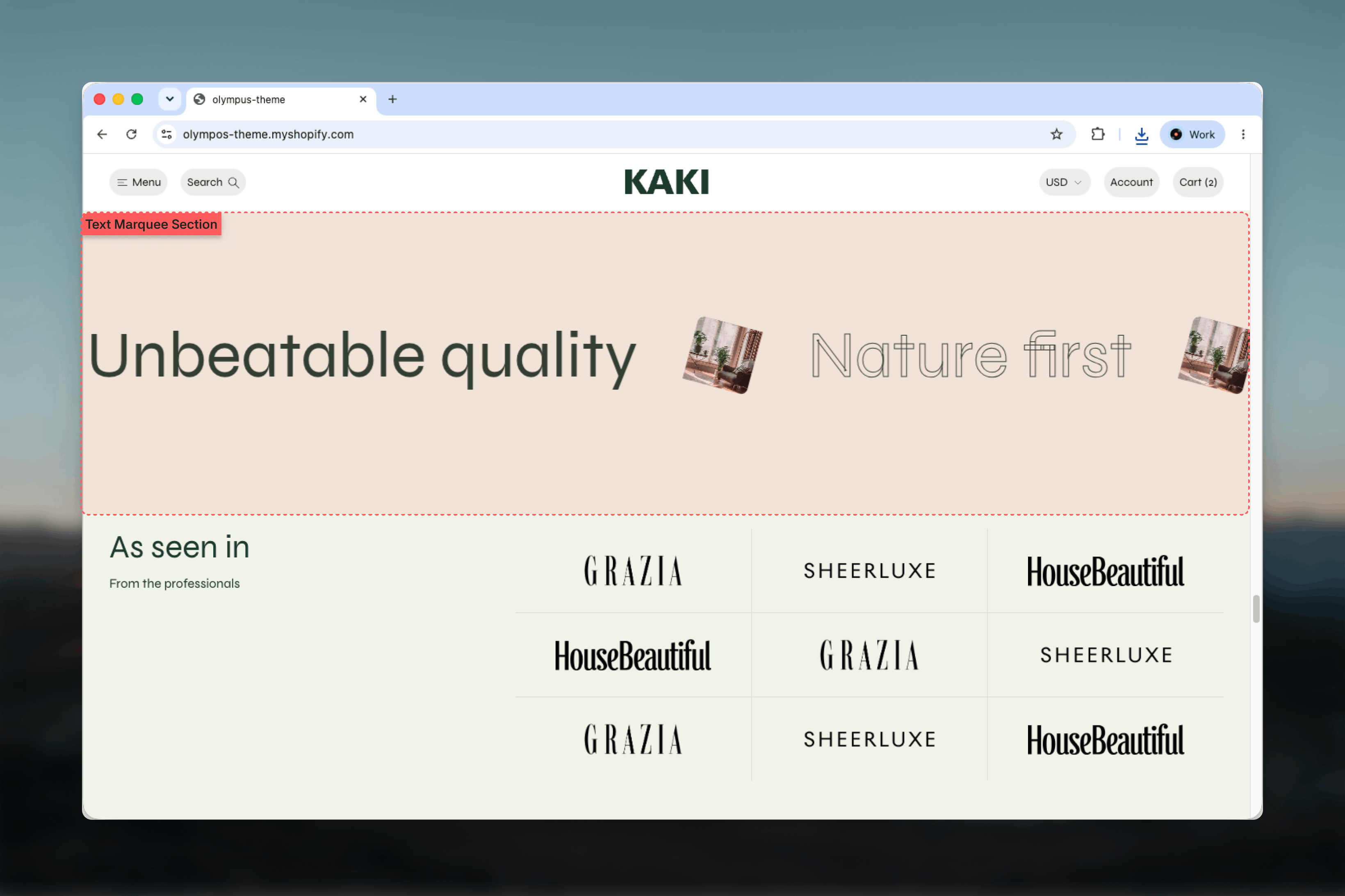
What this section controls
- Text size on desktop and mobile
- Scroll speed of the loop
- Color scheme of the strip
- Text blocks with a Filled or Outline style and an optional tilted image
- Top and bottom spacing and section borders
Getting started
1
Open the Theme Customizer
From the Shopify admin, open Online Store, then Themes, and select Customize on Olympus.
2
Add the section
Select Add section and choose Text marquee. The preset adds four phrases alternating Filled and Outline.
3
Edit the phrases
Select each Text block, change its Text and Text style, and add an Image if you want a picture beside it.
4
Set the pace
Adjust Scroll speed and the two text sizes, then save.
How it works
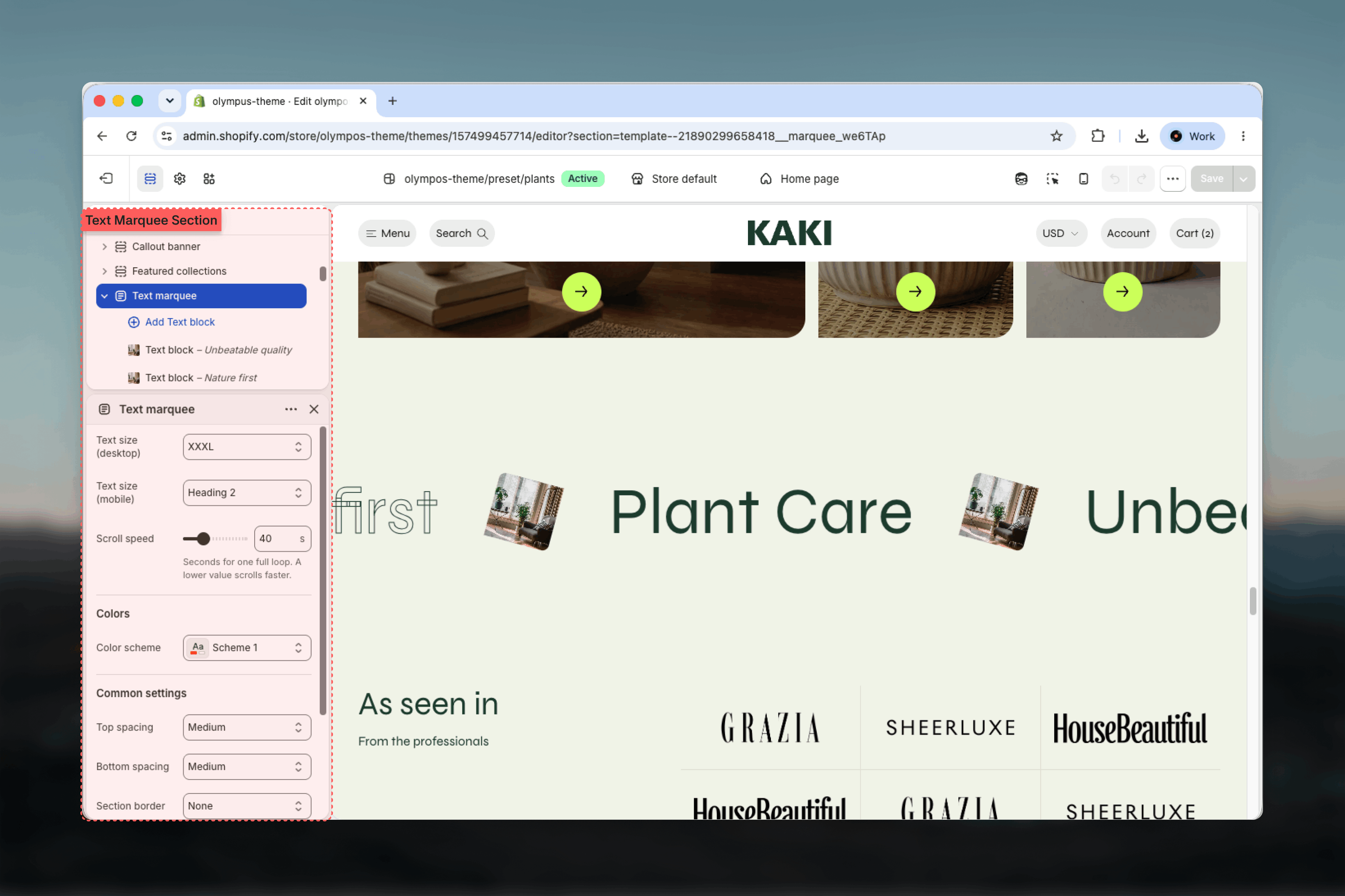
The section repeats your blocks end to end so the strip never runs out, and scrolls them from right to left. One complete pass of all blocks takes the number of seconds set by Scroll speed. Because the loop is seamless, the order of blocks only determines which phrase follows which.Section settings
Text
Text size (desktop)
Text size (desktop)
Heading 4, Heading 3, Heading 2, Heading 1 or XXXL. Default: XXXL. The marquee is designed to be oversized; XXXL and Heading 1 give the intended poster effect.
Text size (mobile)
Text size (mobile)
The same options, applied on small screens. Default: Heading 2. Mobile text is set separately because XXXL wraps or overflows on narrow viewports.
Scroll speed
Scroll speed
Seconds for one full loop, from 10 to 120 in steps of 5. Default: 40. A lower value scrolls faster. Longer phrase lists need a higher value to move at the same visual pace.
Colors
Color scheme: background and text colors of the strip. Default: Scheme 1. Filled phrases use the scheme’s text color; Outline phrases draw only the letter outlines in that color, so the background shows through.Common settings
Top spacing and Bottom spacing
Top spacing and Bottom spacing
None, Small, Medium, Large or Extra large. Default: Medium for both.
Section border
Section border
None (default), Top, Bottom or Top and bottom. A top and bottom border frames the marquee as a band.
The Text marquee always spans the full width of the screen and therefore has no Width setting.
Blocks
Text block
Each Text block is one phrase in the loop. Add as many as you like; the section repeats them to fill the strip.Text
Text
The phrase to show. Default: Unbeatable quality. Keep it to two or three words; long phrases lose the rhythm of the loop.
Text style
Text style
- Filled (default): solid letters in the scheme’s text color.
- Outline: hollow letters drawn with a stroke.
Image
Image
A small image shown after the phrase, for example a product shot or an icon. Leave it empty for text only.
Image tilt
Image tilt
Rotates the image: Tilt right (default), Tilt left or Straight. Appears only once an Image is set. Alternating tilt directions between blocks makes the strip feel playful; Straight keeps it formal.
Best practices
Short, punchy phrases
Two or three words per block. The marquee is read in passing, not studied.
Alternate styles
Filled, Outline, Filled, Outline. The contrast keeps a long loop from turning into a wall of text.
Keep it slow enough to read
Around 40 to 60 seconds for four to six phrases. Fast marquees draw the eye but frustrate anyone trying to read them.
One marquee per page
Continuous motion is a strong effect. Several on one page compete with each other and with your products.
Use images sparingly
One image every two or three phrases adds interest. An image on every block makes the strip busy.
Check mobile size
Preview on a phone and lower Text size (mobile) if a phrase does not fit the screen height comfortably.
Related guides
Announcement bar
A compact scrolling or static message at the top of the page
Animated rich text
Large text that animates in place instead of scrolling
Featured collections
The Scrolling rows layout applies the same marquee motion to collection names