

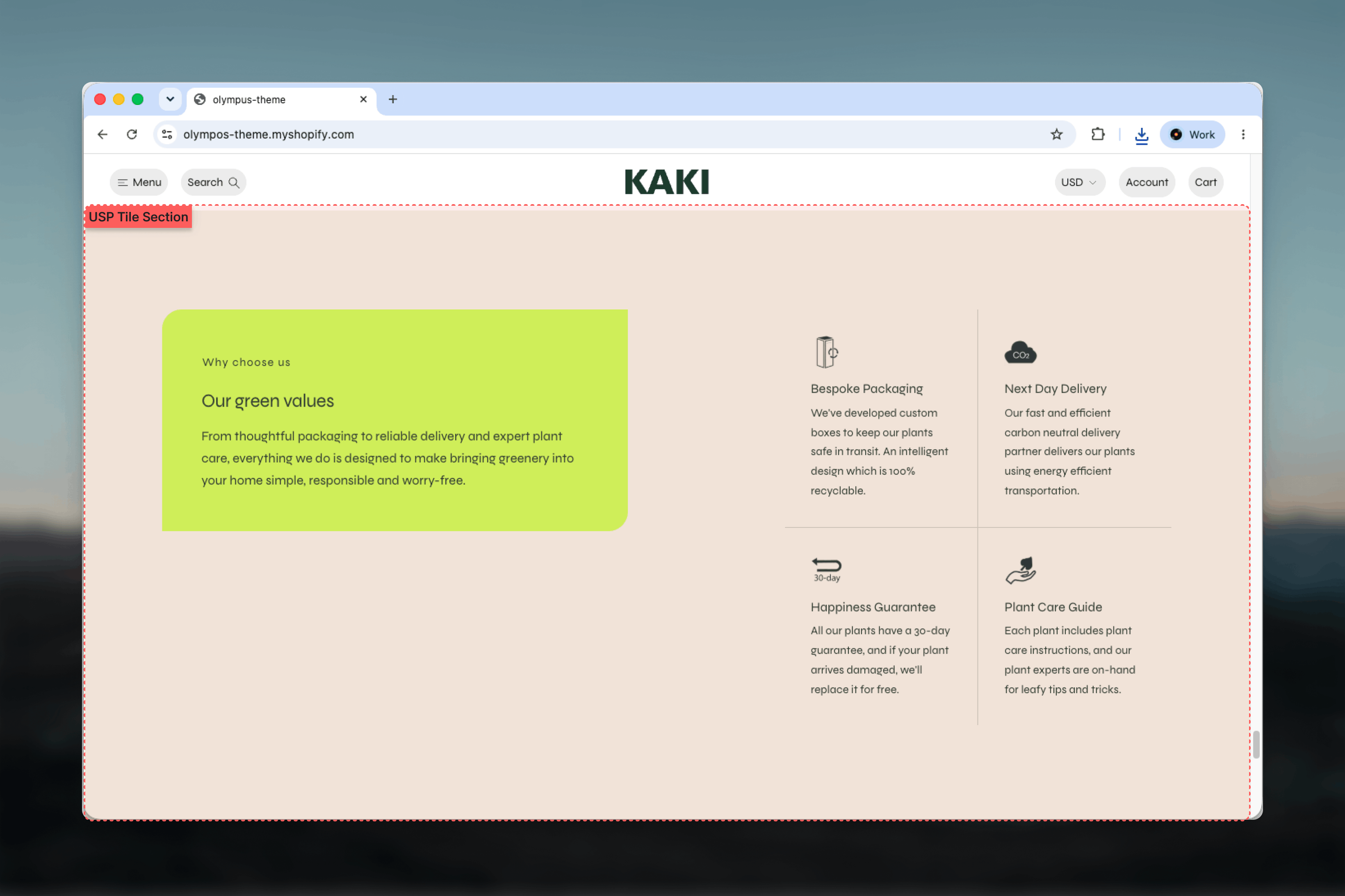
What this section controls
- Grid or Slideshow layout for the values, with 1 to 6 columns
- Header above or beside the values, and content alignment
- Icon position, size and dividers between icon, header and values
- Slides visible on mobile
- A desktop and mobile background image with an overlay
- Color schemes for the section, the header panel and the fluid card
- Label, Heading and Text blocks for the header, and Value blocks for the content
Getting started
1
Open Theme Customizer
From Shopify admin, open the Theme Customizer on the template where the tile should appear.
2
Add USP tile
Choose Add section and pick USP tile. The preset includes a label, heading, text and four values.
3
Edit the header
Update the Label, Heading and Text blocks. Remove any you do not need.
4
Edit the values
Select each Value block, set its icon and edit the nested Heading and Text blocks. Add or remove values to match your columns.
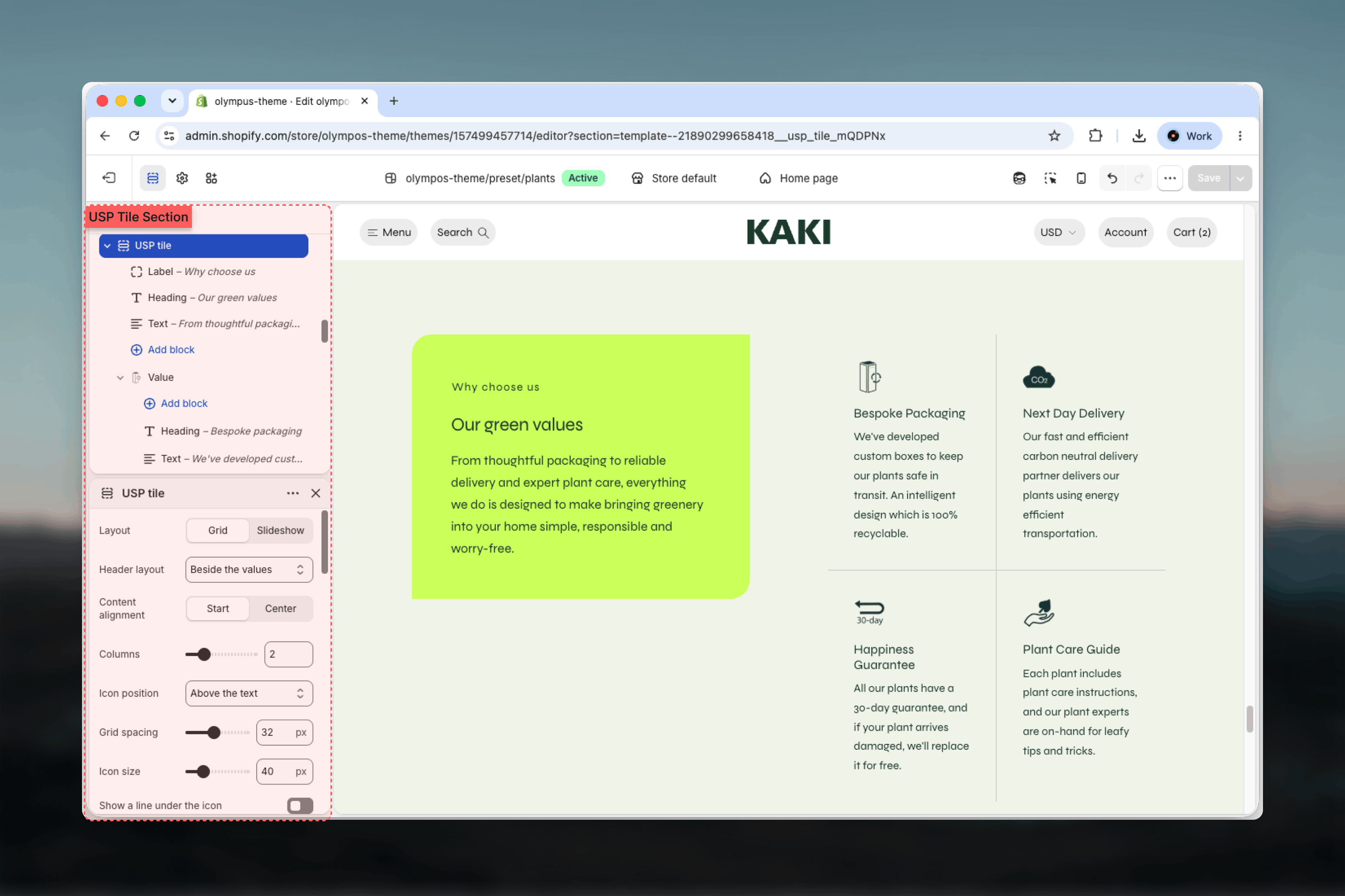
Section settings
Layout
Layout
Layout
Grid (default) shows every value at once in the chosen number of columns. Slideshow puts the values in a slider, useful when there are more values than columns. On phones both layouts become a slider with bullet pagination.
Header layout
Header layout
Above the values (default) or Beside the values. Beside gives the header its own column next to the grid, which suits a strong heading and three or fewer columns.
Content alignment
Content alignment
Start (default) or Center. Applies to the header and the values.
Columns
Columns
From 1 to 6 columns on desktop. Default: 3. Also sets how many slides are visible in the Slideshow layout.
Icon position
Icon position
Above the text (default) stacks the icon over the value’s title. Beside the text puts the icon to the left, which keeps values shorter.
Grid spacing
Grid spacing
Space between values, from 8px to 64px in steps of 4. Default: 32px.
Icon size
Icon size
From 24px to 96px in steps of 2. Default: 70px. Larger than the USP bar’s default because the tile gives each value more room.
Dividers
Dividers
Three optional lines, all off by default:
- Show a line under the icon: between icon and title. Hidden when Icon position is Beside the text.
- Line between the text and the values: separates the header panel from the values. Appears with Beside the values.
- Dividers between values: lines between the value columns.
Slides shown on mobile
Slides shown on mobile
1, 1.25, 1.5 or 1.75. Default: 1.25.
Media
- Desktop image and Mobile image: an optional background behind the whole tile. The mobile image falls back to the desktop image.
- Image overlay opacity: darkens the image from 0% to 80% in steps of 5 so the text stays readable. Default: 0.
Colors
Color scheme
Color scheme
The section and the values. Default: Scheme 1.
Header color scheme
Header color scheme
The heading panel. Default: Scheme 1. Available when there is no background image and Width is not Fluid. A contrasting scheme turns the header into a distinct block beside the values.
Card color scheme
Card color scheme
Fluid width draws the whole tile as a card on the section’s ground; this scheme paints that card. Default: Scheme 2. Available when Width is Fluid and there is no background image. Inside the card the header uses the card scheme too.
Common settings
Width
Width
Page, Narrow, Narrower, Fluid or Full width. Default: Page. Fluid switches the tile to its card presentation.
Top spacing and Bottom spacing
Top spacing and Bottom spacing
None, Small, Medium, Large or Extra large. Default: Large for both.
Section border
Section border
None, Top, Bottom or Top and bottom. Default: None.
Blocks
Header blocks
The header panel is built from three shared blocks, each used once. Their settings are described in the Theme blocks reference.- Label: a short eyebrow above the heading. The preset uses Plain text style; Outlined pill and Filled pill are available.
- Heading: the tile title. The preset uses Heading 5 size with a level-two heading tag.
- Text: a sentence or two introducing the values.
Value
One value in the grid or slider. Value is private to the USP tile.Icon SVG code
Icon SVG code
Paste SVG markup. When set, it is shown instead of the icon image and scales cleanly with Icon size.
Icon
Icon
Upload an icon image instead. Ignored when Icon SVG code is filled in.
Best practices
Match values to columns
Three values in three columns, or four in two rows of two, keep the grid balanced. An orphan value in a last row looks unfinished.
Keep value text to two lines
Equal-length descriptions keep the row heights even. Move longer stories to a dedicated page.
Use Beside the values with a strong heading
The side header works when the heading carries the message. With a long text block it is better above the values.
Choose Slideshow for more than four values
A slider avoids tiny columns while still showing everything on desktop.
Level the heading tags
Keep the tile heading at level two and the value titles at level three so the page outline stays logical for screen readers and search engines.
Try Fluid width for a card
Fluid draws the tile as a card on the page background, which separates it from surrounding full-width sections without a border.
Related guides
USP bar
The compact one-line version of the same idea
Feature highlights
Image-led feature presentation for products
Theme blocks reference
Label, Heading and Text block settings