

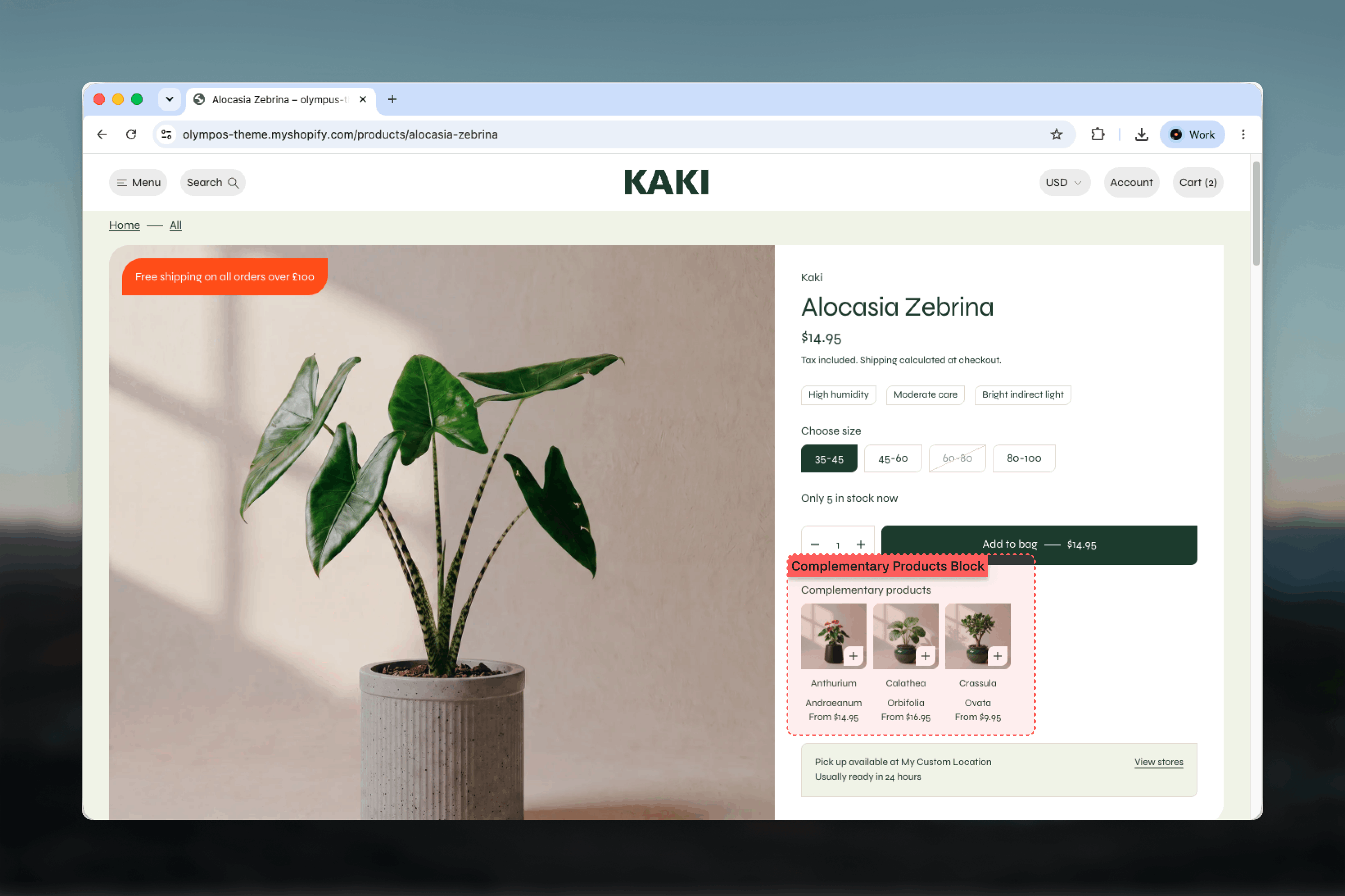
What this section controls
- The heading shown above the strip
- How many complementary products are requested
- Extra spacing below the block
- Automatically: image, title, price and the right purchase action for each product
How it works
Complementary products is available only on product templates, since it needs a product to recommend from. It works in two parts:- The Complementary products block is what you add and configure in the Product Page section. It holds the heading and the product limit, and it requests its products only as it comes into view rather than on page load, so it never slows the first paint of the page.
- The Complementary products section is the piece of the theme that draws the strip. It is not added to a template by hand — it is requested by the block through Shopify’s recommendations, filled with the products you set in the Search & Discovery app, and returned as a horizontal, swipeable row of cards.
Complementary products are set per product in the Shopify Search & Discovery app under Product recommendations. Without the app, or before it has processed a product, nothing is returned and the block stays hidden.
Getting started
1
Set complementary products in Search & Discovery
Install the Shopify Search & Discovery app if it is not already installed. Open it, go to Product recommendations, pick a product and add up to ten complementary products.
2
Open the product template
In the Theme Customizer, choose Products then Default product (or another product template) from the template selector.
3
Add the block
Select the Product Page section, click Add block and choose Complementary products. Drag it to where the strip should appear, typically below the buy buttons or the description.
4
Configure and preview
Set the heading and the number of products to show, then preview a product that has complementary products assigned.
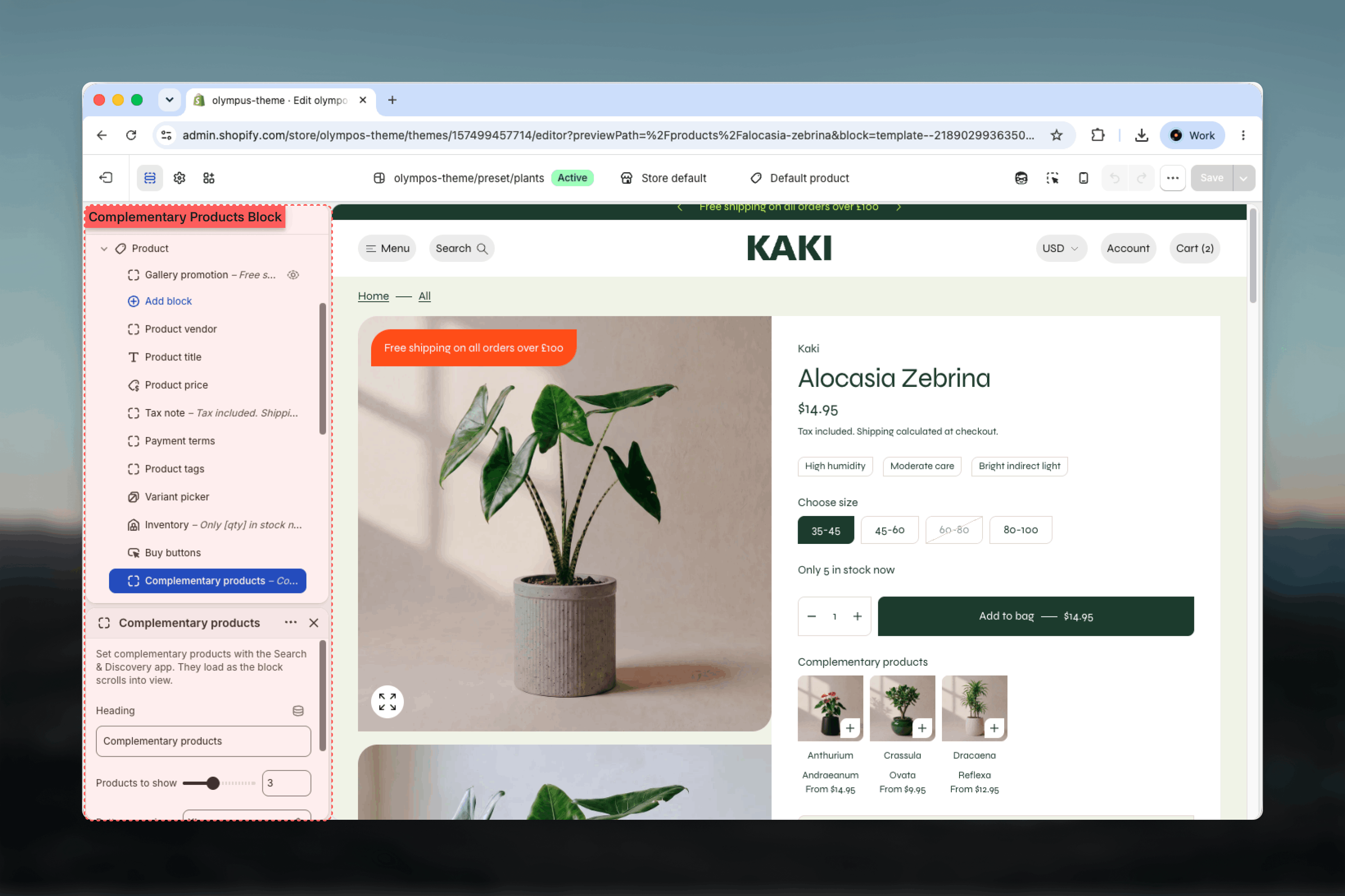
Block settings
Heading
Heading
The label above the strip. Default: “Complementary products”. Rename it to something customers understand, such as “Pairs well with” or “Complete the set”. The heading is hidden along with the strip when no products come back.
Products to show
Products to show
How many complementary products to request, from 1 to 6. Default: 3. The strip shows as many as the app returns, up to this number, and scrolls horizontally when they do not all fit.
Bottom spacing
Bottom spacing
Extra space under the block, added to the section’s own spacing: No, S, M, L or XL. Default: No. The default product template uses XL to separate the strip from the blocks below.
In the Theme Customizer
While you edit, the block behaves slightly differently so you can see what is happening:- When the recommendations request returns no products, a note explains that complementary products are set per product in the Search & Discovery app and can take a while to appear, and that the block hides itself on the storefront until they do.
- When the request fails, a note says the recommendations did not come back and points to the store still syncing as the likely cause.
Best practices
Recommend true companions
Choose products that complete or maintain the one being viewed, not alternatives to it. Alternatives belong in Related products.
Keep the strip short
Three or four products is enough to be useful without competing with the buy buttons. Six is the maximum for a reason.
Place it near the purchase
Position the block just below the buy buttons or the description so the suggestion arrives while the customer is deciding.
Favour single-variant items
Products with one variant add to the cart in one tap. Multi-variant products open the Quick view drawer, which is an extra step.
Check card images
The cards are small. Products with clean, well-cropped featured images read far better at that size.
Verify in the app first
If the strip is empty for a product, confirm the assignment in Search & Discovery before changing the theme.
Related guides
Product Page (PDP)
All blocks available in the Product Page section, including Complementary products
Related products
A separate section for alternatives to the current product
Quick view
The drawer that opens when a customer chooses options from a card