

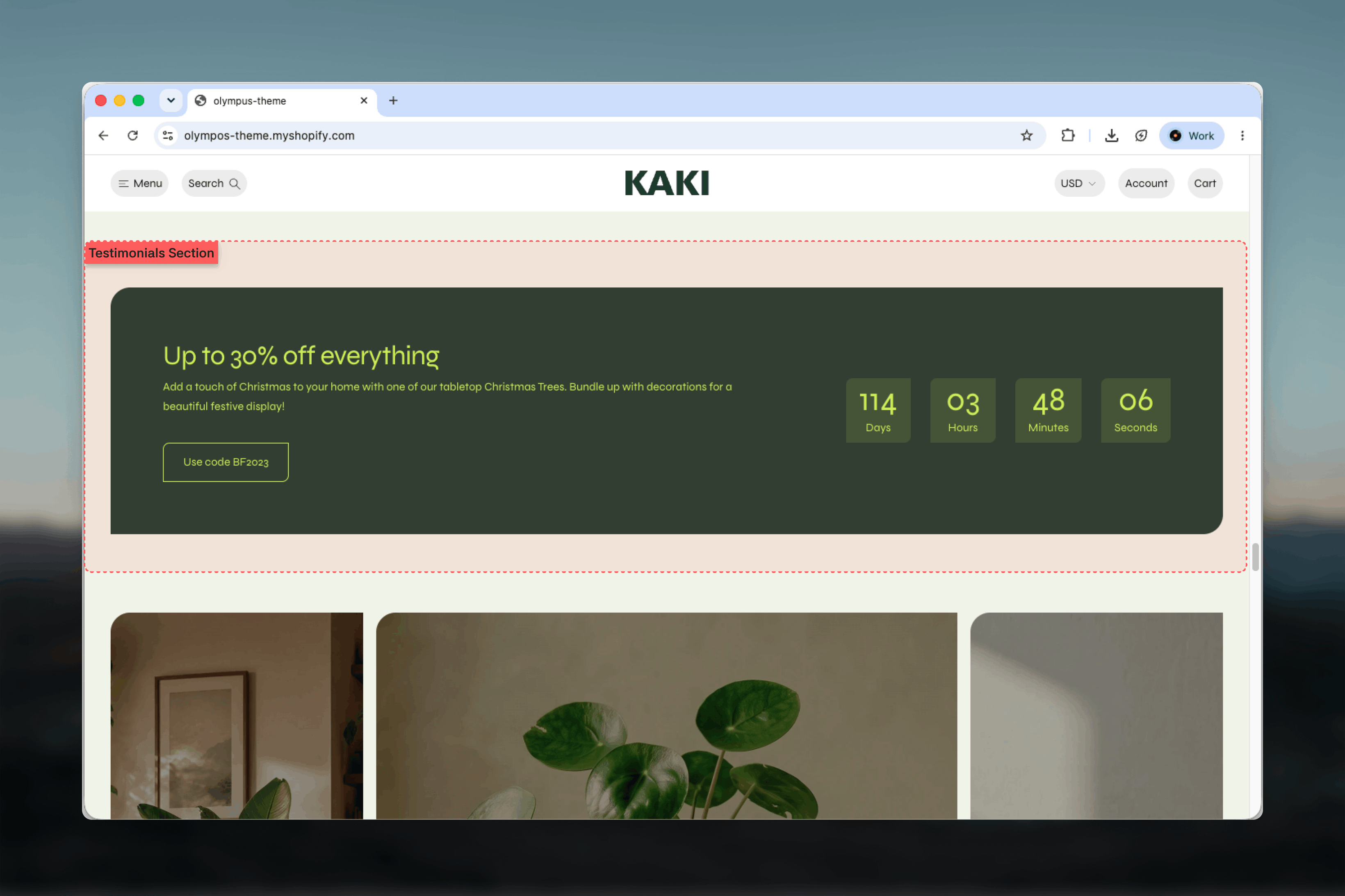
What this section controls
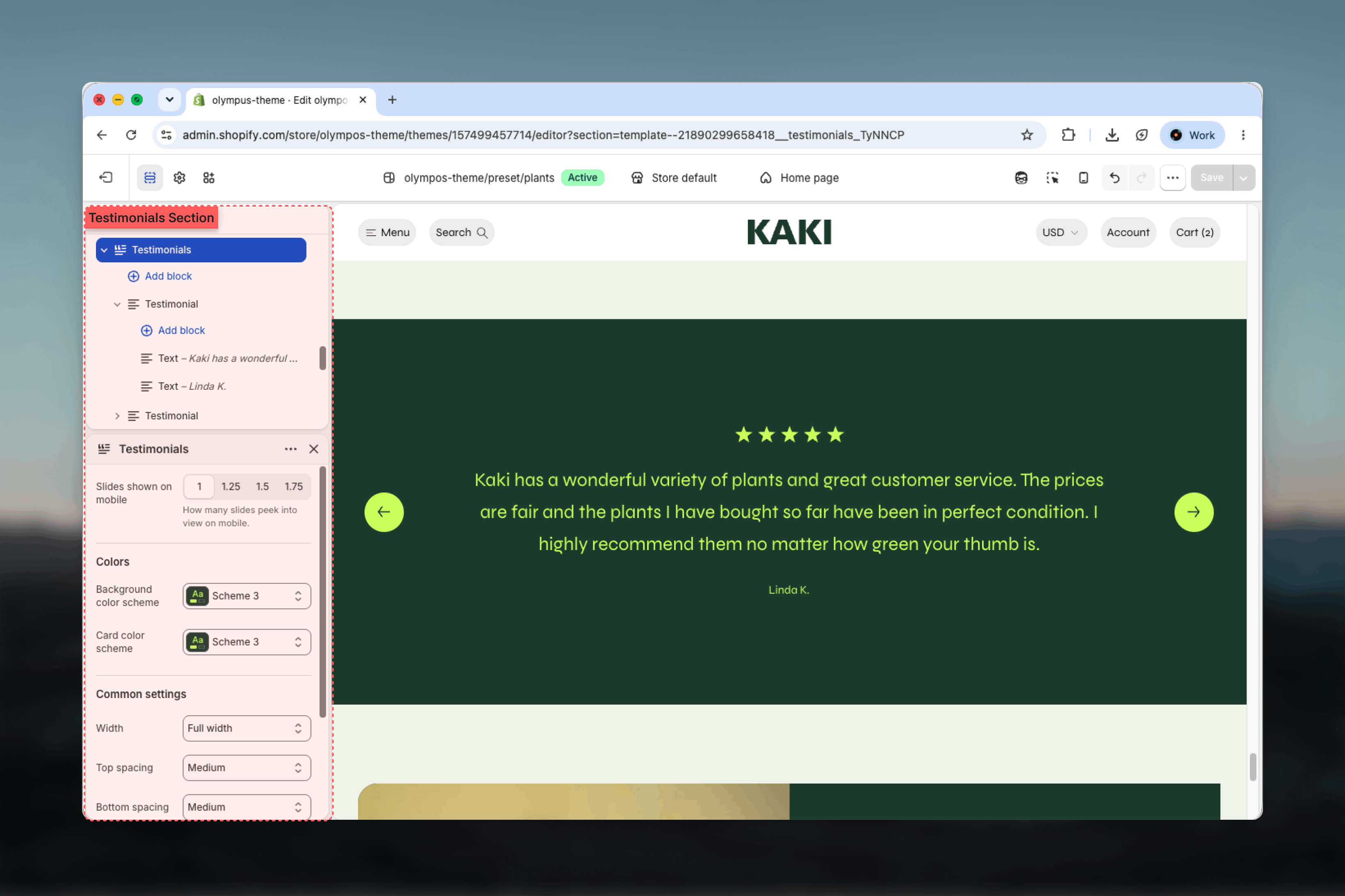
- How many slides peek into view on mobile
- A background color scheme for the section and a card scheme for the testimonials
- Testimonial blocks with rating, alignment and an optional image on either side
- Text blocks inside each testimonial for the quote and attribution
Getting started
1
Open Theme Customizer
From Shopify admin, open the Theme Customizer on the homepage or another template.
2
Add Testimonials
Choose Add section and pick Testimonials. The preset includes two five-star testimonials.
3
Edit each testimonial
Select a Testimonial block, set the Star rating, and edit the quote and name Text blocks inside it.
4
Add more
Choose Add block on the section to add further testimonials. The slider loops through all of them.
How it works
On desktop one testimonial is shown at a time, full width, with bullets underneath to move between them. On phones the Slides shown on mobile setting decides whether the next quote peeks in from the edge. Testimonials with an image split into two columns, image on one side and the rating, quote and name on the other; testimonials without an image center their content in the card.Section settings
Slider
Slides shown on mobile: 1, 1.25, 1.5 or 1.75 slides visible on phones. Default: 1. A fractional value shows a sliver of the next testimonial as a swipe cue; 1 gives each quote the full width, which suits longer text.Colors
- Background color scheme: the area behind the slider. Default: Scheme 1.
- Card color scheme: the testimonial card itself, including the stars and text. Default: Scheme 1. Choosing a different scheme from the background makes each quote read as a card; matching them gives a quieter, editorial look.
Common settings
Width
Width
Page, Narrow, Narrower, Fluid or Full width. Default: Page. The demo homepage uses Full width with contrasting schemes for a band effect.
Top spacing and Bottom spacing
Top spacing and Bottom spacing
None, Small, Medium, Large or Extra large. Default: Large for both.
Section border
Section border
None, Top, Bottom or Top and bottom. Default: None.
Blocks
Testimonial
One slide in the slider. Each Testimonial holds its own Text blocks, so the quote and the attribution can have different sizes.Star rating
Star rating
From 0 to 5 stars. Default: 5. Filled stars show the rating and outlined stars fill the rest of the row; 0 hides the stars entirely, which suits quotes from press or partners.
Content alignment
Content alignment
Start or Center. Default: Center. Start reads well with an image beside the text; Center suits text-only cards.
Image, Mobile image and Image position
Image, Mobile image and Image position
An optional photo of the customer, the product in use or the reviewer’s logo. Adding one splits the card into two columns. Mobile image replaces it on phones and falls back to the main image. Image position places the photo on the Left or Right (default: Right).
Text (inside Testimonial)
Each Testimonial accepts Text blocks. The preset uses two: the quote at Heading 5 size and the customer’s name at Small size, both centered. Add a third for a location or product name if it helps credibility. Text block settings are described in the Theme blocks reference.Best practices
Three to six testimonials
Enough variety to feel genuine, few enough that shoppers can reach the end of the loop.
Keep quotes to two or three sentences
One slide is shown at a time, so long quotes make the section tall on phones. Trim to the most specific praise.
Attribute every quote
A first name and initial or a city makes a review believable. Anonymous quotes carry little weight.
Use honest ratings
Mixing a four-star quote among fives often reads as more credible than a uniform five across the board.
Match the image to the words
A photo of the product in the customer’s home supports the quote. Stock imagery undermines it.
Contrast card and background
A darker background scheme with a light card, as on the demo homepage, makes the section a clear visual break between product sections.
Related guides
Theme blocks reference
Text block sizes and alignment used inside testimonials
USP bar
Short value statements that pair well with testimonials
Colors
Define the color schemes used for the background and cards