

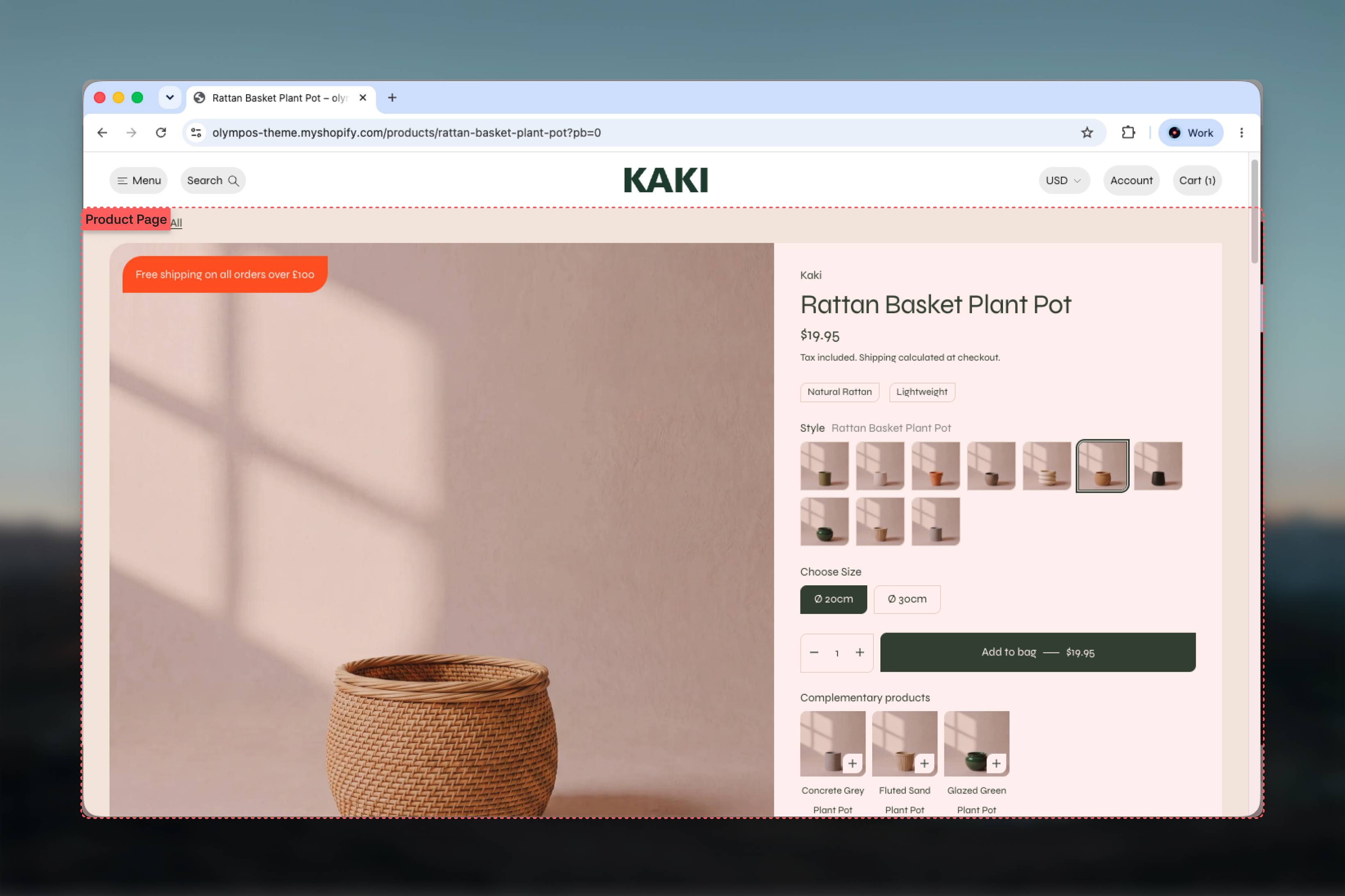
What this template controls
- Gallery layout (Stacked, Grid, Carousel, Thumbnails or Pinned first image), aspect ratio, media fit and spacing between media
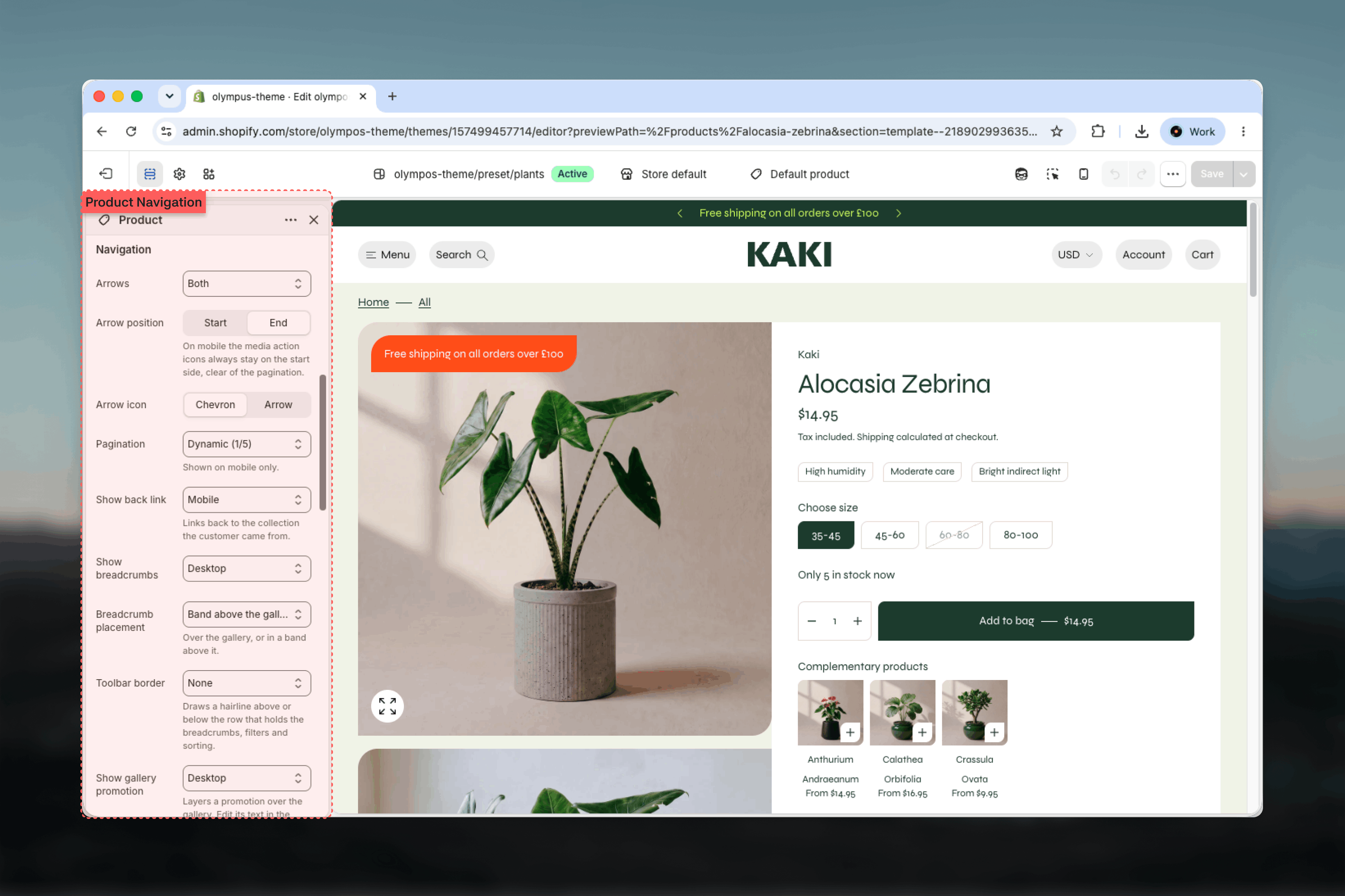
- Gallery navigation: arrows, mobile pagination, zoom, back link, breadcrumbs and badges
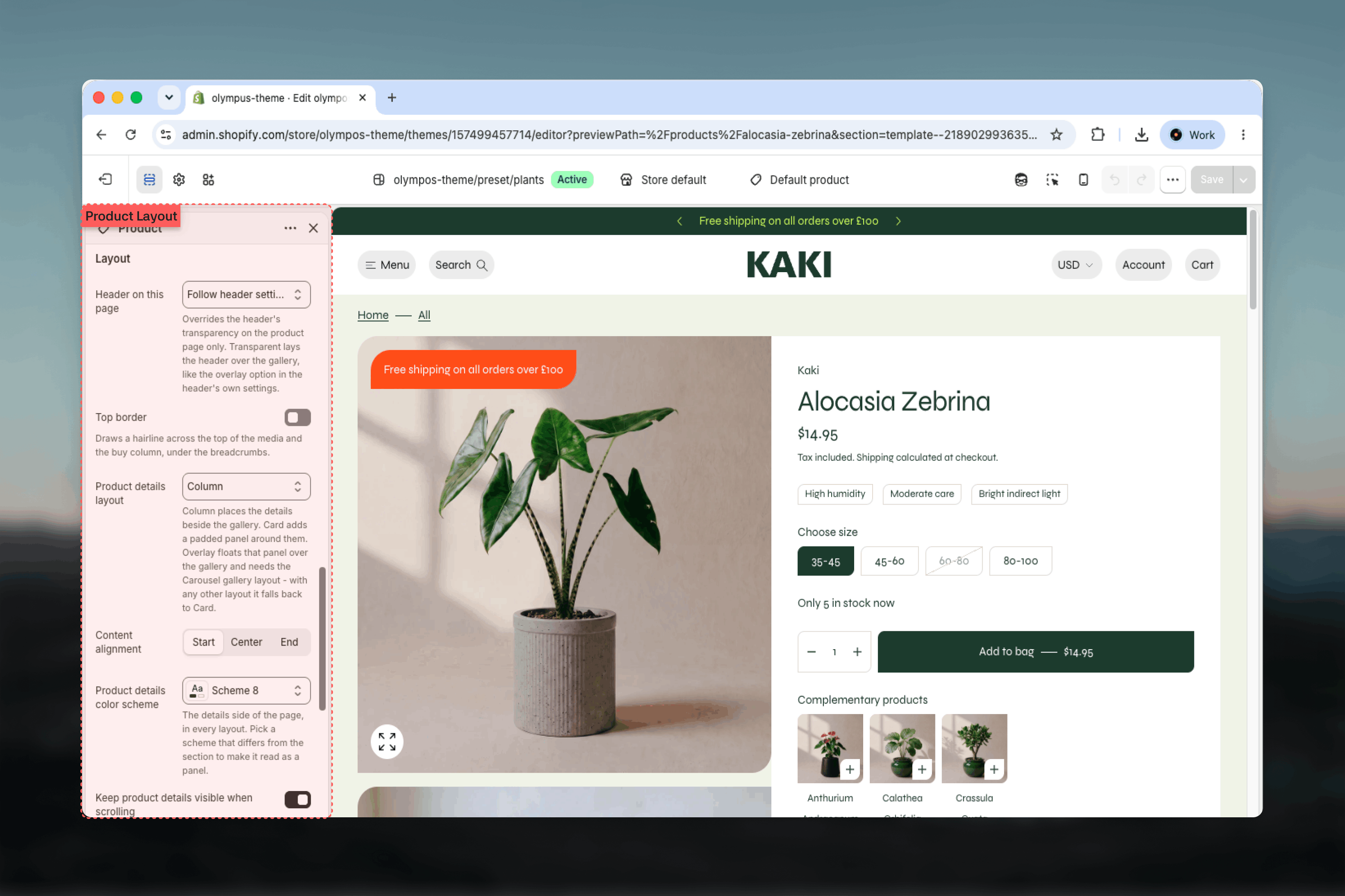
- The details column: Column, Card or Overlay layout, alignment, stickiness and its own color scheme
- Every block in the details column, in the order you set: title, price, variant picker, inventory, buy buttons, pickup availability and more
- An optional promotion layered over the gallery
- Width, spacing, borders and the section color scheme
Getting started
1
Open the Theme Customizer
From Shopify admin go to Online Store → Themes and click Customize on Olympus.
2
Choose the product template
Use the page selector at the top and pick Products → Default product.
3
Select the Product section
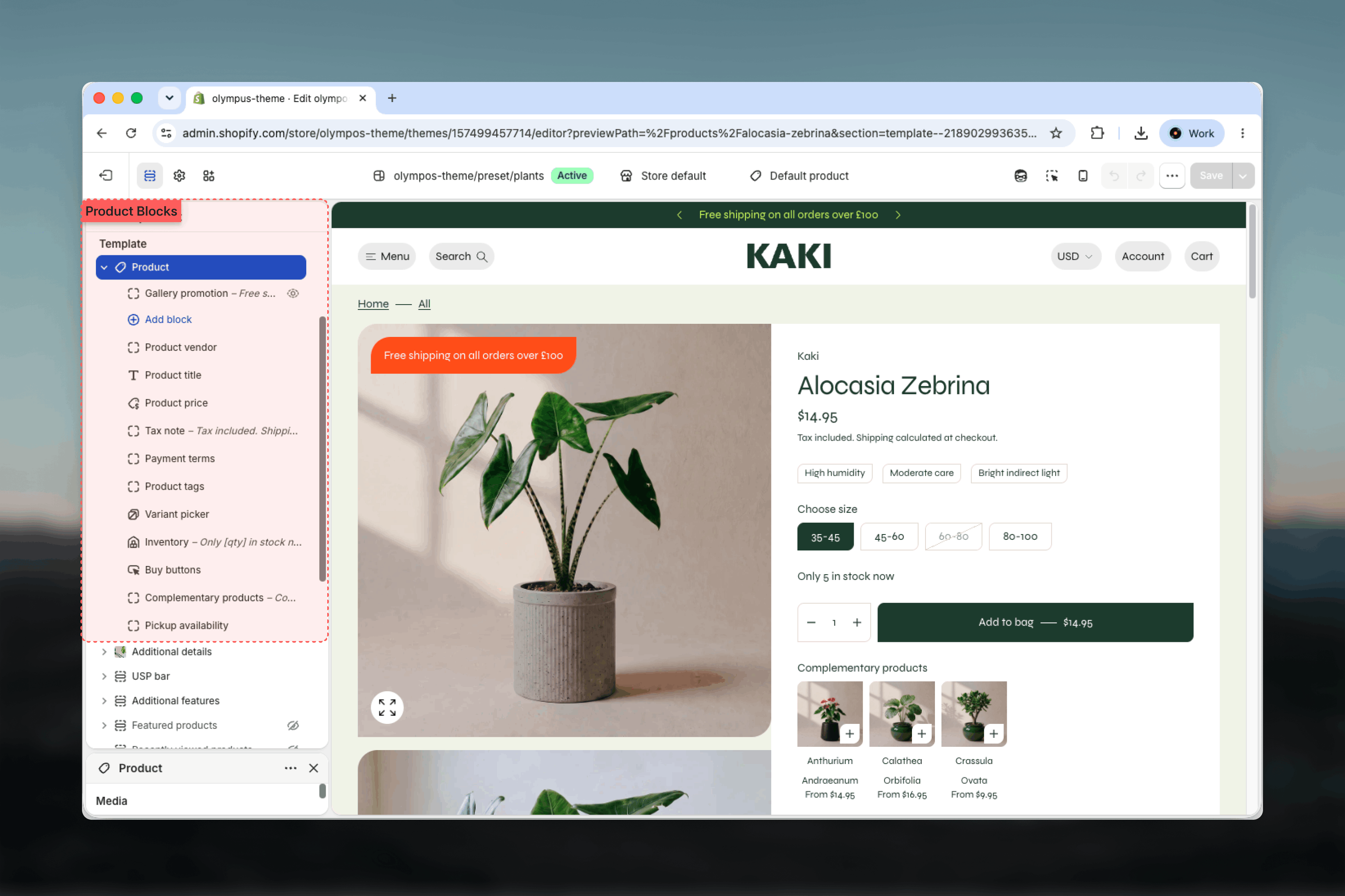
Click the Product section in the left sidebar. Its settings open on the right; its blocks are listed underneath it.
4
Arrange the blocks
Drag blocks to reorder them, click Add block to add product blocks or shared theme blocks, and adjust each block’s settings.
Template settings
- Media gallery
- Layout
These settings shape the gallery on desktop. Mobile always shows a swipeable slideshow, whichever layout you choose.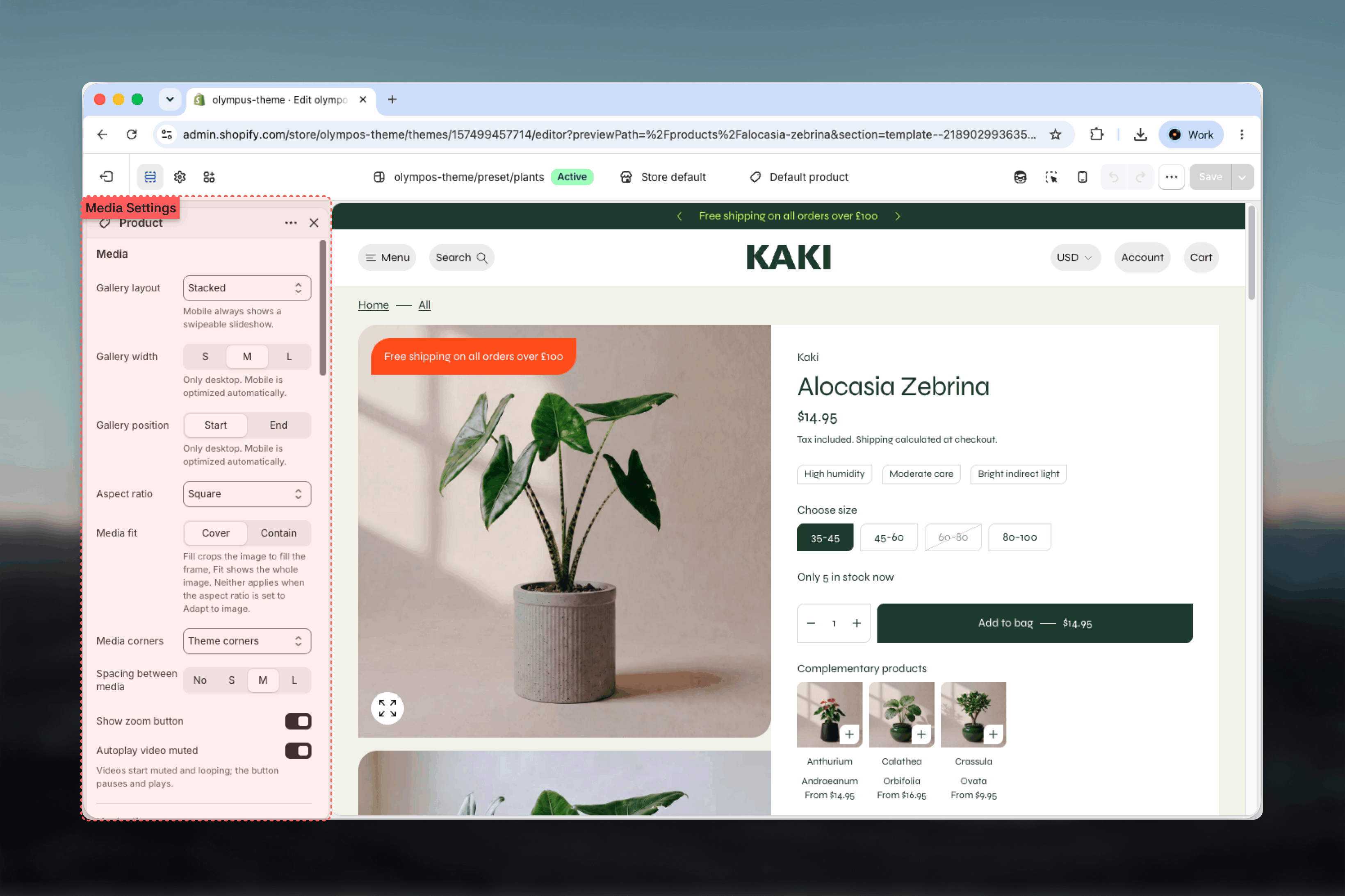
Gallery layout
Gallery layout
Sets how media is arranged on desktop. Default: Stacked.
- Stacked: media in one column, scrolled with the page. Best for a small number of large images.
- Grid: media in a two-column grid. Shows more at once for products with many angles.
- Carousel: one slide at a time with arrows. Required for the Overlay details layout.
- Thumbnails: one large slide with a thumbnail strip. The default in the product template.
- Pinned first image: the first image stays pinned in a left column while the remaining media stack in a column beside it, so the hero shot stays visible.
Gallery width and position
Gallery width and position
Gallery width (S, M or L; default M) sets how much of the row the gallery takes, leaving the rest for the details. Gallery position places the gallery at the Start or End of the row (default Start). Both are desktop-only and are hidden when the Overlay details layout is combined with a Carousel gallery, because the details then float over the gallery.
Aspect ratio and media fit
Aspect ratio and media fit
Aspect ratio frames every media item: Adapt to image, Square (default), Portrait, Tall, Landscape or Widescreen. Media fit decides what happens inside that frame: Cover (default) crops to fill it, Contain shows the whole image and may leave space around it. Neither fit option applies when the ratio is Adapt to image.With the Pinned first image layout a separate First image aspect ratio (default Tall) applies to the pinned image only.
Media corners and spacing
Media corners and spacing
Media corners follows the theme corner style (Theme corners, default) or forces Sharp corners. Spacing between media sets the gap in Stacked, Grid, Carousel and Pinned layouts: No, S (default), M or L. It is hidden for the Thumbnails layout.
Zoom and video
Zoom and video
Show zoom button (on by default) adds a zoom control on images. Selecting it opens the image full screen in a lightbox with its own previous and next controls, so customers can move through the whole gallery at full size, and with pinch zoom on touch devices and scroll zoom on desktop. The lightbox closes with Escape or its close button. Turning the setting off removes the control and the full-screen view with it. Autoplay video muted (on by default) starts product videos muted and looping; the play button pauses and resumes them.
Blocks
The Product section accepts every theme block and app blocks. Each product block reads the current product automatically and has a Bottom spacing setting (No, S, M, L or XL) that adds space under it on top of the section’s own spacing. Blocks are listed here by purpose; the default template order is vendor, title, price, tax note, payment terms, tags, variant picker, inventory, buy buttons, complementary products, pickup availability.- Core blocks
- Purchase
- Content
Product vendor
Product vendor
Shows the vendor name above the title. Link to vendor page (off by default) turns it into a link to the vendor’s product listing.
Product title
Product title
Shows the product name. Size sets the visual size from Body up to Heading 1 (default Heading 4; the template uses Heading 3). Heading level sets the semantic level for accessibility independently of the size; keep it at H1 (default) so each product page has one main heading.
Product price
Product price
Shows the current price, with the compare-at price struck through when the product is discounted. Size ranges from Small to Heading 4 (default Heading 6). Show unit price (on by default) adds the per-unit price when a variant has one.
Tax note
Tax note
A short line of formatted text under the price. Default: “Tax included. Shipping calculated at checkout.” Edit it to match your store’s tax and shipping wording.
Feature ratings
Feature ratings
Renders a list of rated features (for example Comfort 4 out of 5) from a metaobject. Feature rating group metafield names the product metafield that references the rating group, so one group can be reused across many products; entries without a rating are skipped. Background (None or Card, default Card) and a Color scheme for the card frame the list.
Best practices
Keep the buy path short
Place title, price, variant picker and buy buttons before any content blocks so the essentials are visible without scrolling on mobile.
Match the gallery to your photography
Thumbnails or Carousel suit many angles; Stacked or Pinned first image suit a few large editorial shots. Use Adapt to image only when all images share a ratio.
Let block spacing do the work
Set Space between blocks to 0 and use each block’s Bottom spacing when you need uneven rhythm, for example a larger gap after the buy buttons.
Use Card or Overlay deliberately
A contrasting Product details color scheme makes a panel read as a panel. Overlay needs the Carousel gallery layout and works best with wide imagery.
Check the Media color scheme
Badges, zoom and arrow buttons sit on top of photos. Pick a scheme that stays legible on both light and dark product shots.
Test the Gift card template too
It uses the same section with different defaults, so changes to the default product template do not carry over automatically.
Related guides
Product groups
Link separate products so they behave like variants in the variant picker and on cards
Product badges
Discount, sold-out and tag-based badges shown over the gallery and on cards
Theme blocks
Settings of the shared Heading, Text, Button, Group and Custom Liquid blocks