

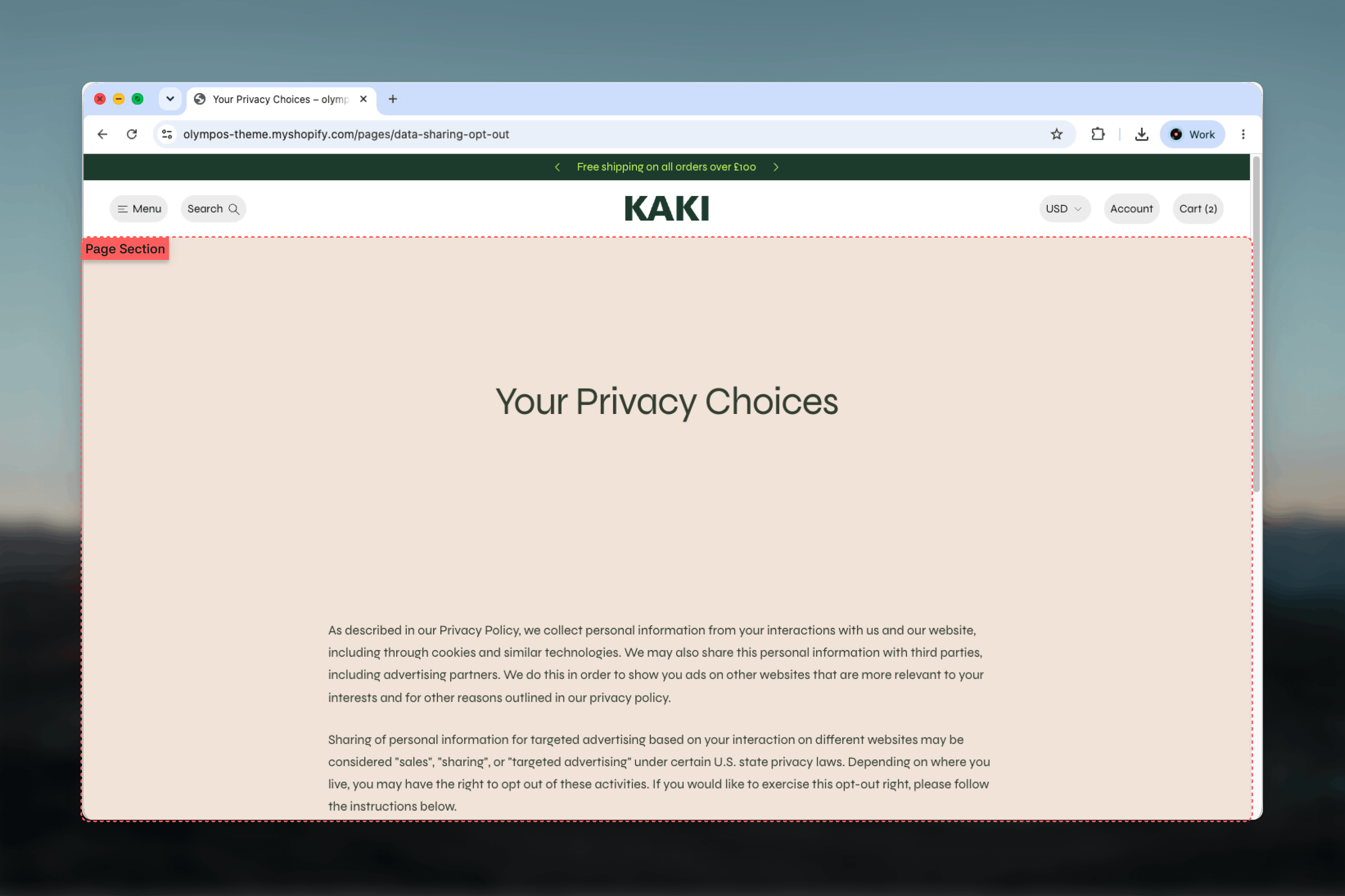
What this template controls
- The banner: image, layout, height, content position and color schemes, with a Heading and Text block.
- Whether the Page section prints the page title itself.
- Plain or Sidebar layout, and the sidebar panel’s position, width, stickiness and category links.
- Blocks placed after the page content: FAQ categories, Groups, Headings, Text, Buttons, Images and Videos.
- Color schemes, width, spacing and border of each section.
Getting started
1
Open the Theme Customizer
From your Shopify admin go to Online Store, then Themes, and click Customize on Olympus.
2
Choose the page template
Use the page selector at the top of the Theme Customizer, open Pages and pick Default page. Changes apply to every page that uses this template.
3
Select a section
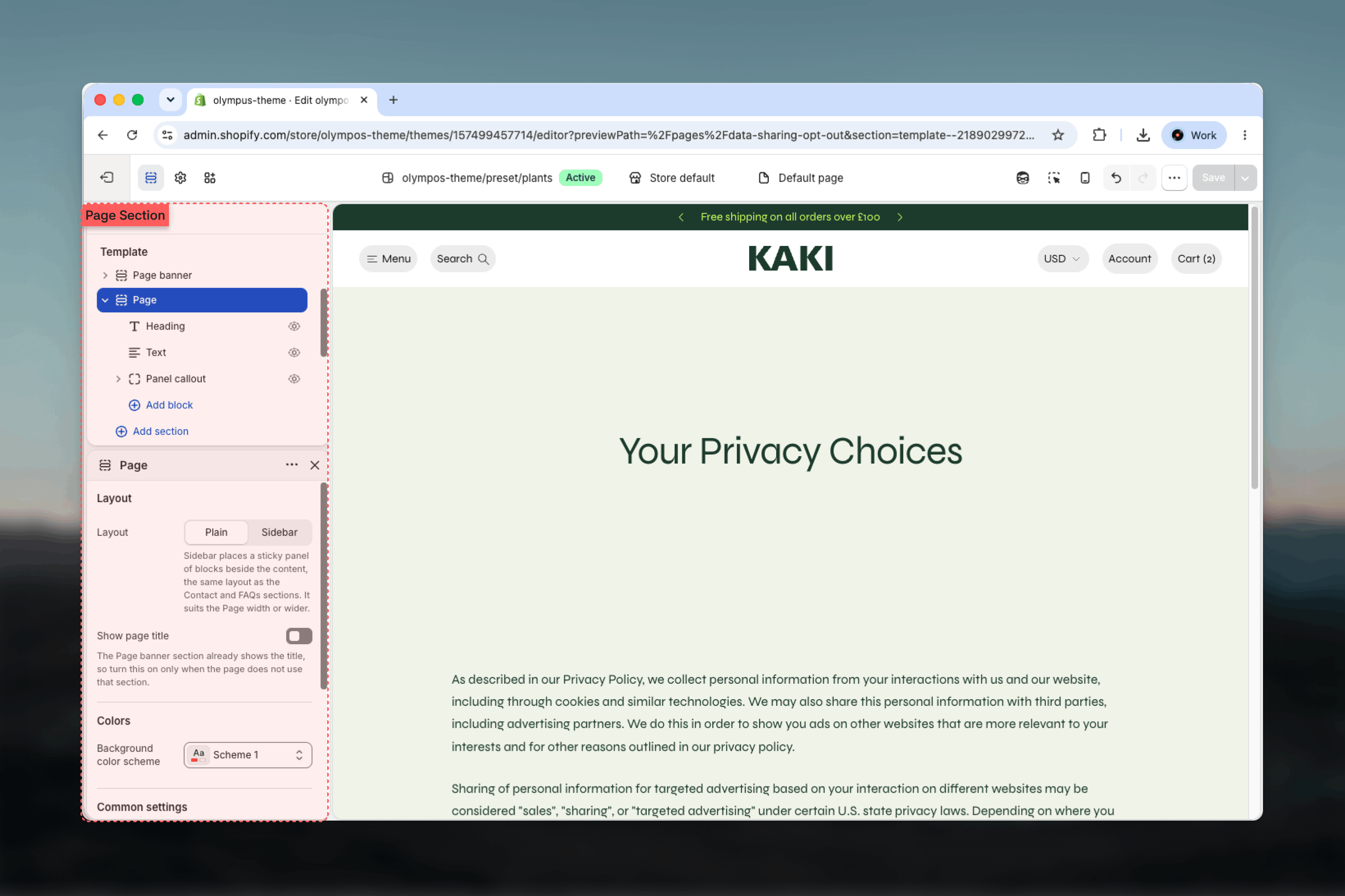
Click Page banner to edit the header, or Page to edit the layout and blocks under the content.
How it works
The Page banner sits first and shows the page title through its Heading block, so the Page section’s own title is off by default. The Page section then prints the rich-text content from the Shopify admin and, below it, any blocks you add. In the Plain layout everything sits in a single column, Narrower by default for comfortable reading. In the Sidebar layout a panel appears beside the content holding a Heading, a Text block, automatic links to any FAQ categories on the page, and a Panel callout at its foot.Page banner
The banner is the shared Page banner section, documented in full on its own page. On the page template it shows a breadcrumb Home link on mobile and carries the title.Media
Media
Image and an optional Mobile image that falls back to the main image. Image layout is Full background (text over the image) or Beside the text (split); Image position Left or Right applies to the split layout only. Image overlay opacity darkens a background image from 0 to 80 percent (Default: 0) to keep text legible.
Layout
Layout
Show breadcrumbs on mobile adds a Home link inside the banner on phones (Default: on). Minimum height runs from 200 to 720 pixels (Default: 400). Horizontal position, Horizontal position (mobile) and Vertical position place the text card at Start, Center or End and Top, Center or Bottom (Defaults: Center).
Colors
Colors
Background color scheme fills the banner when there is no image (Default: Scheme 1). Card color scheme paints the text card (Default: Scheme 1).
Blocks
Blocks
A Heading block for the title and a Text block for a subtitle. Leave the heading empty to fall back to the page title.
Page section settings
Layout
Layout
Plain is a single reading column for the page’s own content. Sidebar places a sticky panel of blocks beside the content, the same design as the Contact and FAQ pages. Default: Plain. Sidebar suits the Page width or wider.
Show page title
Show page title
Prints the page title at the top of the content (or at the top of the panel in the Sidebar layout). Default: off, because the Page banner already shows it. Turn it on only when you remove the banner.
Panel position
Panel position
Left or Right of the content. Default: Left. Appears only in the Sidebar layout.
Panel width
Panel width
300 to 560 pixels in steps of 20. Default: 440. Appears only in the Sidebar layout.
Keep panel visible when scrolling
Keep panel visible when scrolling
Keeps the panel in view on desktop while the content scrolls. Default: on. Appears only in the Sidebar layout.
Show category links
Show category links
Lists a link in the panel to every FAQ category block on the page. Default: on. Appears only in the Sidebar layout; when the page has no FAQ categories the list stays hidden.
Background color scheme
Background color scheme
The scheme of the whole section. Default: Scheme 1.
Panel color scheme
Panel color scheme
Paints the sidebar panel. Default: Scheme 6. Appears only in the Sidebar layout.
Common settings
Width
Width
Page, Narrow, Narrower, Fluid or Full width. Default: Narrower, which keeps line length readable for long text. Switch to Page when using the Sidebar layout.
Top spacing and Bottom spacing
Top spacing and Bottom spacing
None, Small, Medium, Large or Extra large. Defaults: Medium on top and Large at the bottom.
Section border
Section border
None, Top, Bottom or Top and bottom. Default: None.
Blocks
Blocks render after the page content from the admin. In the Sidebar layout the Heading, Text and Panel callout slots belong to the panel; every other block goes into the content column.FAQ category
FAQ category
A titled accordion of Question blocks, identical to the one on the FAQ template. Heading names the category and Heading level sets its tag (Default: H2). Each Question has a Question, Heading level, rich-text Answer and Open by default toggle. In the Sidebar layout each category gets a link in the panel.
Panel callout
Panel callout
A private block pinned to the foot of the sidebar panel, accepting one Heading and one Button with a single Color scheme setting (Default: Scheme 1). Use it for a “Still have questions?” link to the Contact page. Only rendered in the Sidebar layout.
Group
Group
Arranges nested blocks vertically or horizontally with its own gap, padding, optional card background and color scheme. Useful for placing a Button beside a Text block or building a small highlight card under the content.
Best practices
Keep Plain pages Narrower
A narrow reading column is the most comfortable width for policy and About text. Widen only for the Sidebar layout.
Show the title once
Use either the banner heading or Show page title, never both, so the page has a single H1.
Create templates for variants
Changes here apply to every page using the template. Duplicate the template in the Theme Customizer for pages that need a different banner or layout.
Use Sidebar for help content
Shipping, returns or size-guide pages benefit from FAQ categories with panel links, without building a separate FAQ page.
Add an overlay on photos
If the banner uses a busy photo behind text, an overlay of 20 to 40 percent keeps the title legible.
Extend with blocks, not code
Images, videos and buttons added as blocks stay editable and survive theme updates, unlike embedded HTML in the page editor.
Related guides
Page banner
Every setting of the banner section used at the top of the template
FAQ
The dedicated FAQ template with the same category and question blocks
Theme blocks
Reference for the Heading, Text, Button, Image, Video and Group blocks