

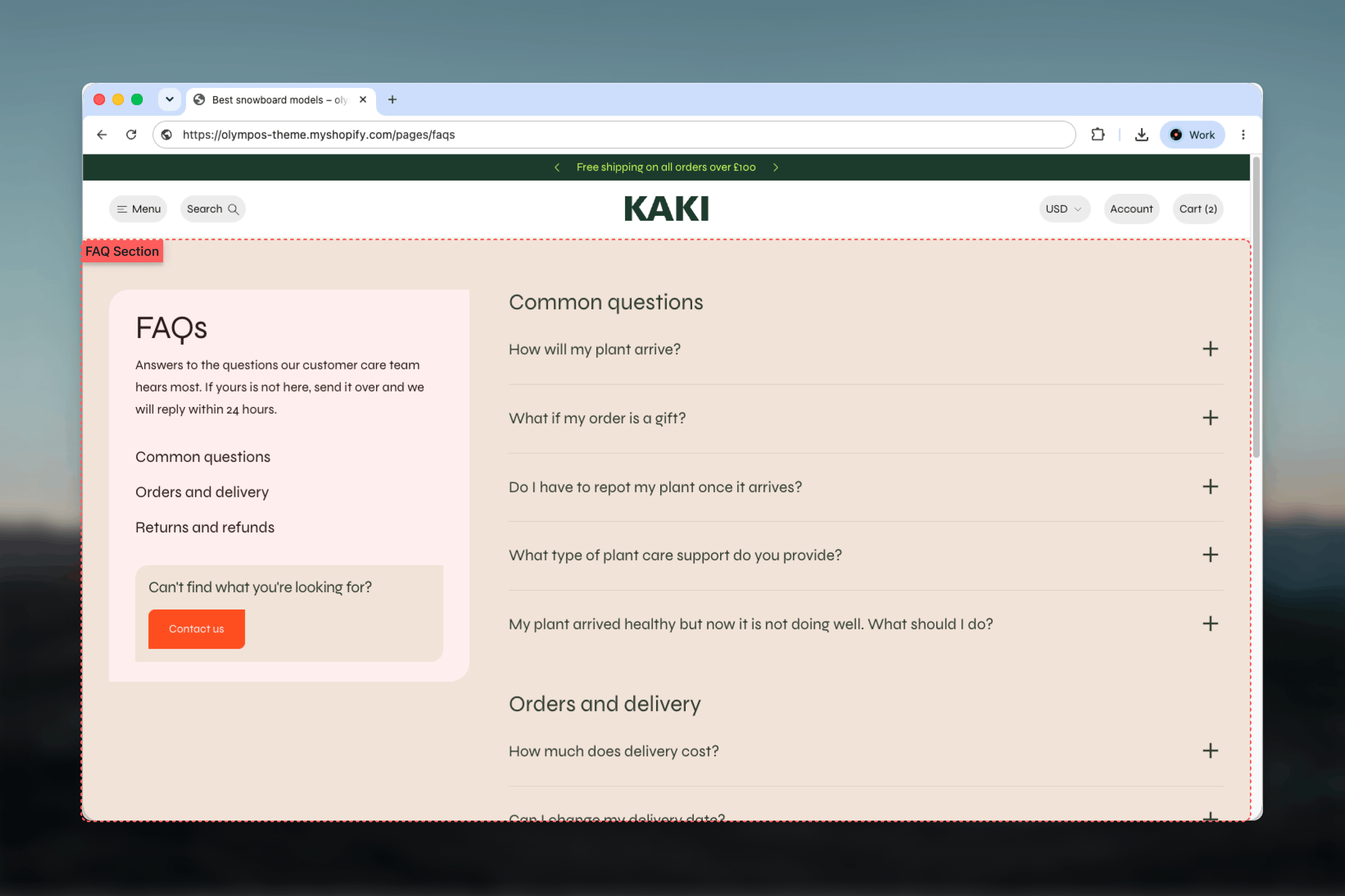
What this template controls
- The categories and questions shown on the page, and which questions start open.
- Whether the panel lists links that jump to each category.
- The panel’s position, width and sticky behavior.
- The heading and intro text in the panel, and a callout pinned to its bottom.
- Color schemes for the section background and the panel.
Getting started
1
Open the Theme Customizer
From your Shopify admin go to Online Store, then Themes, and click Customize on Olympus.
2
Choose the FAQ template
Use the page selector at the top of the Theme Customizer, open Pages and pick faqs. Assign this template to your FAQ page in the Shopify admin under Content, then Pages, if it is not already.
3
Select the FAQs section
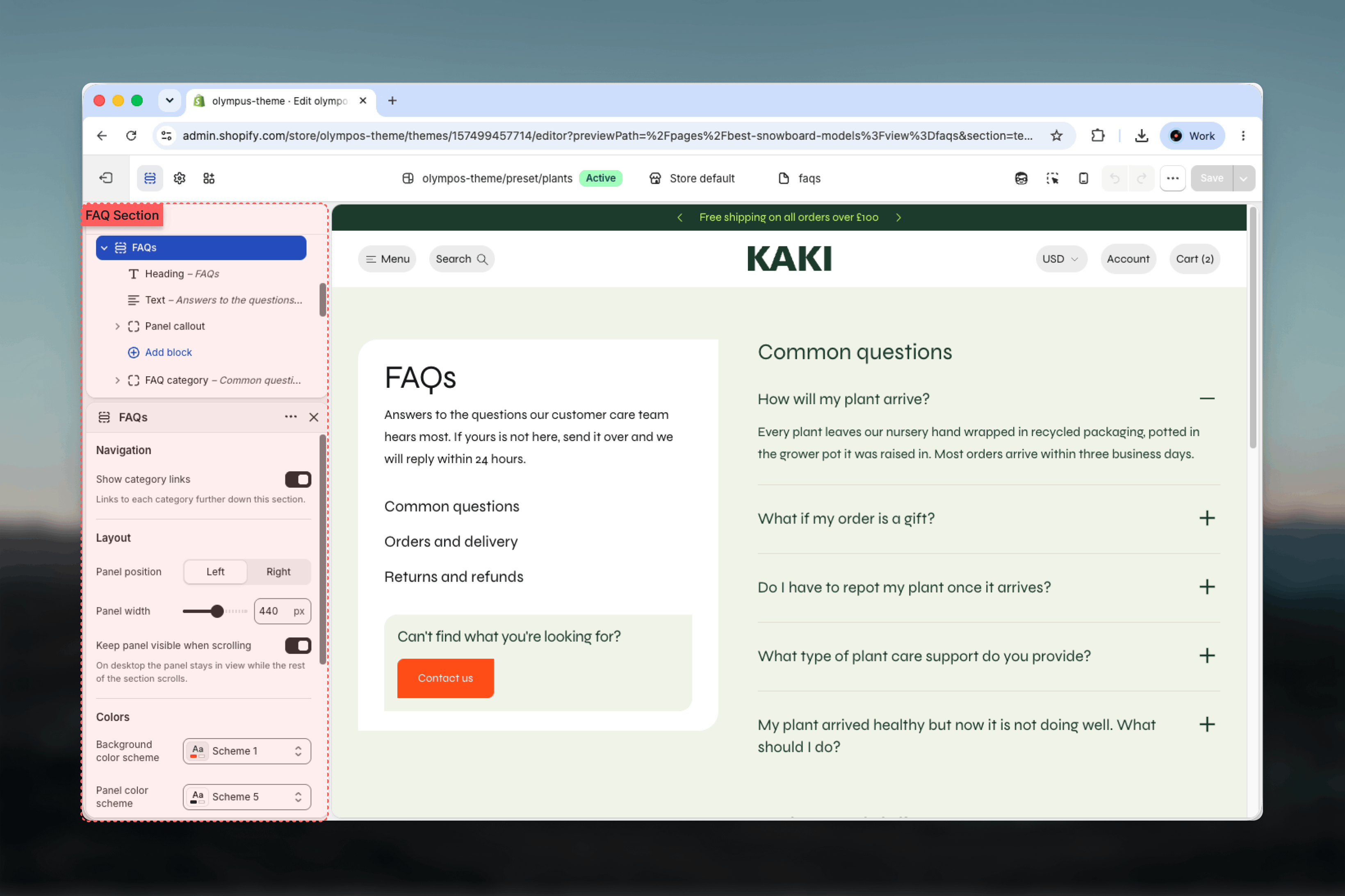
Click FAQs in the left sidebar. The panel blocks and FAQ categories are listed underneath; expand a category to edit its questions.
How it works
The section is a two-column grid. The panel holds a Heading and a Text block, then the category links, then the Panel callout at its foot. The content column stacks the FAQ category blocks in order; each category prints its heading followed by an accordion of questions. Clicking a question toggles its answer with a plus and minus icon. Questions open and close independently, so opening one never closes another and a customer can leave several answers open side by side while comparing them. Once a question has keyboard focus, the up and down arrow keys move to the previous or next question and the Home and End keys jump to the first or last one, so a long list can be scanned without the mouse. Category links scroll the page smoothly to the matching category and update the address bar, so a customer can copy the link to a category or use the back button to return to where they were. Visitors who have asked their device to reduce motion get an immediate jump instead of the smooth scroll. Because the links are generated from the blocks you never have to maintain them by hand.Template settings
- Panel
- Colors
- Layout
Blocks
- Questions
- Panel
FAQ category
FAQ category
A titled group of questions. Heading is the category name (Default: Common questions) and also the label of its link in the panel. Heading level sets the semantic tag from H2 to H6 (Default: H2). A new category comes with three placeholder questions; add or remove Question blocks as needed.
Question
Question
One accordion row inside a category. Question is the visible trigger text. Heading level is H2 to H6 (Default: H3), one step below the category heading keeps the outline tidy. Answer is rich text, so it can hold links, lists and bold text. Open by default expands the row when the page loads (Default: off); use it sparingly for the single most common question.
Best practices
Group by intent
Categories such as Orders and delivery or Returns and refunds match how customers think. Keep three to six categories.
Write questions as customers ask them
“How do I track my order?” is easier to scan than “Order tracking”. The question is the link text customers read first.
Keep answers short
Two or three sentences with a link to the full policy beat a wall of text inside an accordion.
Open one question at most
Leaving every answer collapsed keeps the page scannable. If one question dominates support, open only that one.
Keep the panel sticky
Sticky category links make long pages navigable. Turn stickiness off only if the panel is taller than the viewport.
Close the loop with the callout
Point the Panel callout to the Contact page so customers who do not find an answer have an obvious next step.
Related guides
Contact
The Contact template uses the same panel layout with a form
Page Template (main-page)
The Page section’s Sidebar layout accepts FAQ categories on any page
Theme blocks
Reference for the Heading, Text and Button blocks