

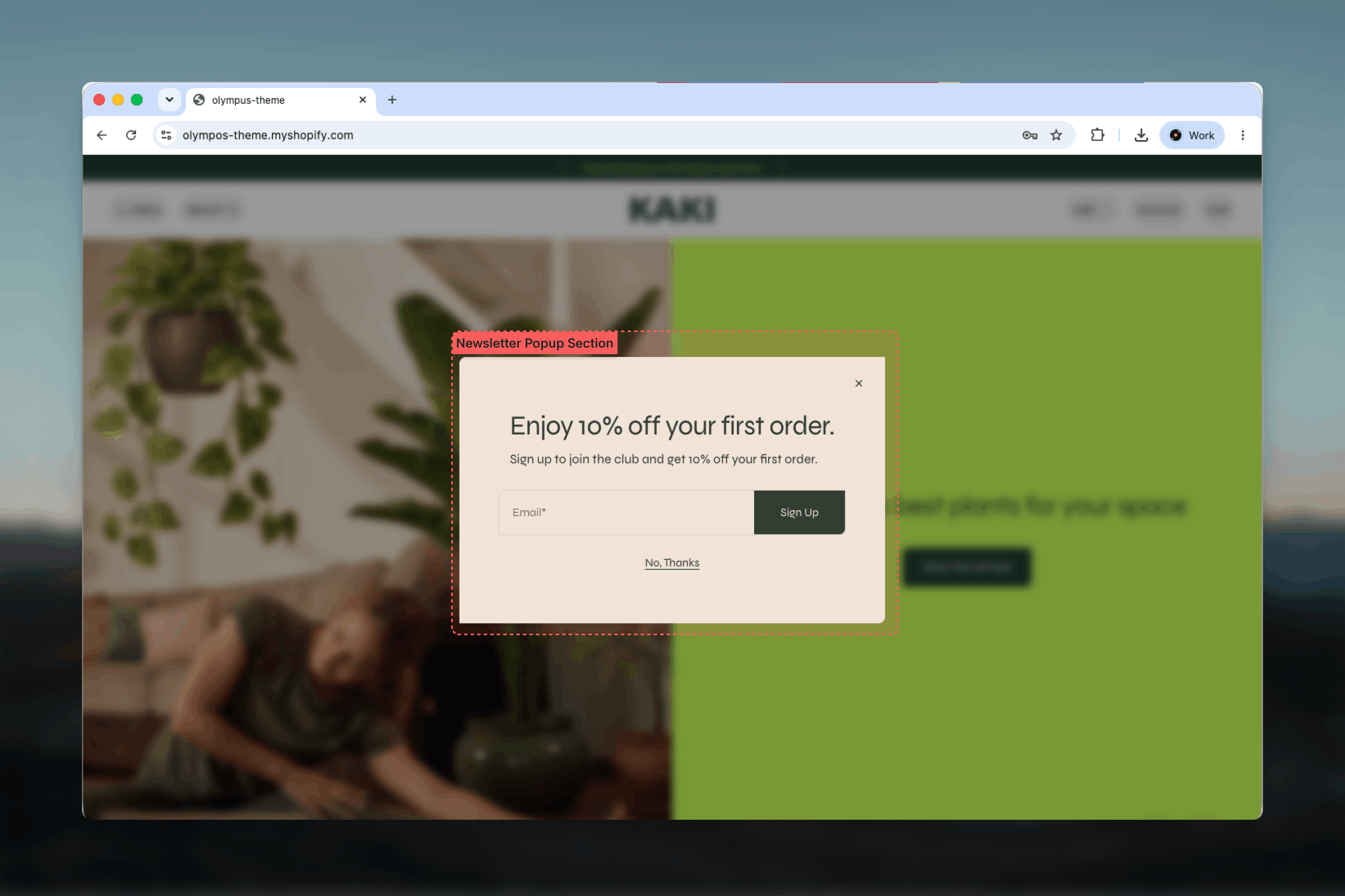
What this section controls
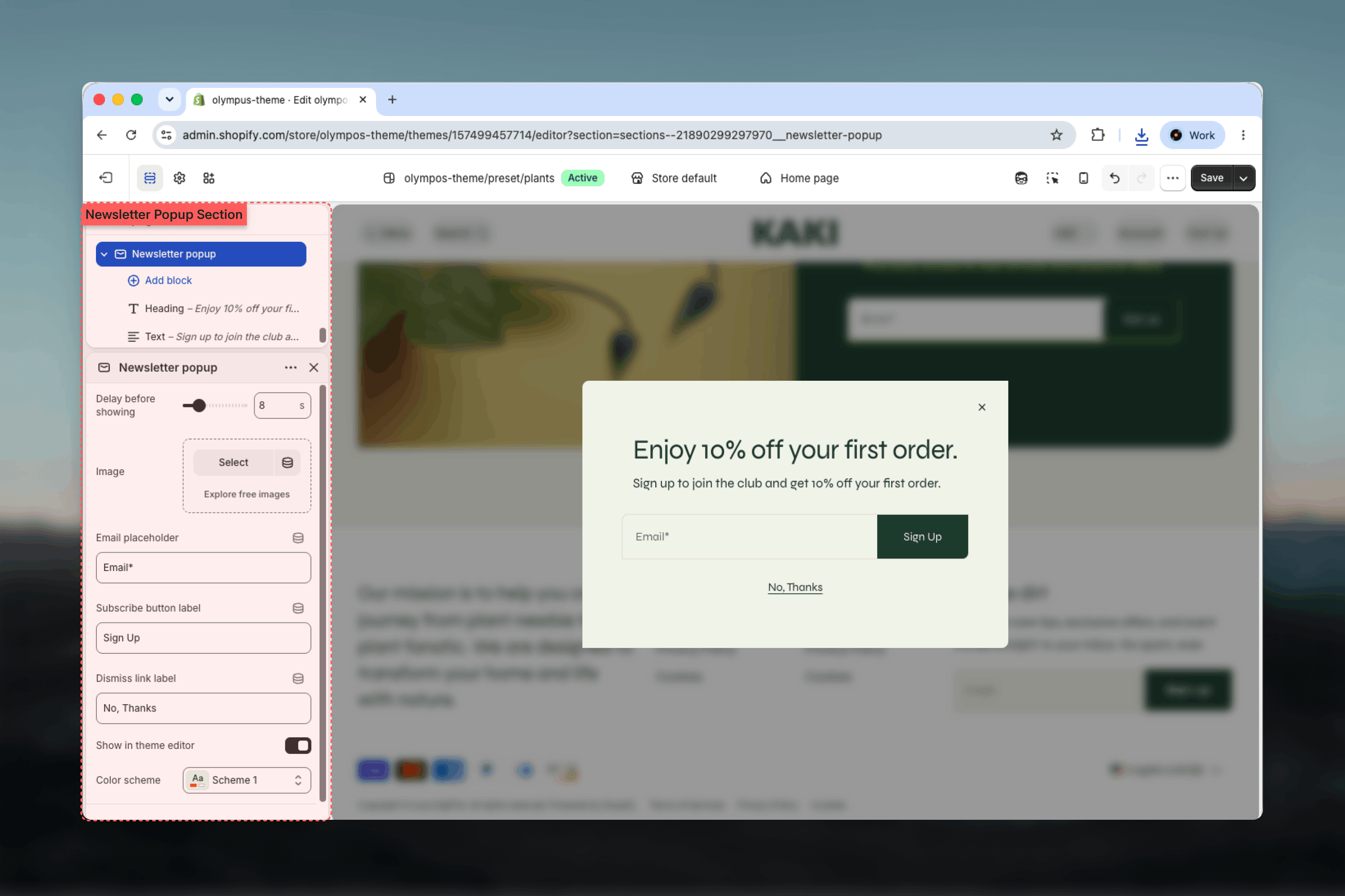
- How many seconds pass before the popup opens
- An optional image beside the content
- The email placeholder, subscribe button label and dismiss link label
- Whether the popup is shown while editing in the Theme Customizer
- Color scheme of the dialog
- Heading and Text blocks inside the dialog
Getting started
1
Open the Theme Customizer
From the Shopify admin, open Online Store, then Themes, and select Customize on Olympus.
2
Find the Modals & drawers group
In the sidebar, scroll past the template sections to the Modals & drawers group and select Newsletter popup. It is included with the theme and does not need to be added.
3
Write the offer
Edit the Heading and Text blocks, then set the Subscribe button label and Dismiss link label.
4
Set the timing
Choose Delay before showing. Keep Show in theme editor on while you style it, and turn it off when you move on to other sections.
How it works
On the storefront the popup waits the configured delay after the page loads and then opens as a centered dialog over a dimmed page. Visitors can subscribe, close it with the corner icon, select the dismiss link, press Escape or click the dimmed area outside the dialog. When an image is set the dialog widens into a split layout with the image on one side and the content and form on the other; without an image it is a single narrow column. The popup remembers what the visitor did, in their browser only:- Dismissed — by any of those methods — stops it from opening again for 30 days.
- Subscribed stops it from opening again for one year.
Section settings
Timing
Delay before showing: seconds between page load and the popup opening, from 3 to 30. Default: 8. A short delay catches visitors before they leave but interrupts them before they have seen anything; a longer delay reaches only engaged visitors. We recommend 8 to 15 seconds. When an age verification popup is present, the countdown starts after the age question is answered rather than at page load.Content
Image
Image
An image shown beside the content. Setting one switches the dialog to a two-column split layout; leaving it empty keeps a compact single column. Use a portrait image, since the column is taller than it is wide.
Email placeholder
Email placeholder
Text shown inside the empty email field. Default: Email*. The asterisk signals a required field; keep it or replace it with wording such as “Your email address”.
Dismiss link label
Dismiss link label
Text of the link under the form that closes the popup. Default: No, Thanks. A visible dismiss link, in addition to the corner close icon, Escape and clicking outside, makes the popup feel less trapping. Whichever way it is closed, the popup stays away for 30 days.
Editor and colors
Show in theme editor
Show in theme editor
Keeps the popup open in the Theme Customizer preview so you can style it without waiting for the delay. On by default. It has no effect on the live storefront, where the delay always applies.
Color scheme
Color scheme
Background, text, field and button colors for the dialog. Default: Scheme 1. Choose a scheme that contrasts with your typical page background so the dialog reads as a separate layer.
The Newsletter popup has no Width, spacing or border settings. As a dialog it is sized by its content and the screen, not by the page layout.
Blocks
The dialog accepts two shared blocks, rendered above the form. Their settings are documented in Theme blocks.- Heading: the offer, for example “Enjoy 10% off your first order.” Rich text with heading level, size and alignment. The default configuration uses Heading 3 aligned left.
- Text: one sentence on what subscribers receive.
Best practices
Offer something concrete
A percentage off or free shipping on the first order justifies the interruption. A plain “join our newsletter” rarely does.
Delay at least eight seconds
Give visitors time to see the page. Popups that open instantly are closed instantly.
Keep the dismiss link honest
“No, thanks” or “Maybe later” respects the visitor. Avoid guilt-trip wording; it damages trust more than it gains subscribers.
Use one offer everywhere
Match the popup’s promise to the Newsletter banner and footer form so customers never see conflicting offers.
Test on a phone
The dialog fills most of a small screen. Confirm the image, text, field, button and dismiss link are all visible without scrolling.
Turn off the editor preview when done
Show in theme editor is a convenience for styling. Leaving it on makes every later editing session start behind the popup.
Related guides
Newsletter banner
An in-page signup card as an alternative or complement to the popup
Footer
The footer Newsletter block, a low-pressure signup on every page
Age verification popup
The other dialog in the Modals & drawers group