

What these settings control
- Corner rounding of product, collection and article cards
- Corner rounding of images, videos and media frames inside sections
- Corner rounding of boxes such as tiles, panels and drawers
- The radius of text inputs, selects and search fields
How to access
1
Open the Theme Customizer
From your Shopify admin, go to Online Store, then Themes, and select Customize.
2
Open Theme settings
Select the Theme settings icon at the bottom of the left sidebar.
3
Select Corners
Expand the Corners group to see Corner style and Input corner radius.
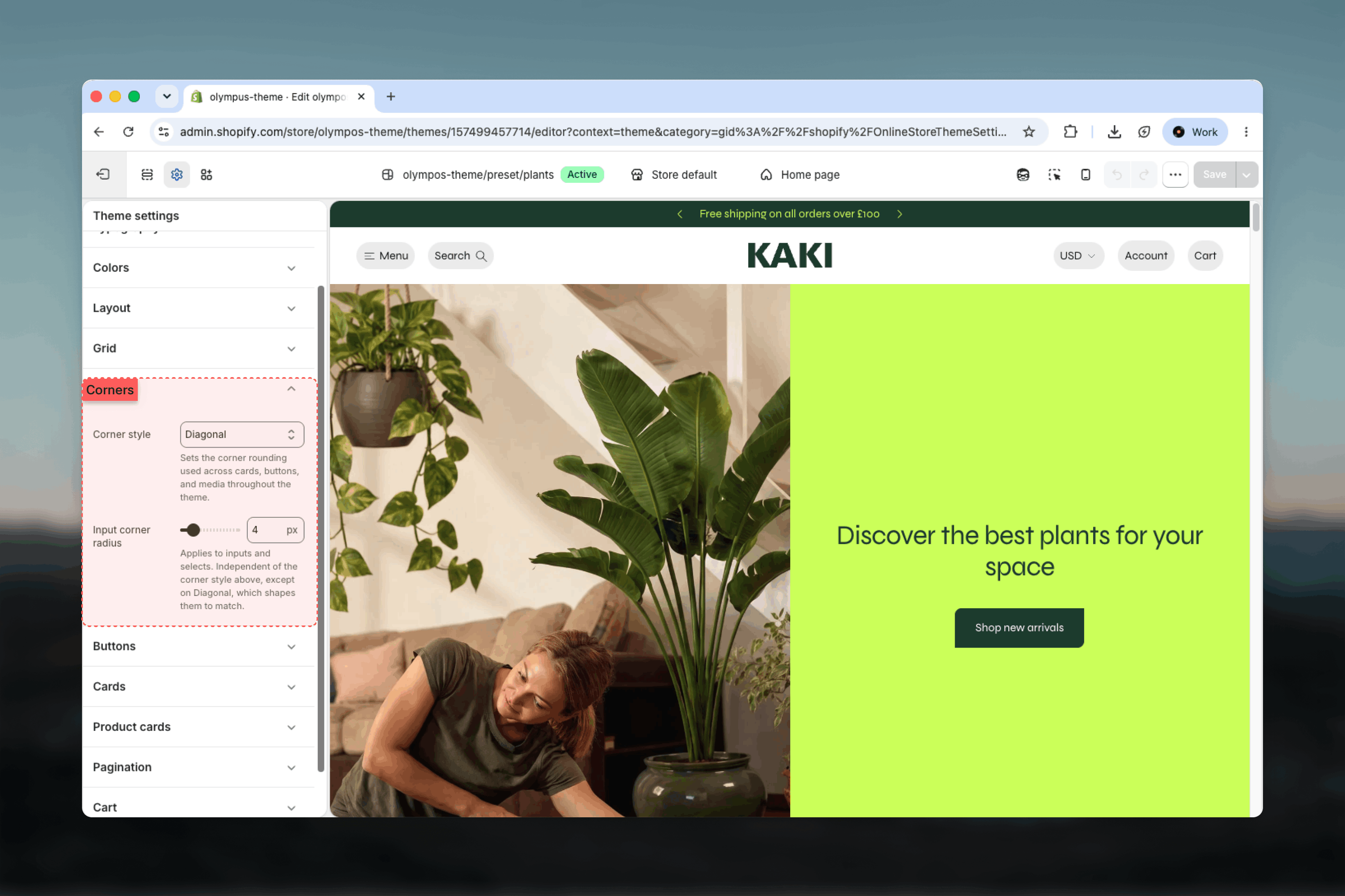
Settings
Corner style: The rounding used across cards, media and boxes throughout the theme. Default: Soft.- Sharp: No rounding anywhere. Cards, images and tiles have crisp right angles, which suits minimal and luxury aesthetics.
- Soft: A small, even radius on all four corners. Friendly without drawing attention to itself. Default.
- Rounded: A larger radius on cards and media, with small controls such as pills becoming fully round. Suits playful and lifestyle brands.
- Diagonal: Two opposite corners are rounded, the top-left and bottom-right, while the other two stay sharp. This gives cards and media a distinctive leaf-like silhouette that reads as a deliberate brand signature.
Choosing Diagonal changes the silhouette of every card, media frame, tile and input on the store. Preview the home page, a Collection Page (PLP) and the cart before saving.
Best practices
- Align corners with buttons: Pair Sharp with Sharp button corners and Rounded with Fully rounded buttons. Mixed pairings are possible but should be a deliberate choice.
- Match the input radius to the corner style: Around 4 pixels for Soft, 0 for Sharp and 8 or more for Rounded keeps newsletter forms and search fields consistent with nearby cards.
- Use Diagonal sparingly: It is a strong visual statement; it works best with plenty of whitespace and simple imagery, and less well with busy product photography.
- Consider bordered cards: With Show a border on cards enabled, larger radii soften the grid; Sharp corners give a clean, grid-like look.
- Preview drawers and popups: Corner style also shapes the cart drawer, quick view drawer and popups, which are easy to forget when previewing.